Multi-Tenant Applications Detections

TL;DR – Discussing various Sentinel and Microsoft XDR detections related to multi-tenant applications, including the ones that are possible and the ones that are not.

A while back I created this post Cross-tenant workload identities with a single secret focused on an application that was registered on one tenant, but with access to other tenants and it used a single secret. Recently I’ve seen posts about detecting various scenarios within Sentinel related to this type of application, i.e. multi-tenant application. This post is about various Sentinel and Defender XDR detections related to these applications, the ones that are possible and the ones that are not.

Before I go on, the steps I followed on my previous post involved creating the application registration on tenant A with a secret and some application level permissions. Then the service principal was created through a link to a user on tenant B. Of course, that user on tenant B would need to have permissions to consent to the application permissions the application is requesting. At the end, the application registration exists on tenant A only. The only object that exists on tenant B is the service principal (i.e., enterprise application), which is the local representation of that application on tenant B.

Adding credentials

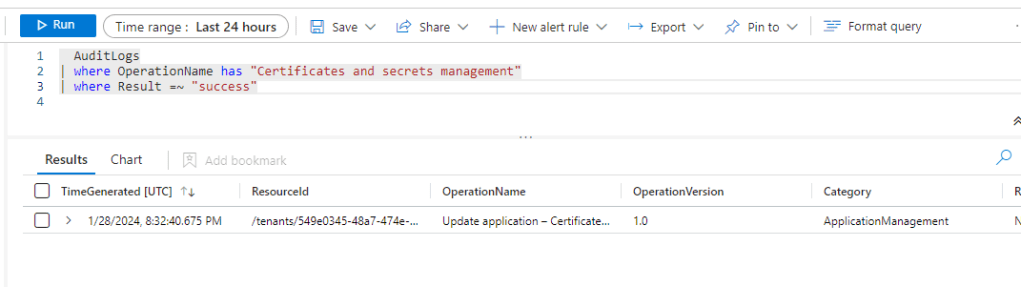
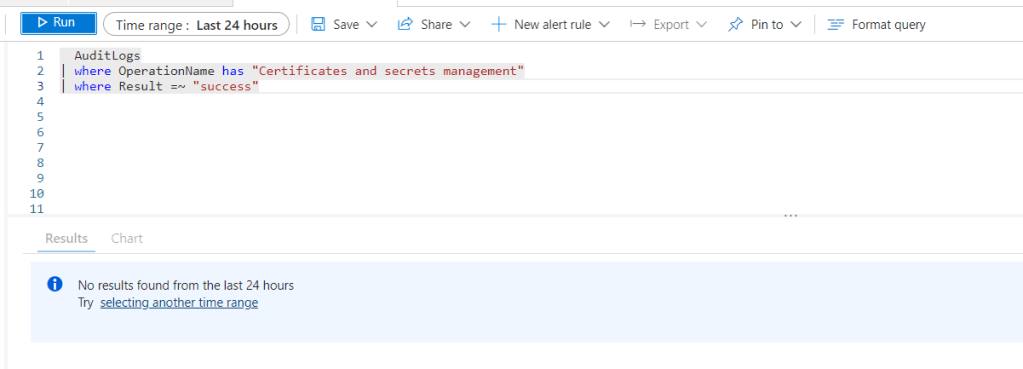
There are a few OOB analytic rules on Sentinel that look for specific events, such as the updates of credentials. These rules are querying AuditLogs for OperationName “Update application – Certificates and secrets management“. These queries are not going to generate any results on tenant B, because the secrets are being updated on tenant A only. 

I can see output on tenant A:
But not on Tenant B, as expected:
Addition of the Service Principal

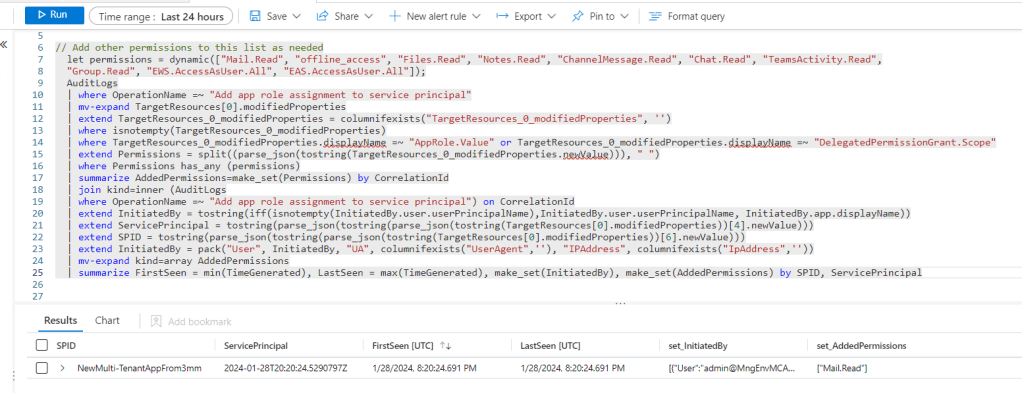
There are other OOB rules, such as “Service Principal Assigned App Role With Sensitive Access“, which are querying AuditLogs specifically for a few highly privileged permissions, those would detect the addition of that service principal on tenant B because the rule is specifically looking for OperationName =~ “Add app role assignment to service principal“. This rule focusing on the service principal, not the application registration, which is why it generates results.
The originating tenant

I was trying to see if any of the logs detects the originating tenant, but I wasn’t able to find it in any of the logs. However, if you run this CLI command you’ll be able to see it by looking at the attribute appOwnerOrganizationId:

az ad sp list --display-name <name of the MultiTenantApp>
Someone uses the Service Principal

The detections related to the use of the service principal will depend on the permissions granted. This is probably a good time to go back to a different post I created called Building secure applications using modern authentication (part 2), where I explain the difference between application and delegated permissions. The short version is that delegated permissions are bound by what the user has access to, but application permissions are not. In general, application permissions tend to have a much broader set of permissions because they are meant to be used for background processes, which do not have interactive end-user access.

In that post I used the example of the Mail.Read application permission, which “Allows the app to read mail in all mailboxes without a signed-in user“. This was the scenario I tested this week, so I could see where I would be notified when that multi-tenant application was used. For that test, I created a PowerShell script that connected with the multi-tenant application and secret to just read emails for one of my users, Barbie. For more details on OAuth client credentials flow, see Building secure applications using modern authentication (part 1).

From Sentinel, there are a few analytic rules that detect anomalies on MailItemsAccessed operations, such as this one, which queries the OfficeActivity table. In my case it didn’t trigger, but this is my test instance, so I don’t really have a good history for my user Barbie in this case. There are also various hunting queries including this one, which queries the CloudAppEvents table. In my case this query returned the AppId that I was using with the PowerShell script.
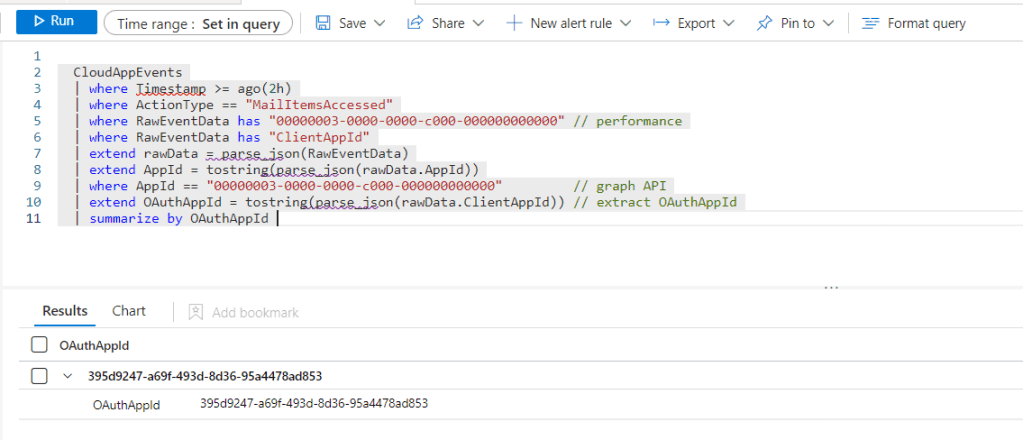
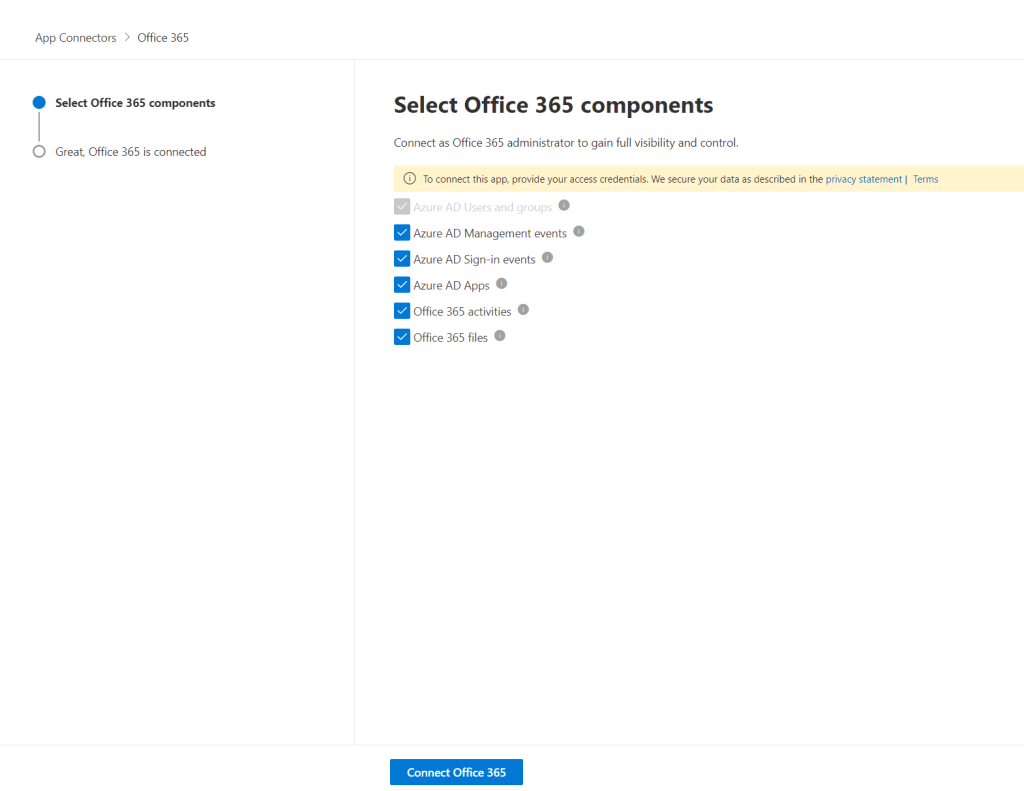
By the way, if you are not seeing any records in CloudAppEvents, navigate to Settings > Cloud apps > Connected apps > App Connectors and make sure your Microsoft 365 connector settings have the correct events checked.
From Defender XDR, I also triggered the Access to sensitive data alert:
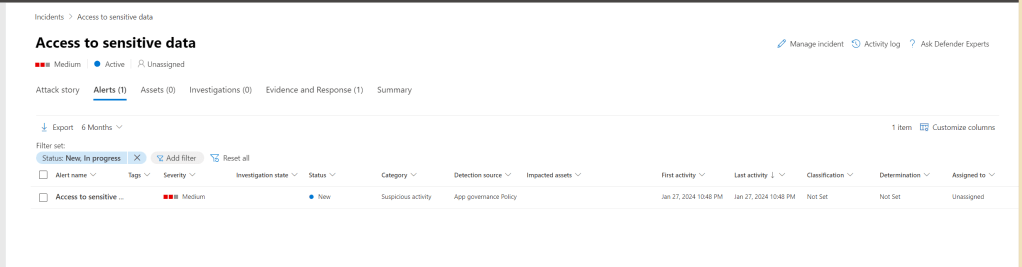
This alert is coming from Defender for Cloud Apps, specifically from App Governance:
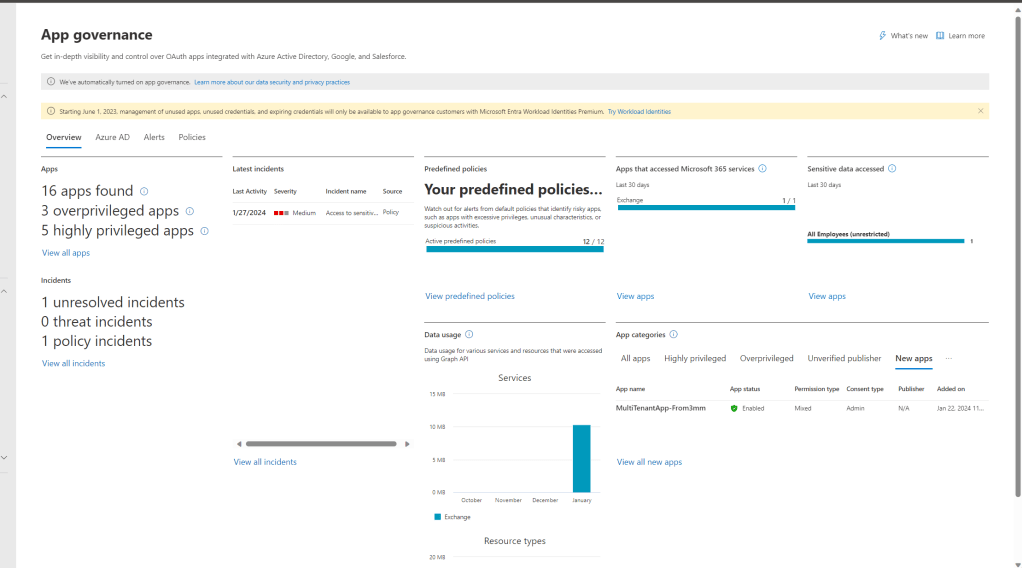
The Access to sensitive data is a predefined policy within App Governance, but you can also add additional policies here.

App Governance is also where I can find a lot more information on this service principal.
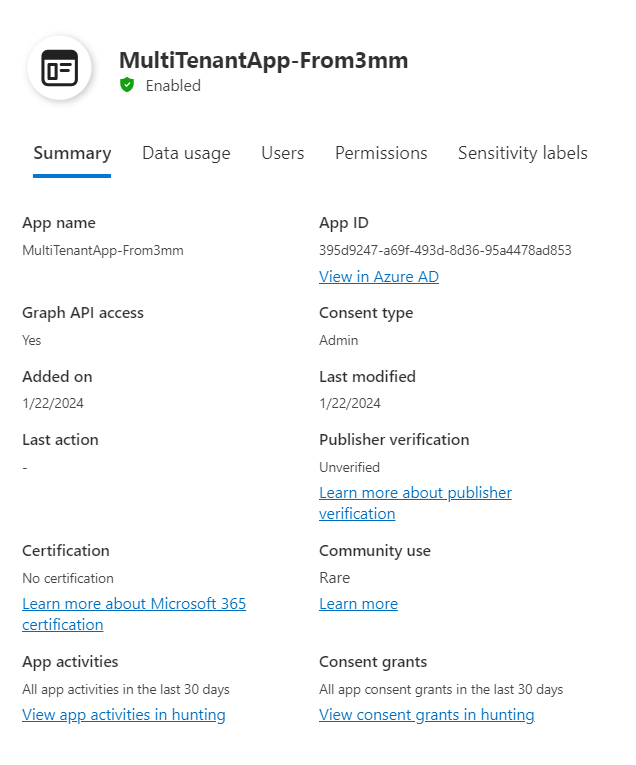
Including the permissions assigned:

Also, App Governance used to be an add-on, but it is now included with E5, so if you haven’t enabled it, I suggest you do. You can follow the steps here.

Not a new Service Principal

So far, I’ve gone over a few options to detect the addition of the service principal and the actual use of it, which led me to App Governance within Defender for Cloud Apps. But this a good area to focus on, even before you see the alerts coming in. This is especially important when the service principal is the only object you see within the tenant, which is the case for this multi-tenant application.

As you can see below, there is a section within the dashboard that focuses on App categories, where you can dive into specific applications, such as those that are Highly privileged and Overprivileged.
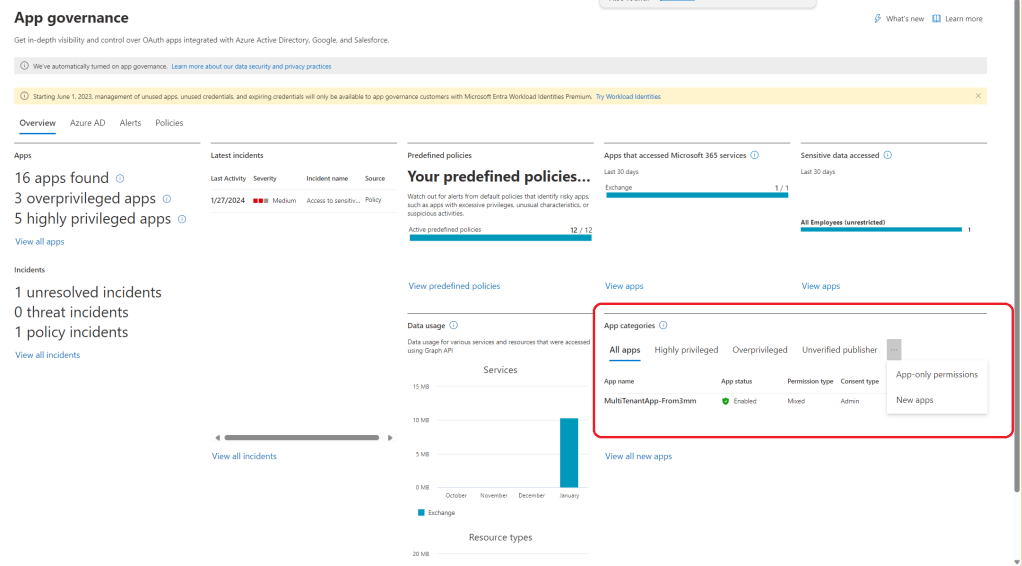
Closing

Adding some of the detections mentioned above is very useful to detect the changes, such as when the service principal is created or when it’s used. However, that only alerts based on new or updated applications. A better scenario would be to detect those unfortunate opportunities before attackers do. A good security review process for consents is a must. However, for organizations that haven’t had that process in place, I always recommend to our customers that we start with a thorough review of these existing applications. This is especially important for those that include application permissions, if those are the only permissions assigned and especially if they are mixed with delegated permissions.

As usual, I hope this post is useful! And I hope it inspires you to tackle the early spring cleaning of OAuth apps! 🙂

Playing with Copilot Studio – Part 2

TL;DR – My initial adventures with Copilot Studio. Part 2 is on AI Plugins, specifically, a very simple Security prompt I created.

When I initially started playing with Copilot Studio (previously PVA), my curiosity was triggered by the creation of plugins. So far, I’ve only created one type of plugin, but as soon as I get some time, I’ll be testing the other types as well. This is part 2 of a short blog post series on Copilot Studio.

  • Part 1 is about Topics, specifically, a very simple Security Topic I created.
  • Part 2 (this blog) is on AI Plugins, specifically, a very simple Security prompt I created.

There are a few types of AI plugins available, you can reference the documentation to go over the options. This feature is still in preview and during the preview, you can only use these plugins with Microsoft Copilot, you can’t use them with custom copilots, like the one I referenced in part 1. Again, I am looking towards the future and trying to learn about the possibilities that may become available, so please keep that mind as I go through this first plugin. As I mentioned above, I do plan to test additional plugin types in the future.

Licensing

The feature I am sharing here is only available if you have AI Builder credits. The least expensive option I found to get some of those credits is through the Power Apps Premium license. Maybe there’s another way, but that’s the one I found. It comes with 500 AI builder credits, which can do a lot more than what I am doing here (for now). Also, once you have the license, you have to assign the credits to your environment and you do that via the Power Platform admin center. For more details, please review the documentation.

Security Prompt

Within the Copilot Studio menu, there are two ways to get to the menu to create these prompts. You can either reach it via the Plugins (preview) menu or via the Prompts (preview) menu.

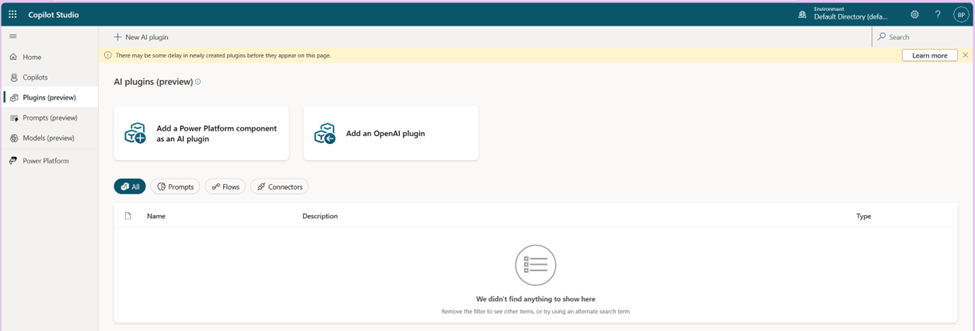
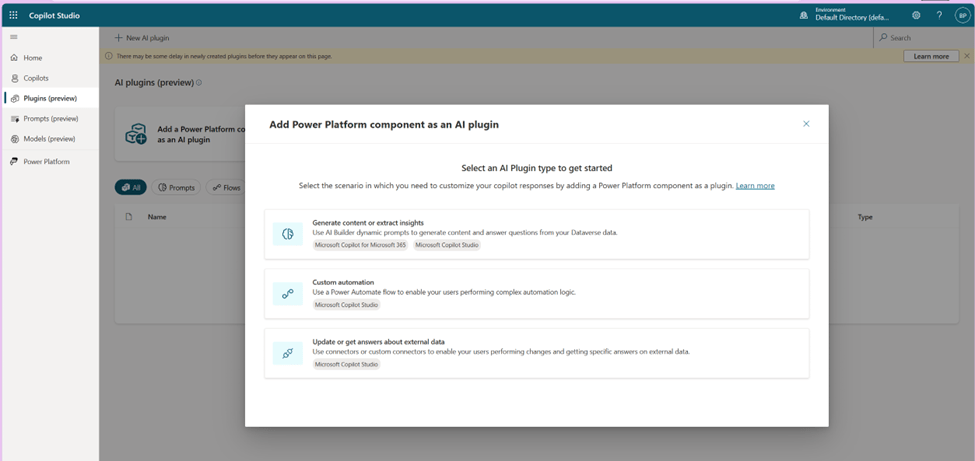
From the Plugins menu, you will see these options:

The first one is the prompt option, Generate content or extract insights. You then get to name your prompt and enter the prompt contents and then test it out. Of course, you do need at least one dynamic value and you can name that whatever makes sense to the end user. This is where the value of reusing those successful prompts becomes very valuable. Then all the end user has to do is pass the value for the variable.

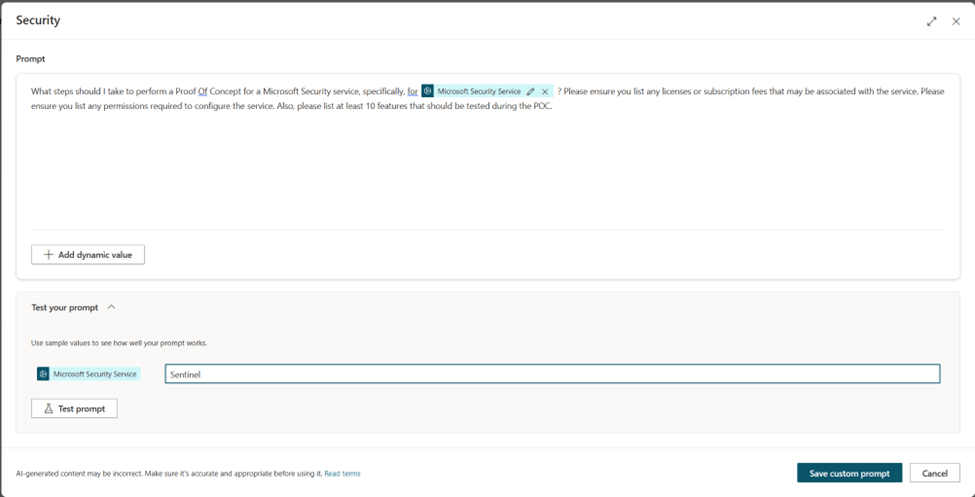
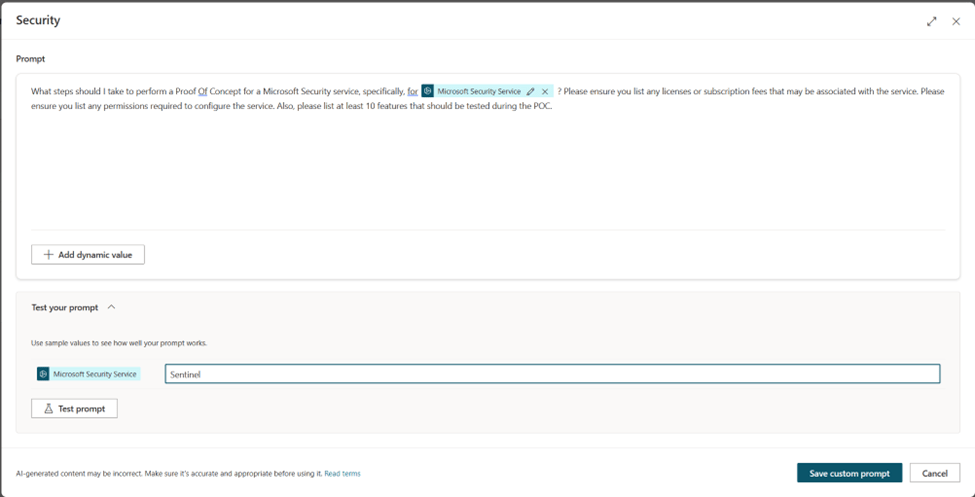
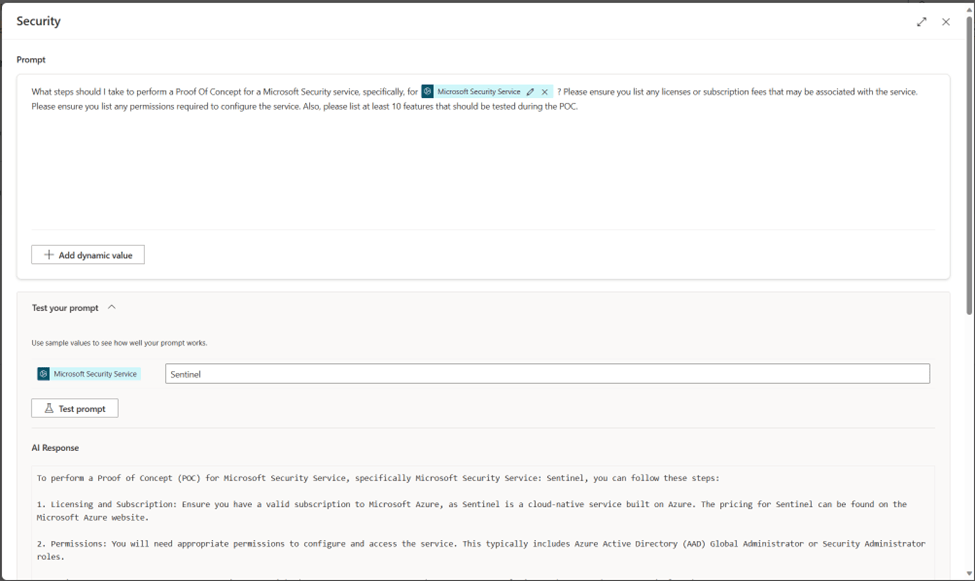
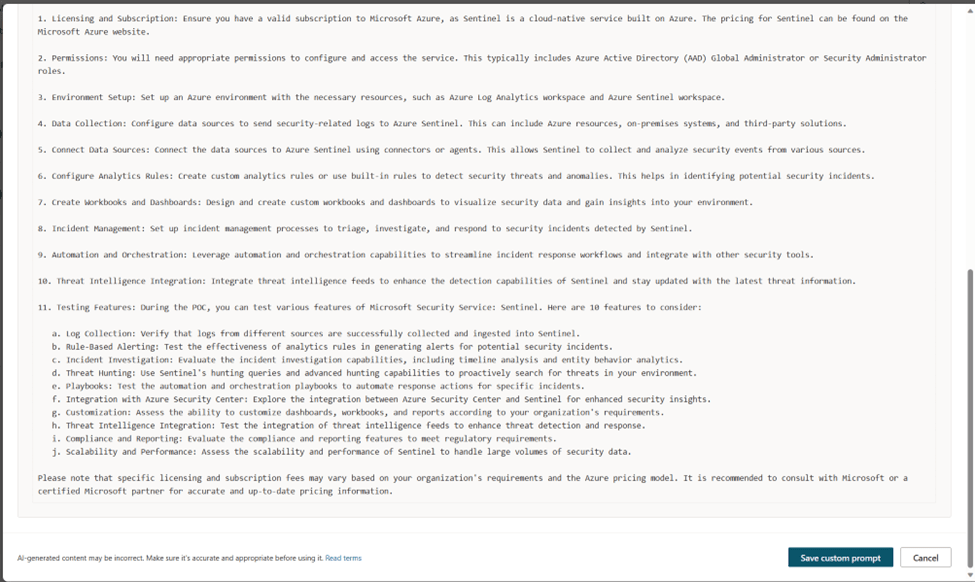
Then you get to test your prompt with a sample value (or values). In my case the prompt is “What steps should I take to perform a Proof Of Concept for a Microsoft Security service, specifically, for <<<Microsoft Security Service>>> ? Please ensure you list any licenses or subscription fees that may be associated with the service. Please ensure you list any permissions required to configure the service. Also, please list at least 10 features that should be tested during the POC.” And I am testing it with the value of “Sentinel“.

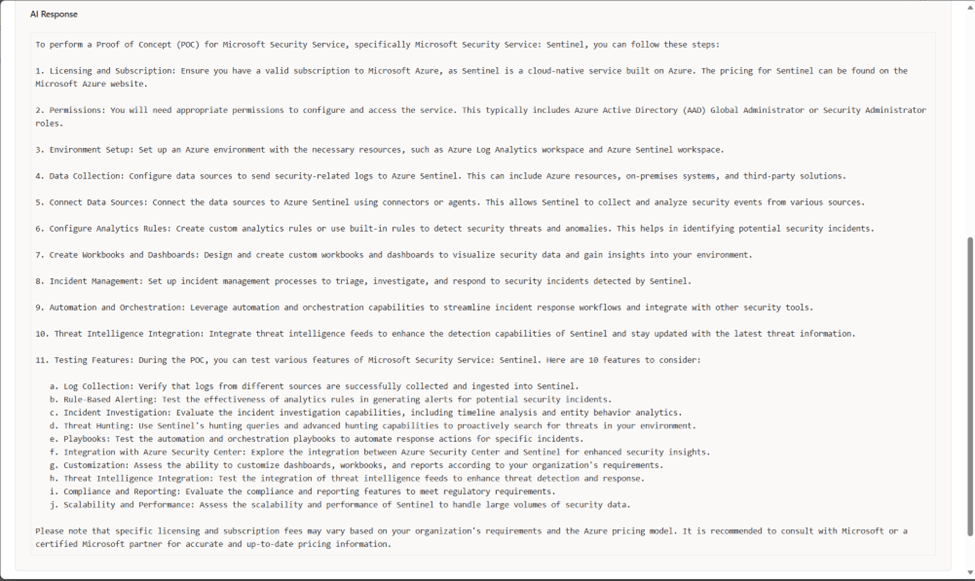
I can modify the prompt as needed based on the expected results. This is where I would play around with maybe formatting, if that’s something that is important to me. In this case it’s just a test, so I am leaving it as is and here is the test result.

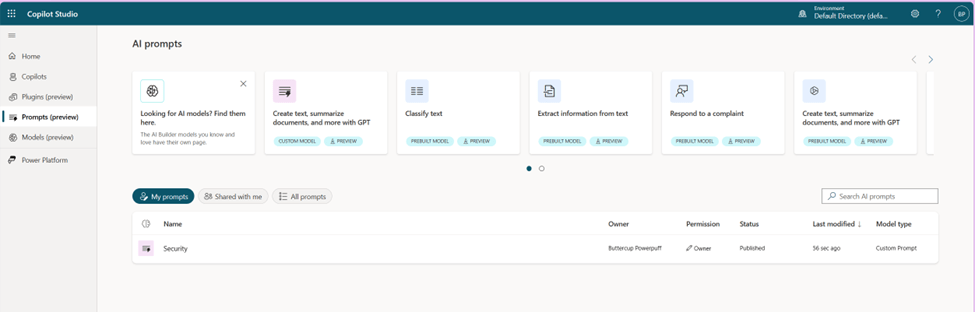
Once I am happy with the results, then I can save that custom prompt, which will then show under my list of prompts.

And eventually under the plugins as well. Although there is some delay with this blade currently.

If you are using this plugin with Microsoft Copilot, you do need to enable it in Microsoft Copilot.

Learning

I am still learning about the possibilities with this new tool and I can only imagine how much more powerful it will become in the future. So far, it’s been very straight forward to follow along the steps to test it out. If you are curious, like me, go ahead and give it a try. Enjoy!

Playing with Copilot Studio – Part 1

TL;DR – My initial adventures with Copilot Studio. Part 1 is about Topics, specifically, a very simple Security Topic I created.

I finally had some free time to play around with Copilot Studio (previously PVA). I saw this demoed during Ignite and I wanted to start playing with it, so I can learn what is possible. I’ve only tested a few features so far, but I can see the huge potential already. I am writing two short blog posts on this topic, because I tested two features that I thought could be very useful in the future. 😊

  • Part 1 (this blog) is about Topics, specifically, a very simple Security Topic I created.
  • Part 2 is on AI Plugins, specifically, a very simple Security prompt I created.

You are probably wondering why a Security Architect is testing this tool. There are several reasons, but the first reason is because a while back I created an MSSP SOC chatbot and I think this is a much better way to achieve similar results. Please keep in mind there’s a LOT more possible than what I tested, but I only had a few hours to play today.

My copilot

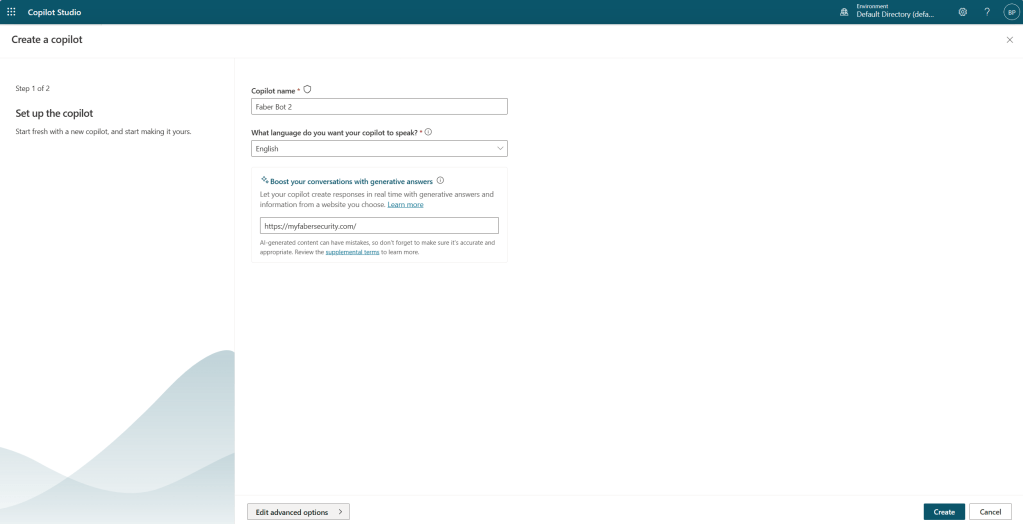
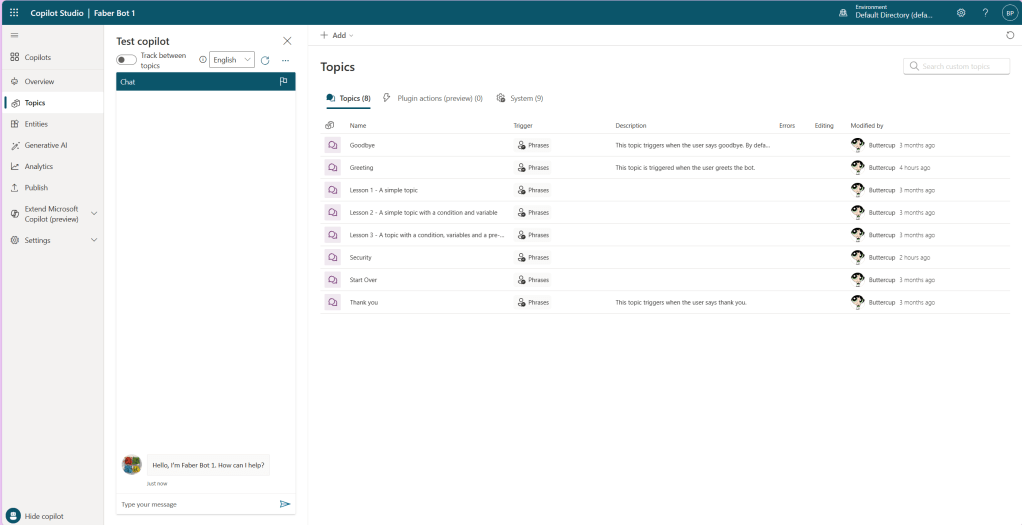
I actually created this copilot a few months ago, when it was still PVA. I creatively named it “Faber Bot 1” and it’s just using basic default settings, except I added a custom icon. It’s just a few clicks to create the copilot.

Security Topic

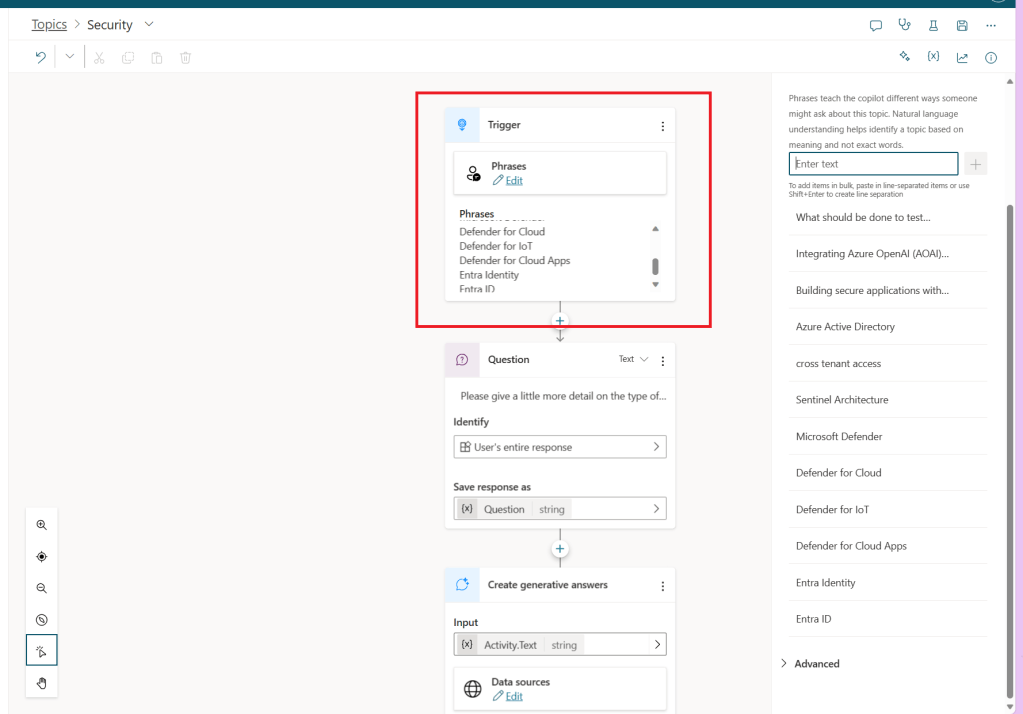
This is where I spent a little bit more time on the specific topic. There are a few topics that come out-of-the box, but the real value is adding those that you will need, in my case, I added the Security topic.

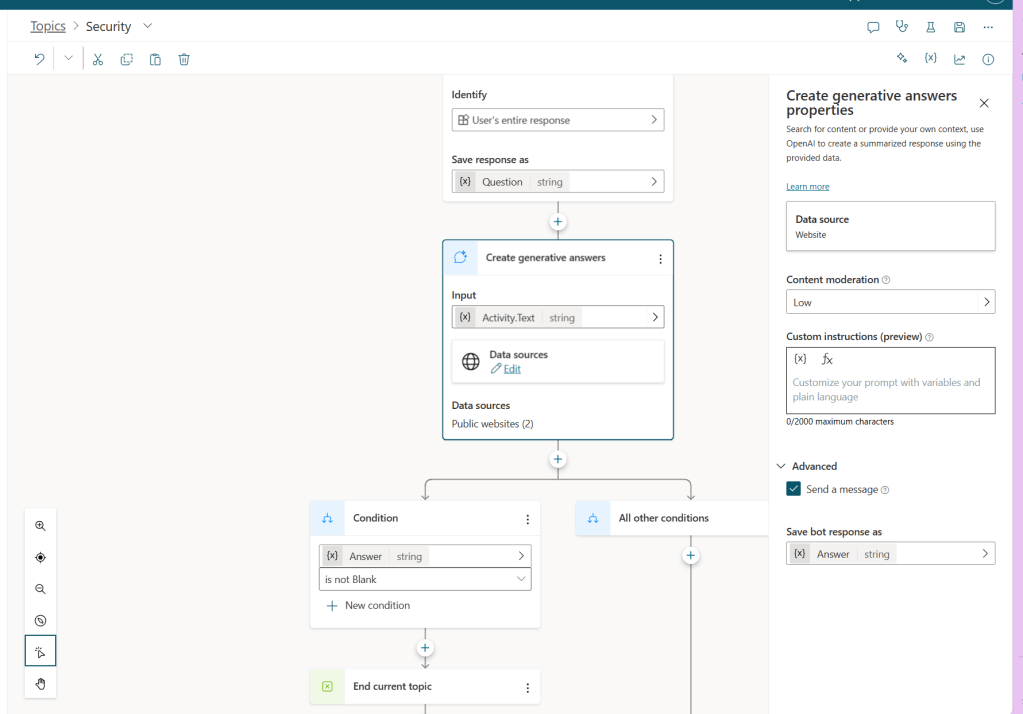
This topic is going to be looking for a few phrases that I edited to be specific to the topics that I wanted to ask it about.

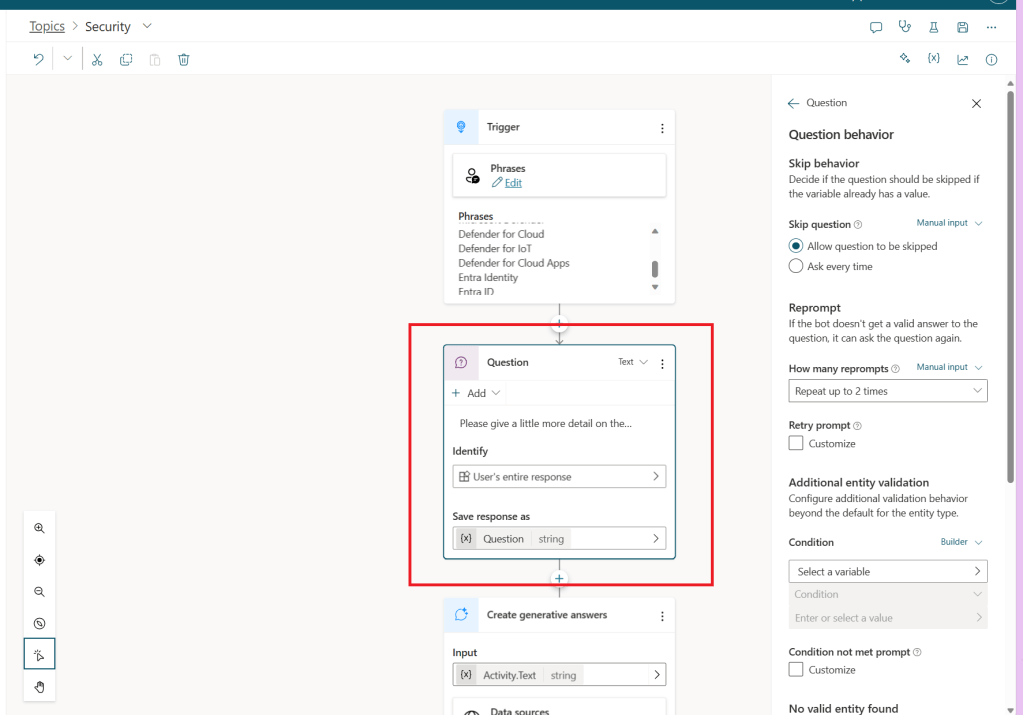
I then added a question, which is one of the features that I really like. And I just used some very basic settings, but you can modify this question to be asked based on specific conditions and to take other actions. In my case I am asking it to provide more detail on the type of information the end user is looking for. My plan with this is to get the end user to share more about what they really want, so the question that is sent to the LLM is really as detailed as possible, which increases the quality of the response from the beginning.

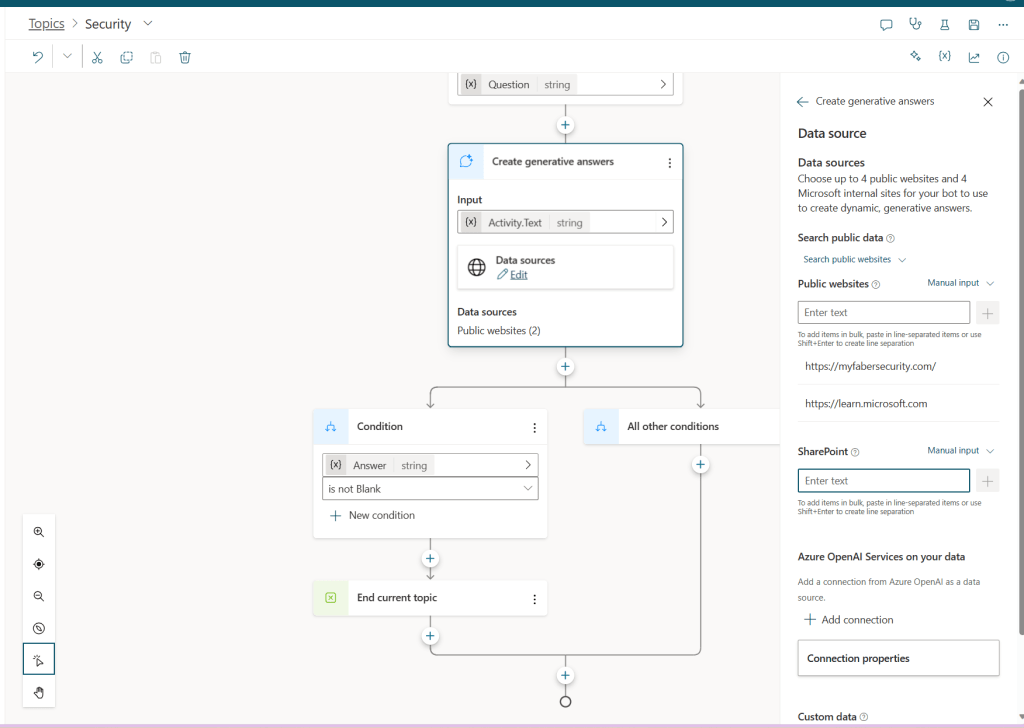
I then ask it to create a generative answer and I provided two public websites. You can choose up to 4 public websites and 4 internal SharePoint sites. You can also add a connection from Azure Open AI as a data source as well. In my case I am using my blog website and the Microsoft documentation.

Also, you can also provide some custom instructions, which I am not using. More importantly, you can save the bot response as a variable. In my case, I save it as Answer, which is a string.

As you can see above, I use the Answer variable in the Condition to evaluate if it’s not blank, then that that ends the topic.

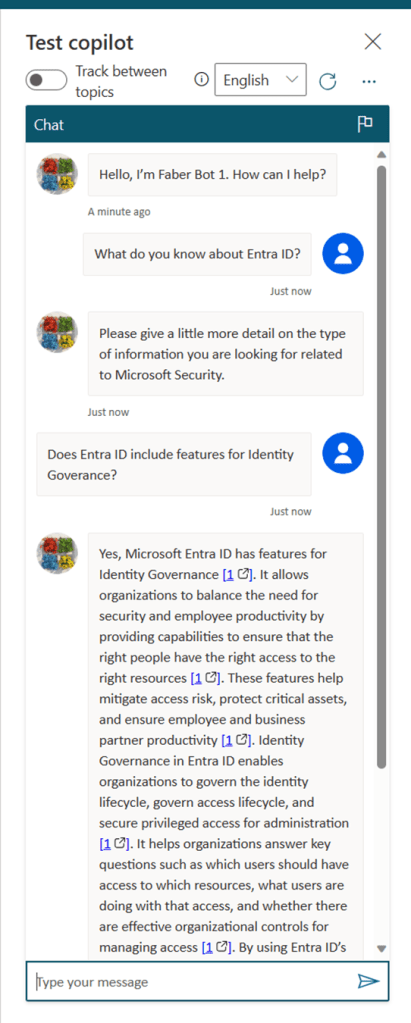
Let’s see this in action

Here I am asking it about Entra ID, and then you can see it prompting me for additional details, and then you see a very thorough answer provided. And you also get the links to the documentation.

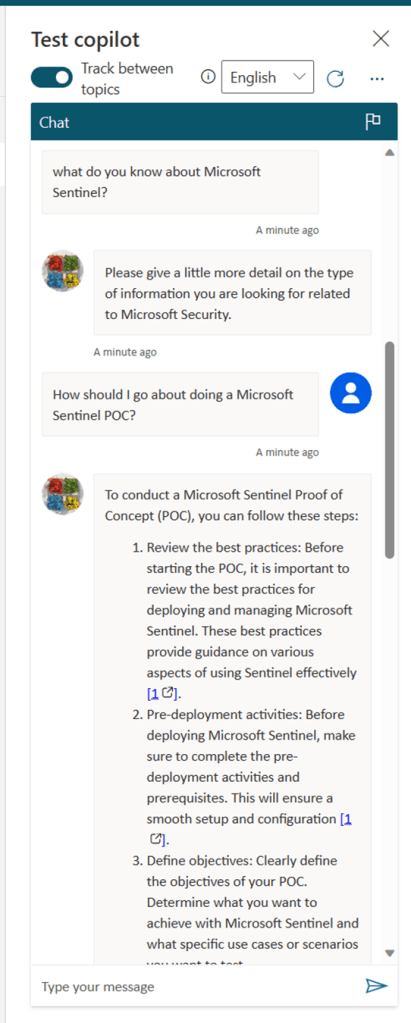
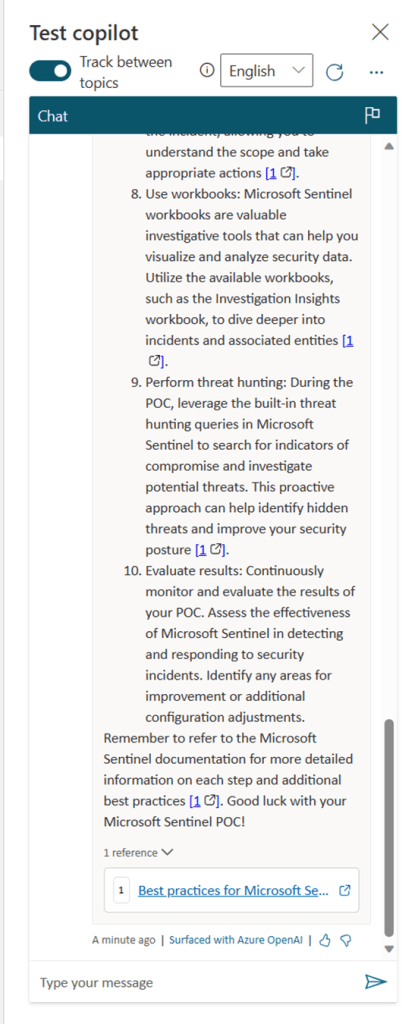
Here is another example, where I am asking about Sentinel.

Why?

I mentioned earlier that there are several reasons why I am testing this tool. Besides the fact that is a LOT of fun, another reason is that I hope this tool will eventually make it easier to integrate with other copilots. That’s partially the topic of part 2. As usual, I hope this is helpful and I hope you enjoy testing this tool as much as I did.

Sentinel alert if SMS is re-enabled

TL;DR – Raising Sentinel alerts, if SMS is re-enabled in your tenant.

This has been a popular topic of discussion with partners lately given the recent attacks where actors are using well known techniques such as SMS phishing (smishing), SIM swapping, MFA fatigue, etc. to compromise Identity Providers (IdPs). Microsoft Sentinel has quite a bit of OOB analytic rules and queries, including the ones mentioned in a recent Microsoft Sentinel blog post on BEC attacks, as well as other artifacts from community repositories, including Matt Zorich’s (@reprise_99), which are super useful! Especially that query that shows users that are sharing the same number for MFA.

However, there was one concerning story I read recently where it explained the attacker would actually update the SMS setting if it wasn’t enabled. In the case of tenants that have followed the recommended best practices and have disabled SMS, there should be a rule to alert immediately if that setting is ever updated. I couldn’t find one, so I created it. That’s what I am documenting in this short blog post.

Query

This query is looking for Authentication Methods Policy Updates where SMS has been enabled. It will also show the User that made the change and their IP Address.

AuditLogs
| where OperationName == "Authentication Methods Policy Update"
| extend UpdatedAuthenticationMethods = tostring(parse_json(tostring(parse_json(tostring(TargetResources[0].modifiedProperties))[0].newValue)))
| extend AuthMethodsArray = parse_json(tostring(parse_json(UpdatedAuthenticationMethods).authenticationMethodConfigurations))
| mv-expand AuthMethodsArray
| extend Method = tostring(AuthMethodsArray.id)
| extend State = toint(AuthMethodsArray.state)
| where Method == "Sms" and State == 0
| extend UserPrincipalName = parse_json(tostring(InitiatedBy.user)).userPrincipalName
| extend IPAddress = parse_json(tostring(InitiatedBy.user)).ipAddress
| project OperationName, Identity, UserPrincipalName, IPAddress, Method, State, TimeGenerated
Analytic Rule

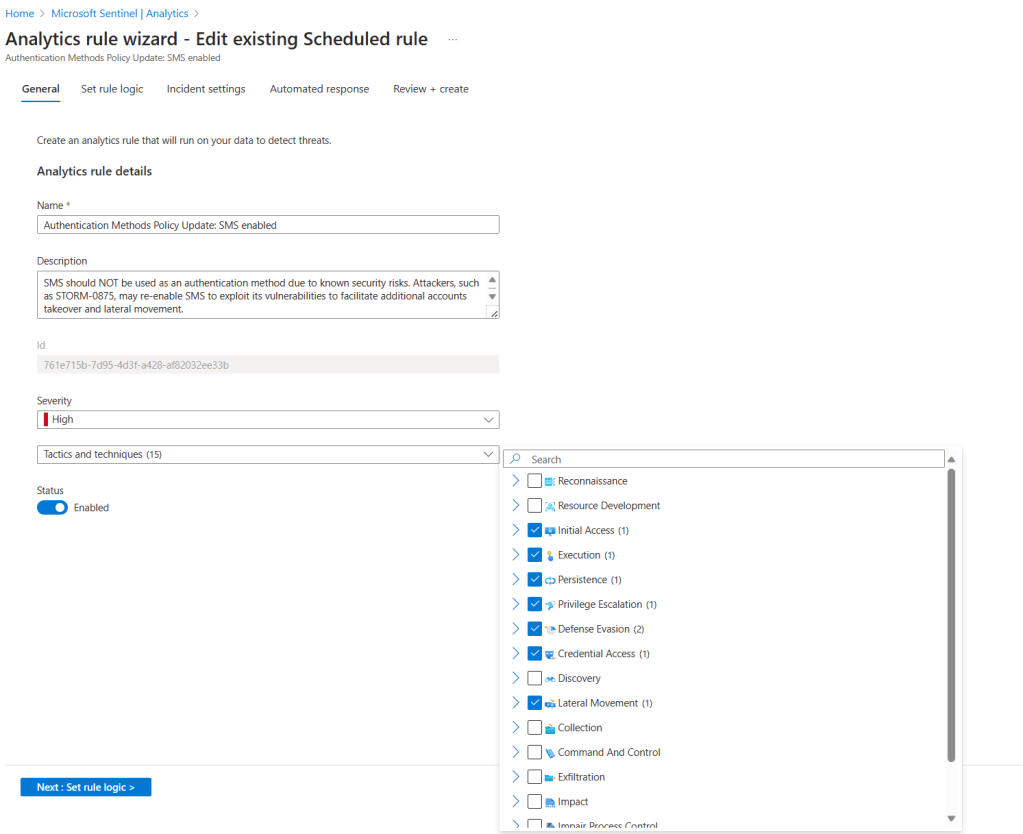
Please remember that the Fusion algorithm can use alerts generated by scheduled analytic rules that contain kill-chain (tactics) and entity mapping information.  That means that even the analytic rules created by analysts can be part of a multi-stage attack as long as those two items are present. So, when you create the analytic rule, make sure you select the associated tactics and techniques, as shown below.

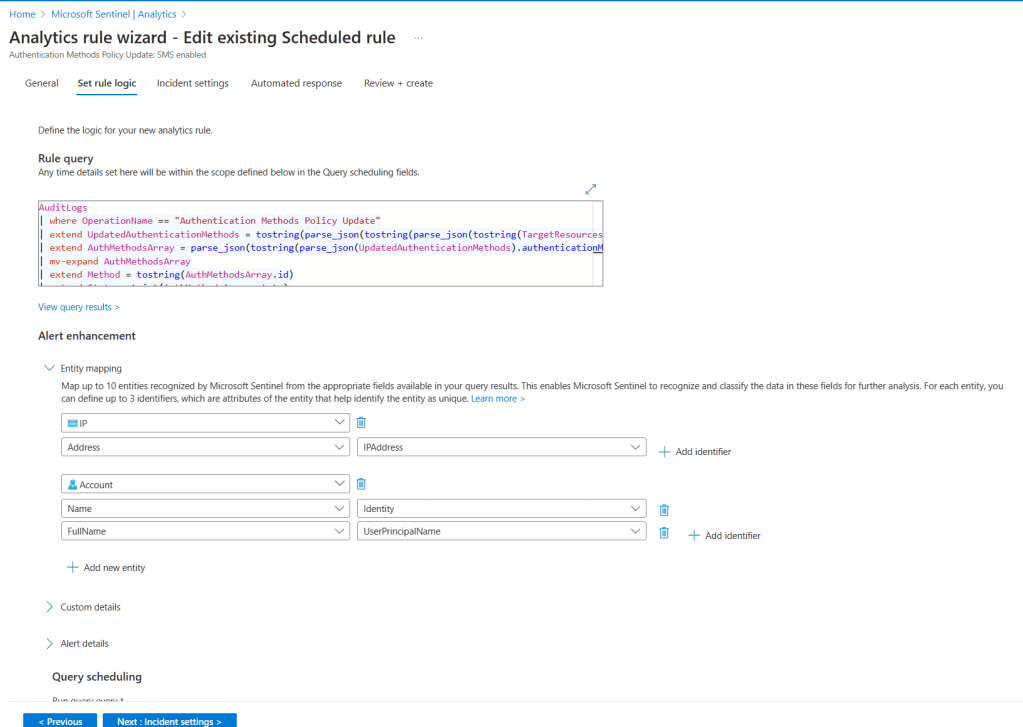
As well as configure entity mapping, as shown below.

This will ensure that the alert generated by this rule will also be incorporated into a multi-stage attack incident.

The alert

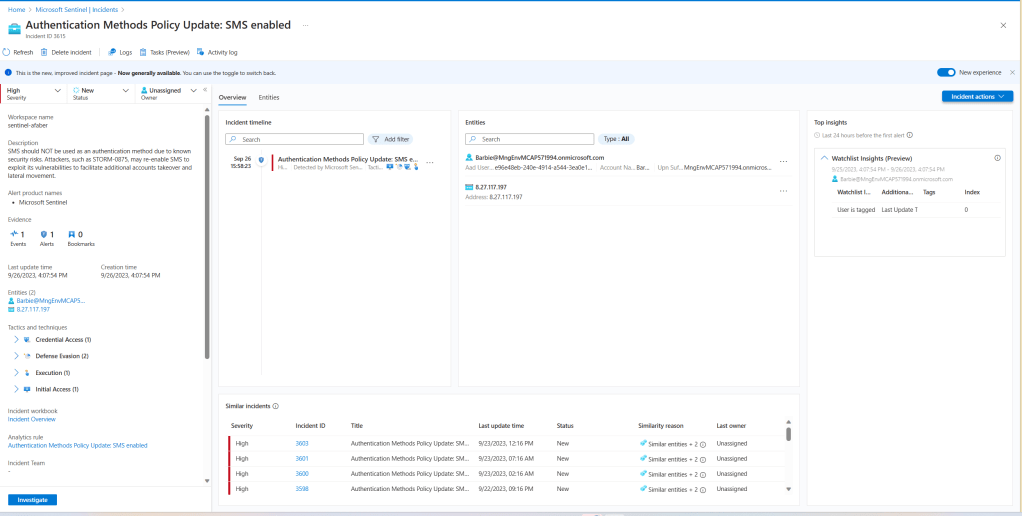
This is what the SOC analyst will see when they are alerted.

Closing

By the way, if you are considering options to replace SMS, please review the Microsoft documentation for the options available. There are phishing resistant options that are also passwordless! That means not only better security, but also your end users will love you for making their lives easier. If it helps, I also published a blog post a while back about a specific scenario using FIDO2 security keys, which I am big fan of. As usual, I hope this blog post is helpful.

Sentinel: SSE logging and alerting

TL;DR – Raising Sentinel alerts for the new SSE events.

I know I am late to the game, since this solution was announced way back last month, but what can I say, I’ve been busy. This weekend I’ve been testing Microsoft’s Security Service Edge (SSE) solution. So, while I was having fun testing and learning, I thought some of these events should be raised as alerts within Sentinel. Maybe not an incident, but at least an informational alert that can be correlated with other alerts, especially in cases of multi-stage attacks. So, in this blog post, I will show you one possible alert, for now.

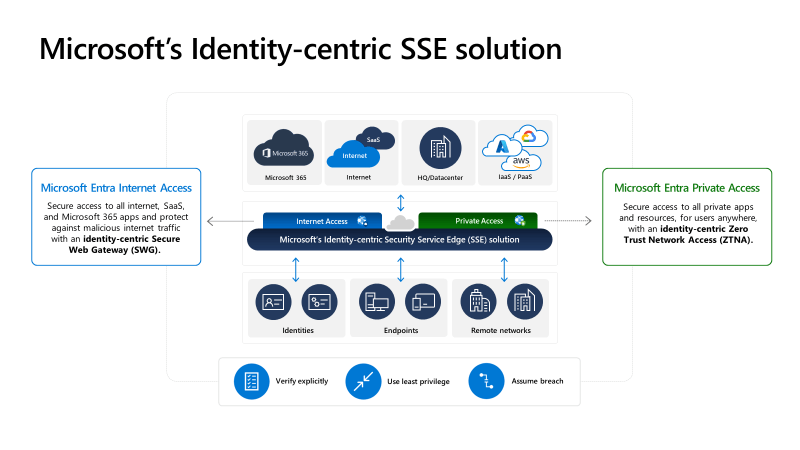
Notice the term SSE is used and not SASE (Secure Access Service Edge), that’s because SSE does not include an SD-WAN solution. Microsoft’s SSE solution includes the existing CASB (Cloud Access Security Broker), which of course is Microsoft Defender for Cloud Apps (MDCA), as well as the new services that were announced in July, Entra Internet Access, Private Access, and Universal Tenant Restrictions.

Entra Internet Access is an identity-centric Secure Web Gateway (SWG) solution, and Entra Private Access is an identity-centric Zero Trust Network Access (ZTNA) solution. Together, Entra’s Internet Access and Private Access together are known as Global Secure Access. By the way, if you want a deeper dive on these new services, there are two very thorough overview videos, one by John Craddock and one by John Savill, and both are fantastic.

Logging in progress

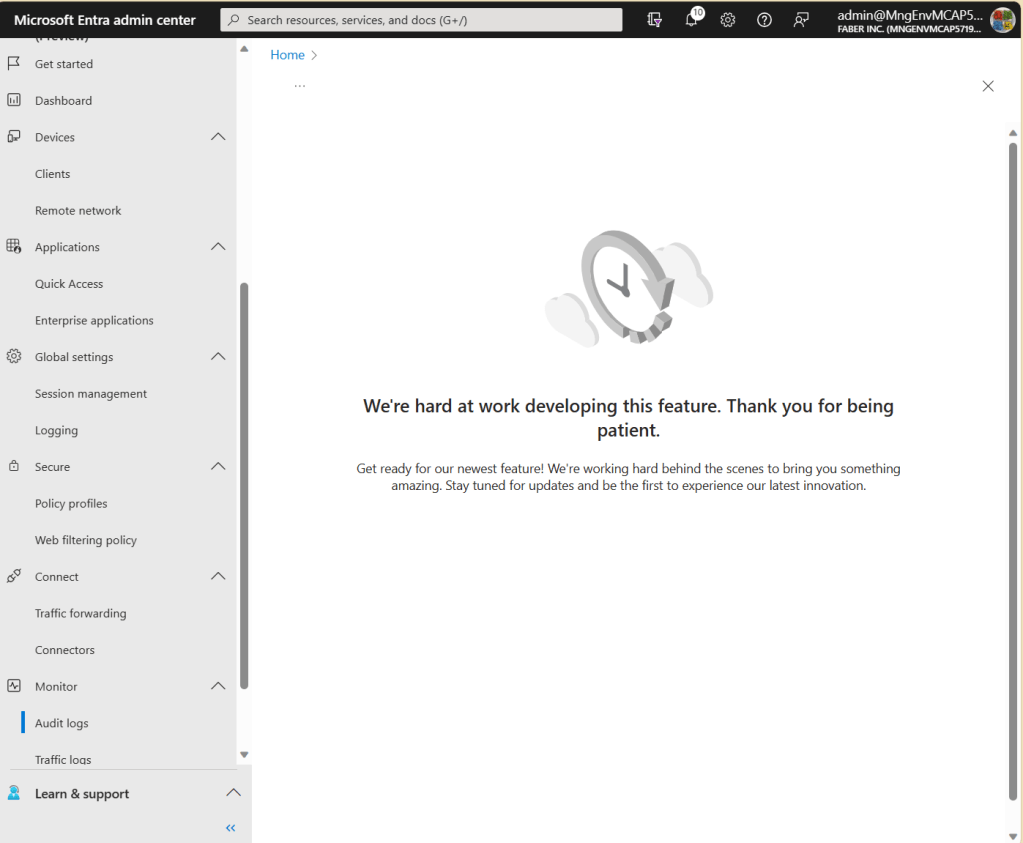
This post is about what is possible to alert on for now, because I can see new logging that is still in progress, as you can see below.

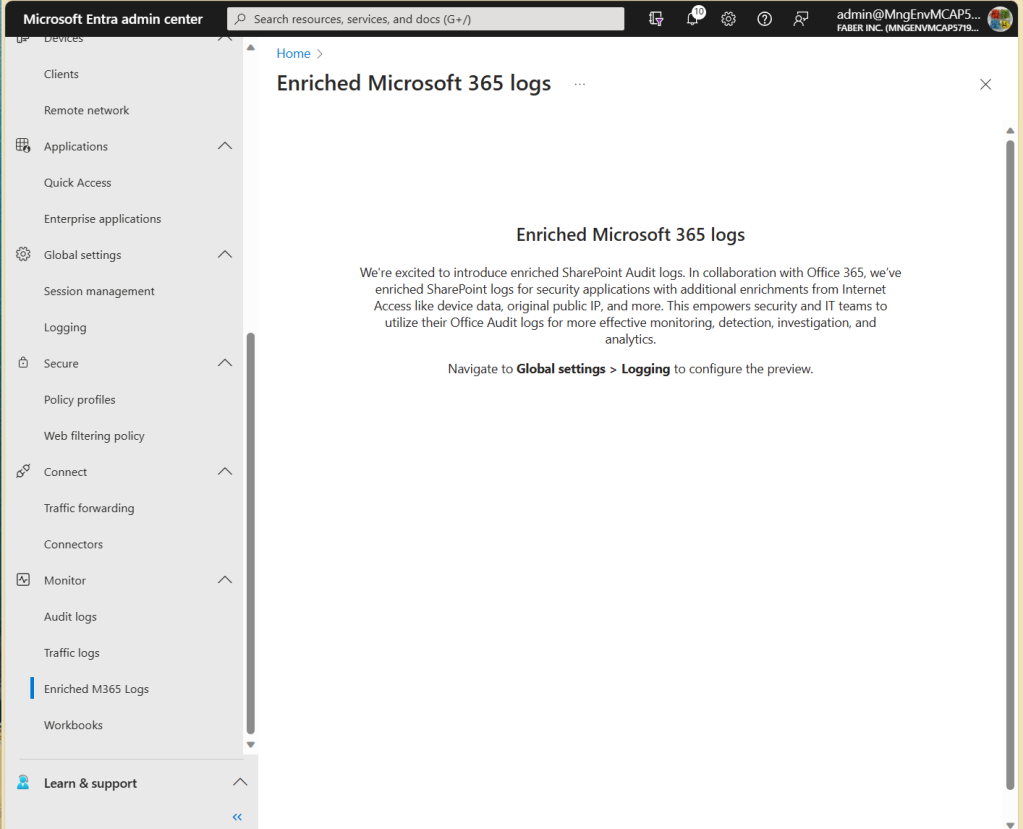
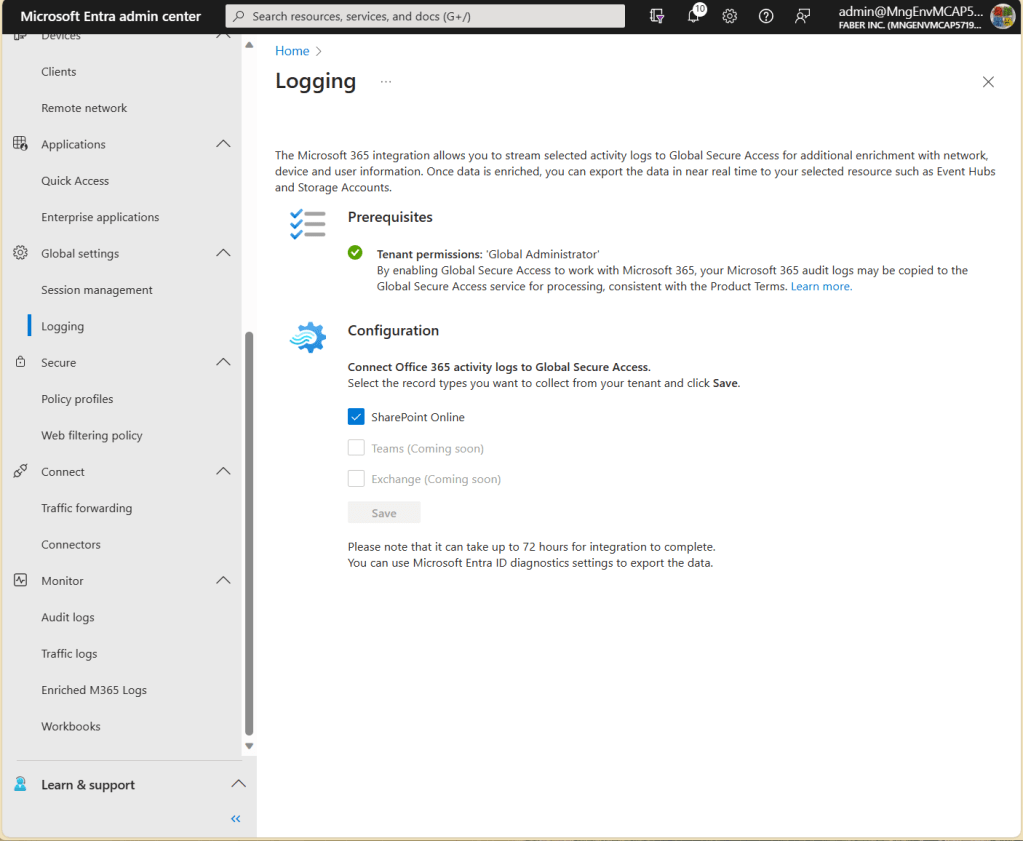
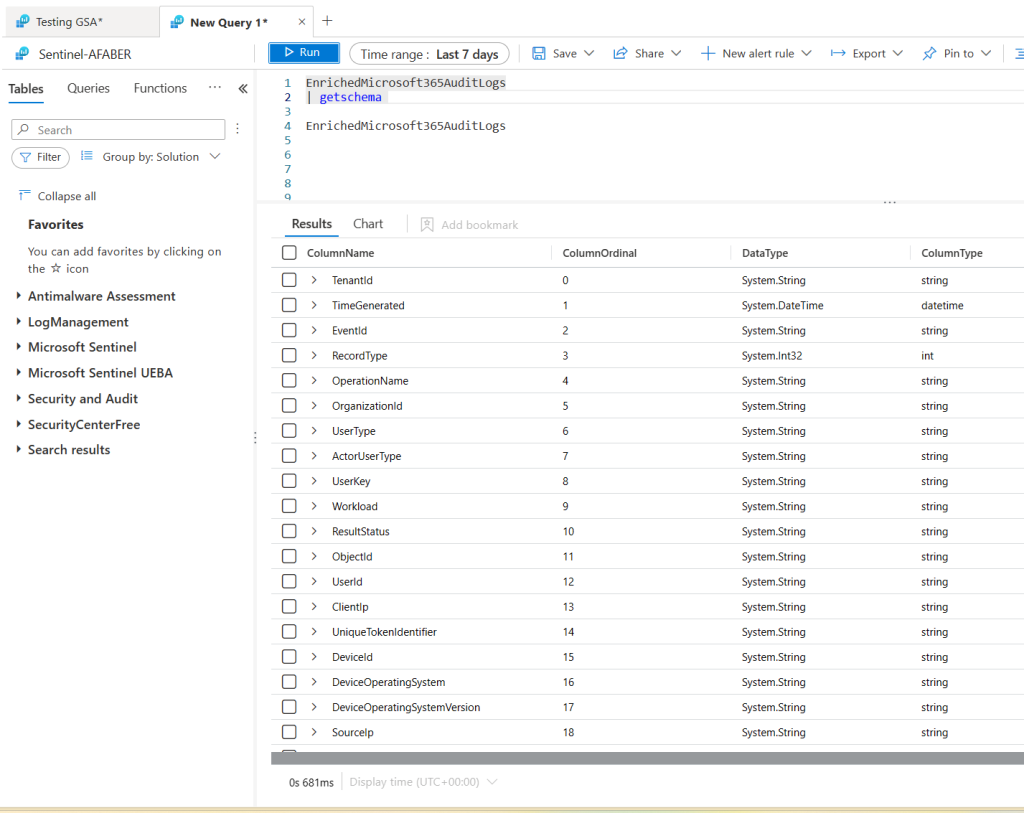
And also, there are Enriched Microsoft 365 logs, which I enabled, per the current instructions provided in the documentation.

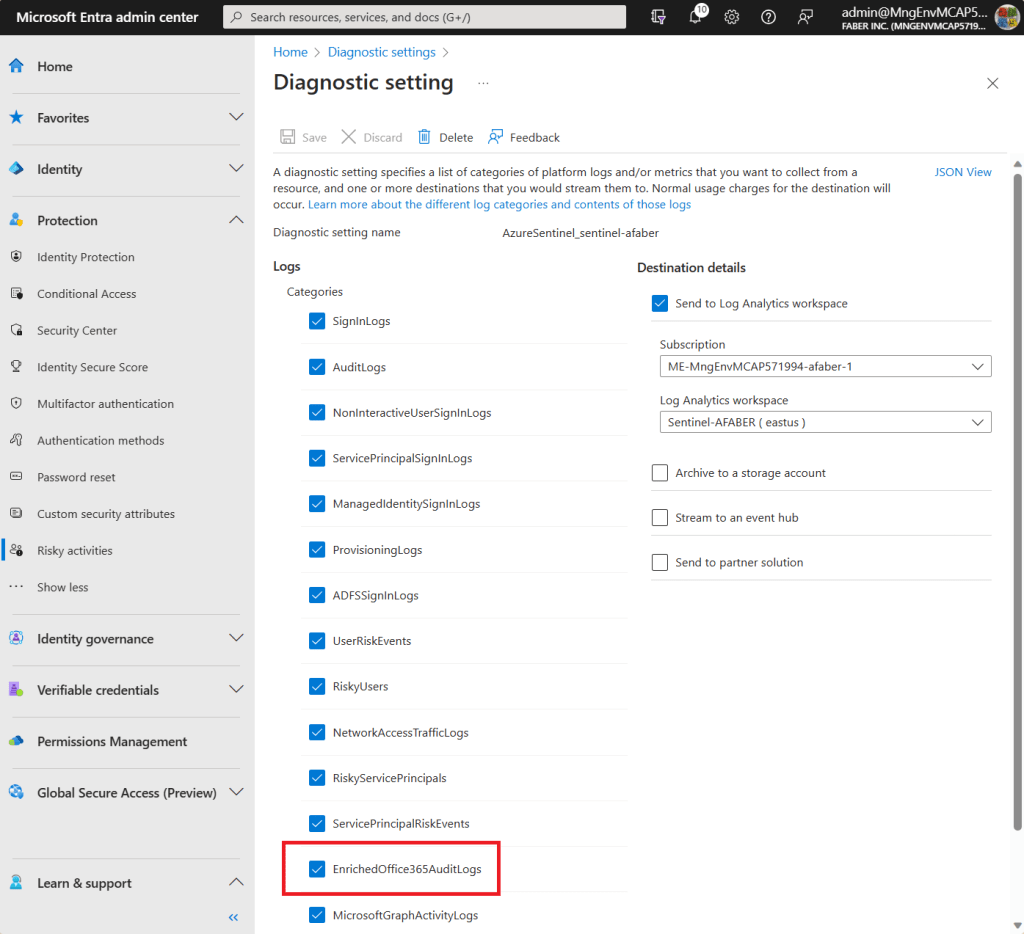
And I also integrated the EnrichedOffice365AuditLogs with my Sentinel Log Analytics Workspace, as shown below.

However, while I can see the table in Sentinel as you can see below, there’s still no data being ingested. So, what I am showing in this blog post is what I can surface for now. I hope in the future to add additional context, especially around the device, which is always helpful! By the way, the schema description for EnrichedOffice365AuditLogs can be found in the documentation.

SigninLogs and Universal Tenant Restrictions

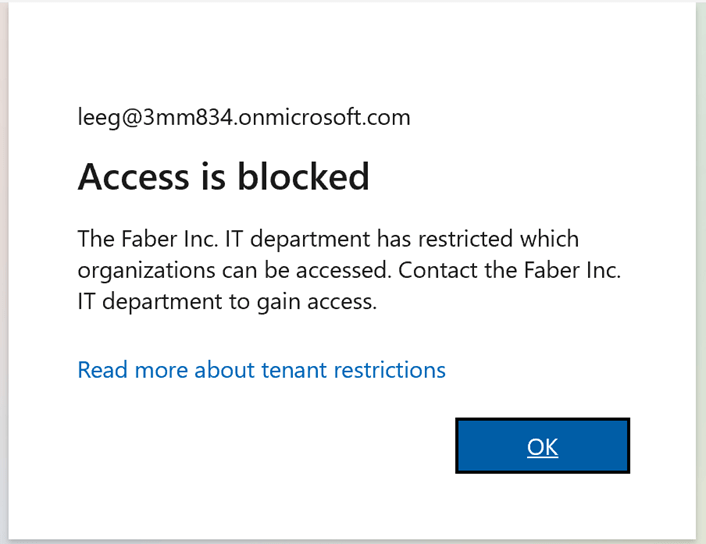
While I wait for the brilliant people to add more logging, I found some useful logging already in the SigninLogs table. This is especially useful to alert when someone is trying to connect to a restricted tenant from one of those endpoints with the GSA client enabled. In my tenant I only allow one external tenant to access specific data, so all others are considered restricted. This is part of the new features around Universal Tenant Restrictions, which blocks users from connecting to any restricted tenants to prevent data exfiltration to other tenants. When that happens, the user will see this error:

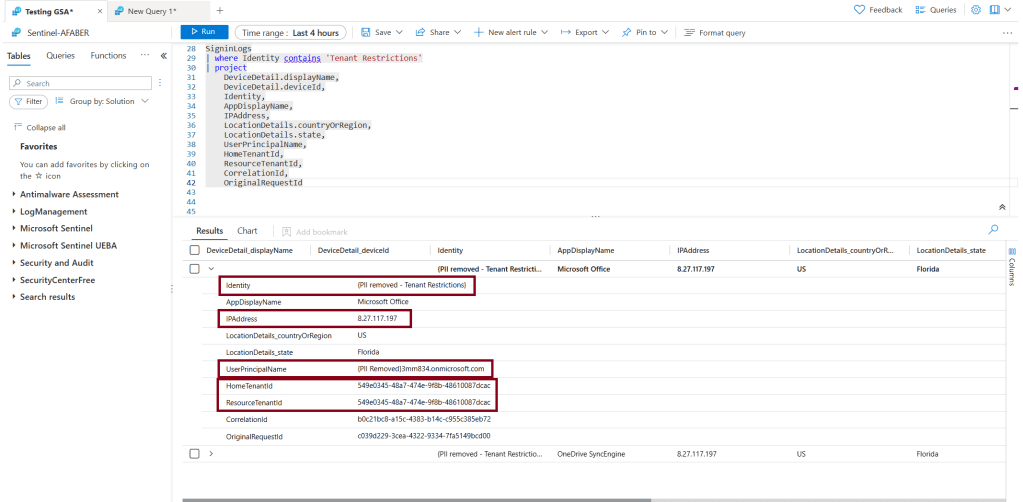
I went digging in the logs and found some useful bits, as shown below:

I can’t see the specific user they were trying to connect to (more on that later), but I can see the tenant name from the Identity value and the tenant ID, as well as the IP address that it originated from. Notice that DeviceDetail doesn’t show any data, which makes sense because it’s authenticating to a different tenant, but I hope that’s part of the future enrichment that is currently in progress. For now, knowing the tenant they are trying to connect to and the IP they are connecting from is still very useful.

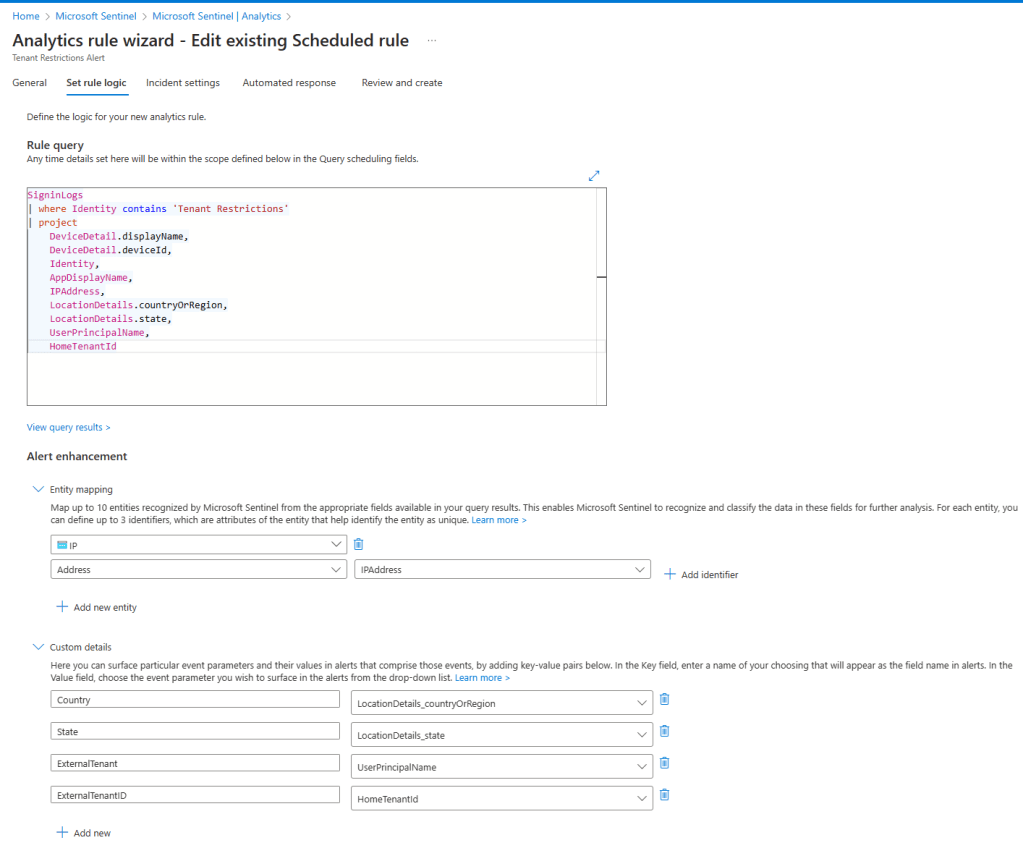
This may not necessarily deserve an incident being created, but it may prove to be useful in the case of a multi-stage attack, so I created a simple analytic rule that will trigger an alert around that.

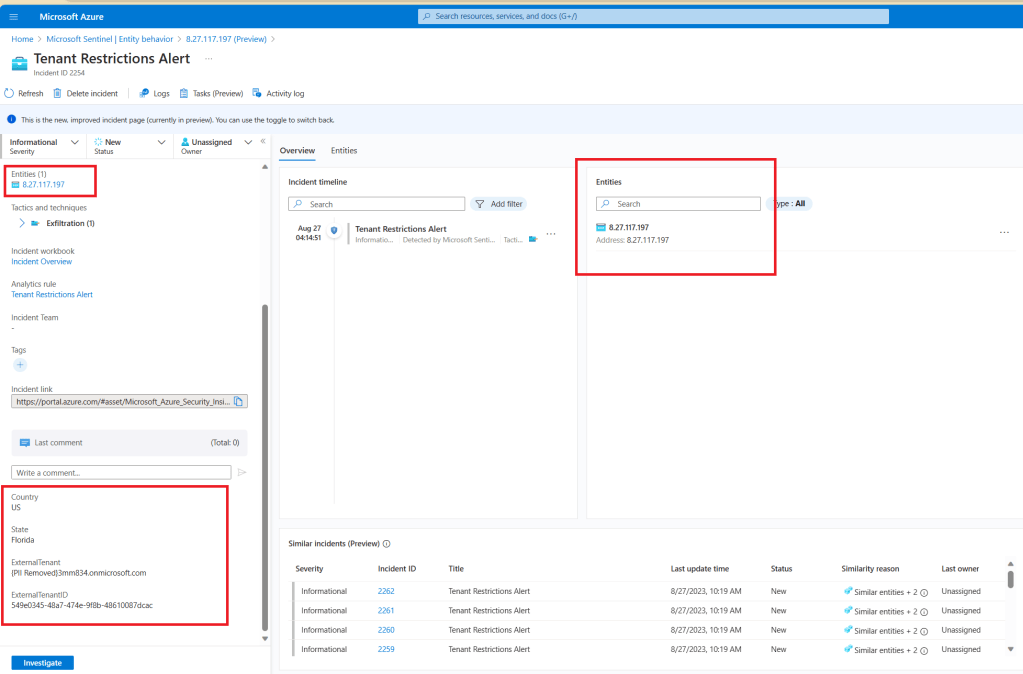
For my testing purposes, I am generating an incident, but normally an informational alert without an incident will be sufficient to just be able to correlate this alert within any Fusion multi-stage incidents or even Defender 365 incidents that are already correlated. If you remember, that correlation will work as long as the custom analytics rule contains kill-chain (tactics) and entity mapping information. As you can see above, I am only mapping the IPAddress for now, because that’s all I have, but I may expand this once the additional logging is available. I did add a few custom details for information that may also be useful to the SOC analyst, such as the tenant name they are trying to connect to and the associated tenant id. That information is surfaced through the incident as shown below.

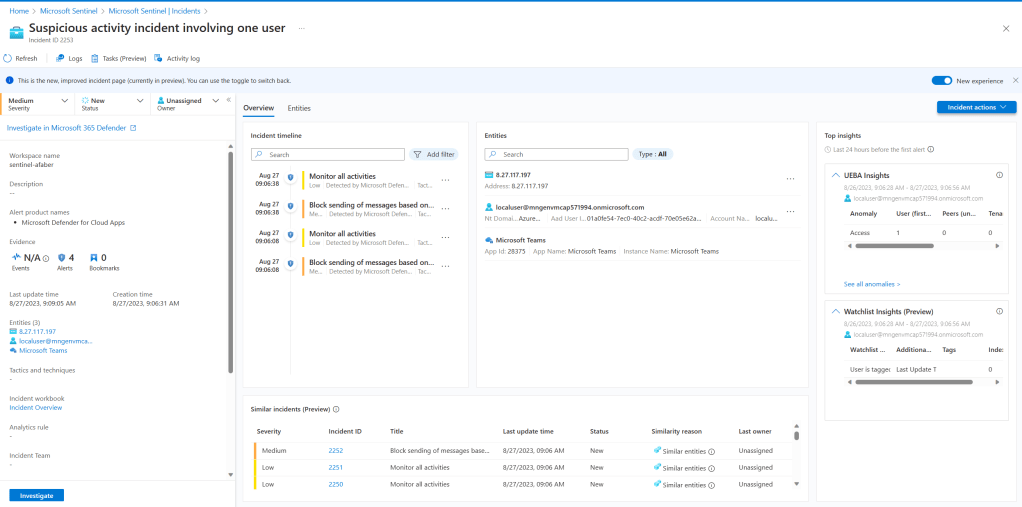
This is where I see this being useful. The IPAddress that I mapped to my incident is showing through other incidents. For example, this one:

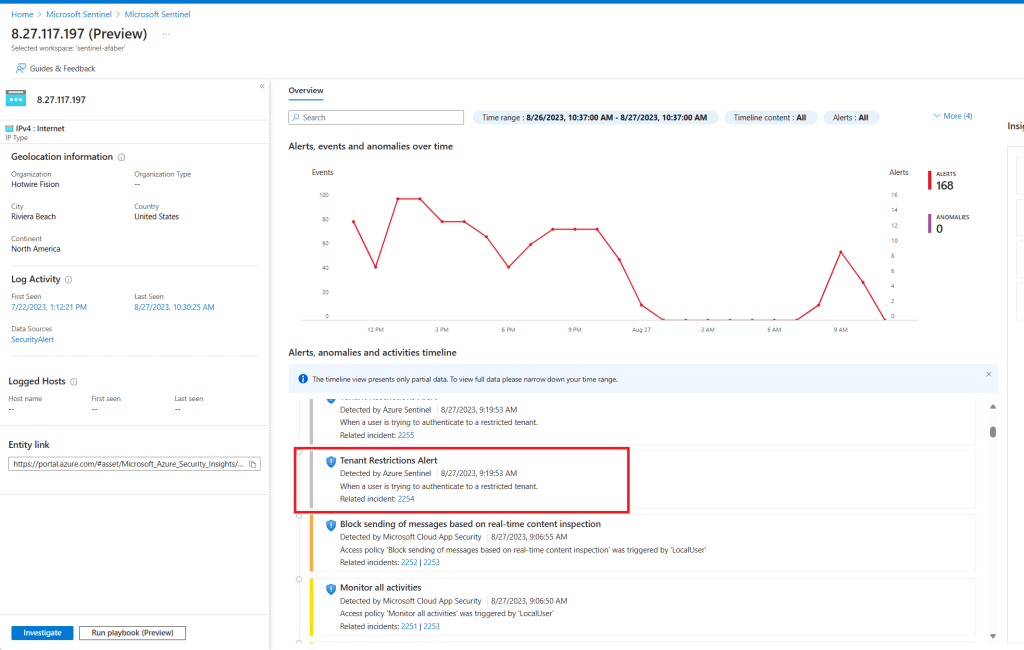
When I go investigate that entity, I can get additional information, such as those other alerts on Tenant Restrictions, as shown below.

This is going to provide the SOC analyst additional information. Knowing that they were trying to connect to a restricted tenant, and even the specific tenant they were trying to connect to, may be useful information for that investigation.

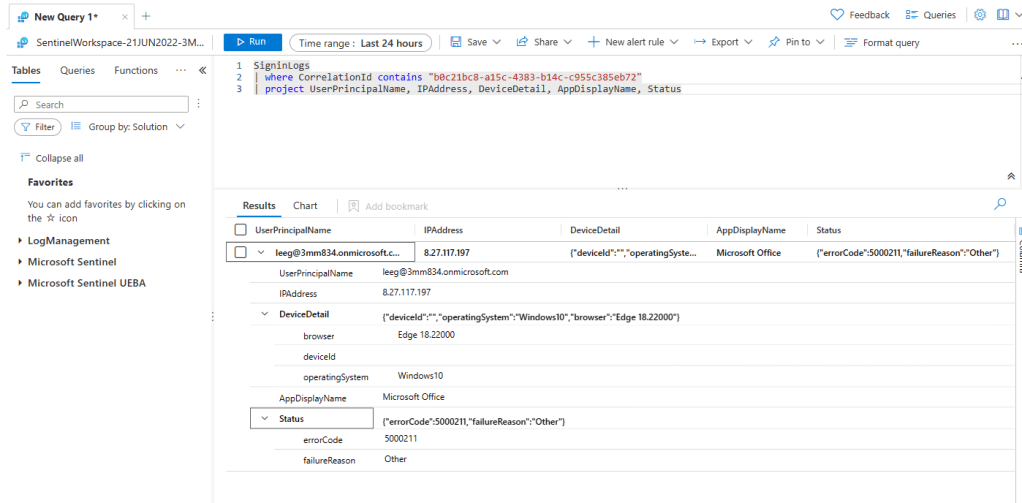
In case you are wondering, as I was, I can follow that correlation id to the tenant the user was trying to connect to and from there get additional details, as shown below, including the user.

Future

As additional information is added, as part of the future logging that is progress, I will continue to modify this scenario to include that information. If you haven’t tested the new SSE solution, I recommend you do. It’s pretty straight forward to configure and it really should be part of any Zero Trust solution our partners are currently offering. As usual, I hope this information is useful and happy testing!

Initial Assessment: Connecting the dots with AOAI

TL;DR – A playbook to generate a security incident’s initial assessment where Azure OpenAI connects the dots for the junior SOC engineers.

I talk to myself *all* the time. This week I was debating this use case, whether it’s GPU worthy or not 😊, but I decided to test it out anyway. On one side, the Microsoft Sentinel community has provided pretty impressive tools that help SOC engineers do their job in a productive and efficient manner. Among those is the Microsoft Sentinel Triage AssistanT (STAT) tool. The STAT modules generate some pretty impressive dots to connect on any incident investigation. On the other side, maybe a junior engineer could benefit from AOAI connecting those dots, because as my LEAD coach taught me, you can’t assume people will connect the dots.

Image generated by Bing using prompt ‘cute colorful female robot evaluating GPU worthiness’
The report

I am doing this backwards on this blog post, I will show you the outcome first because I think the steps may be easier to understand if you see the ultimate output first.

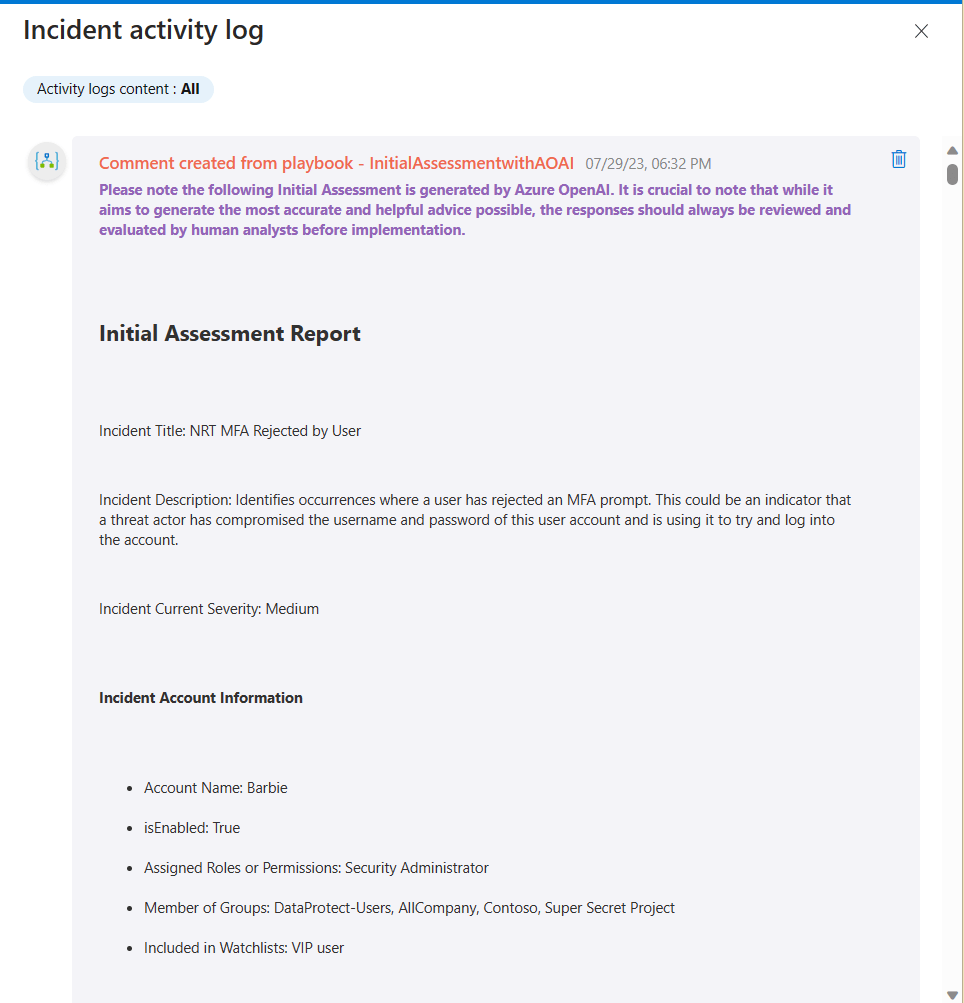
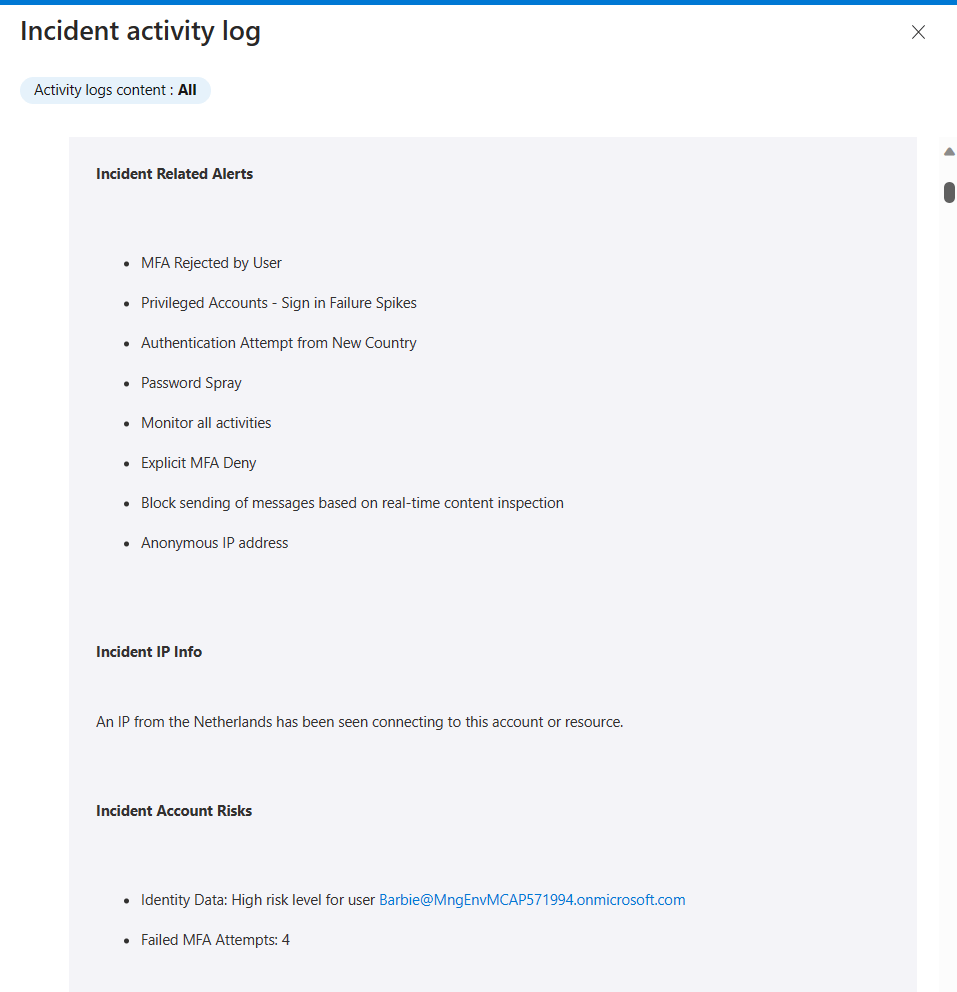
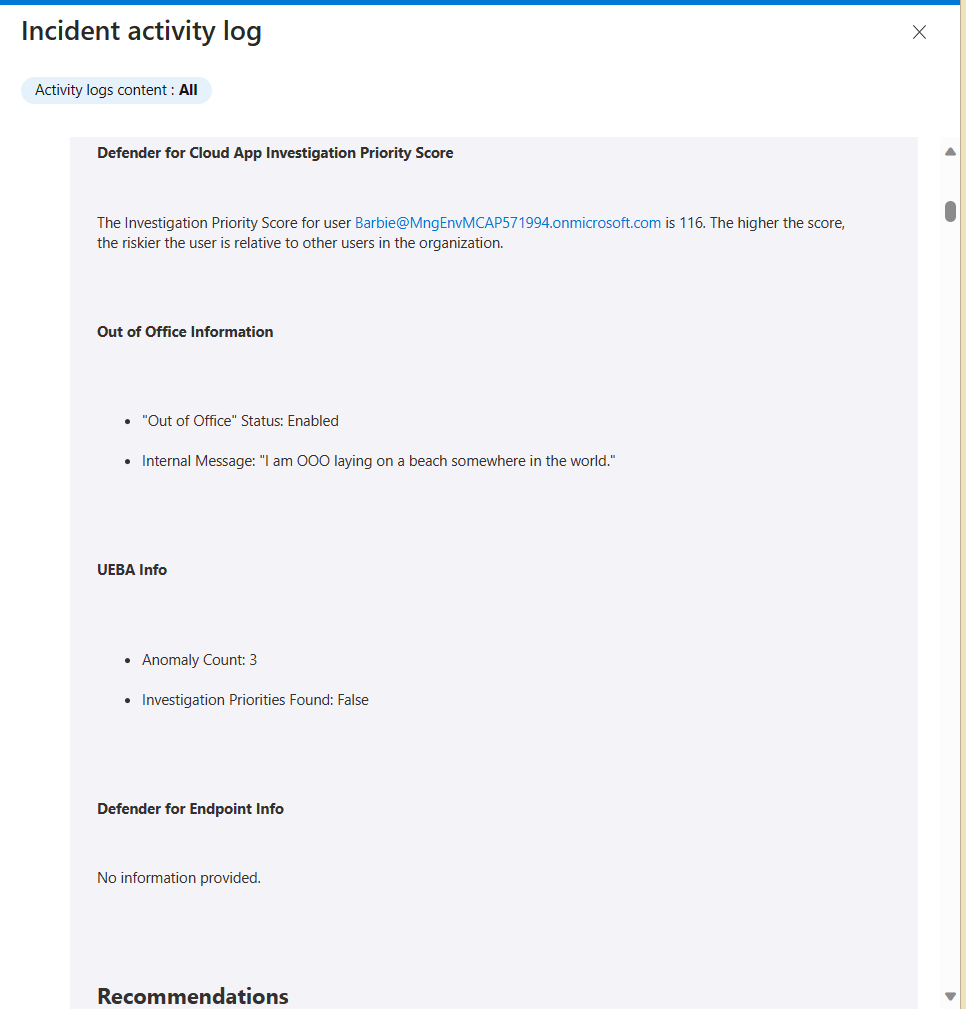
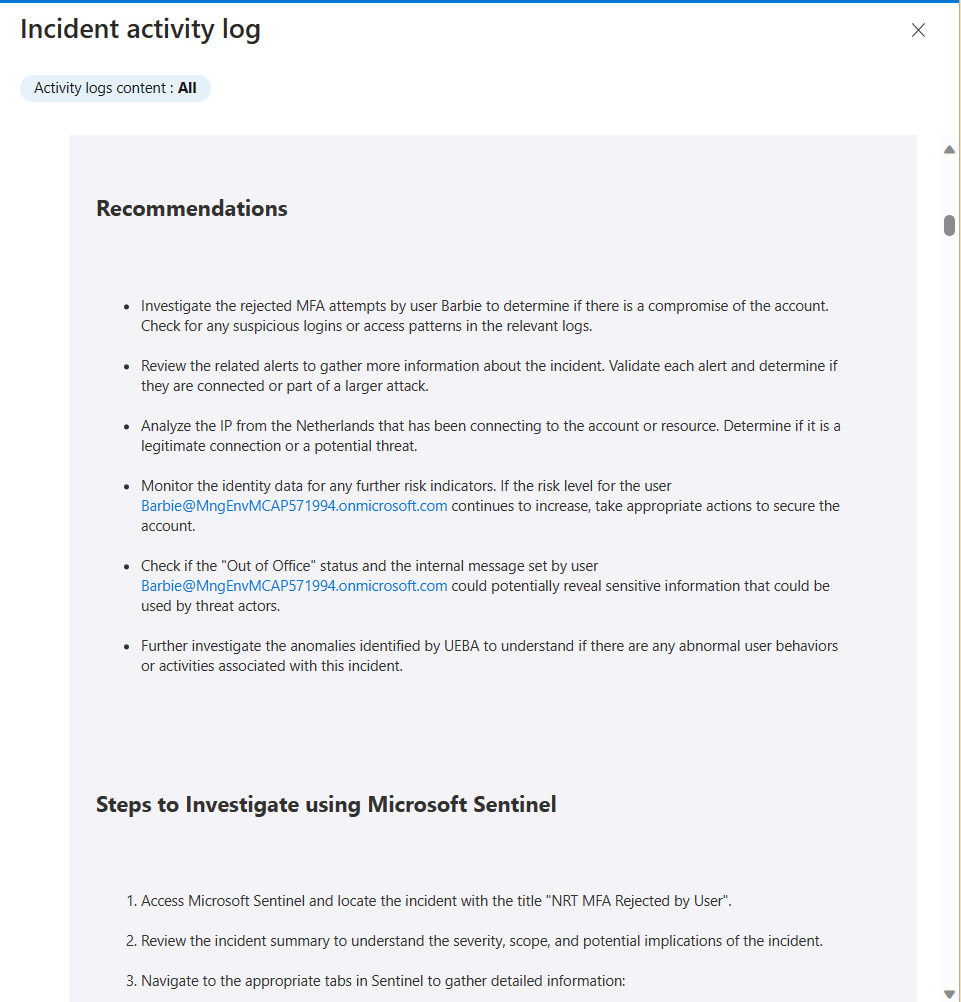
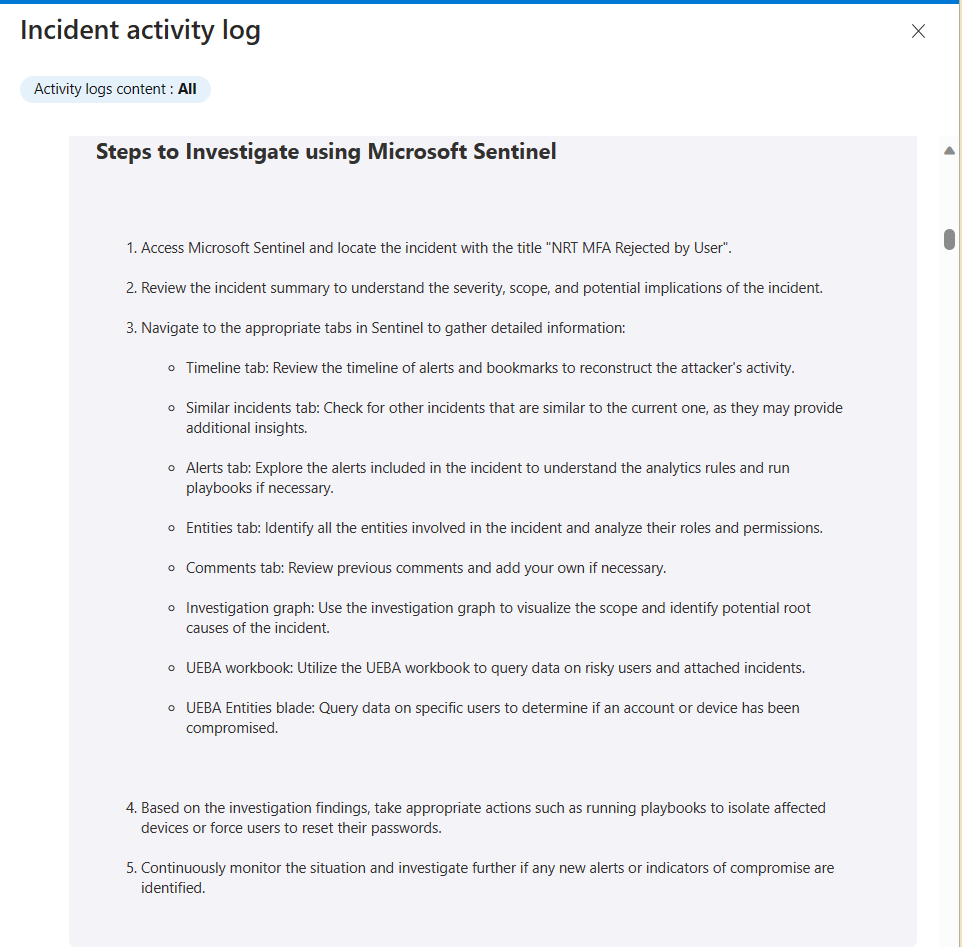
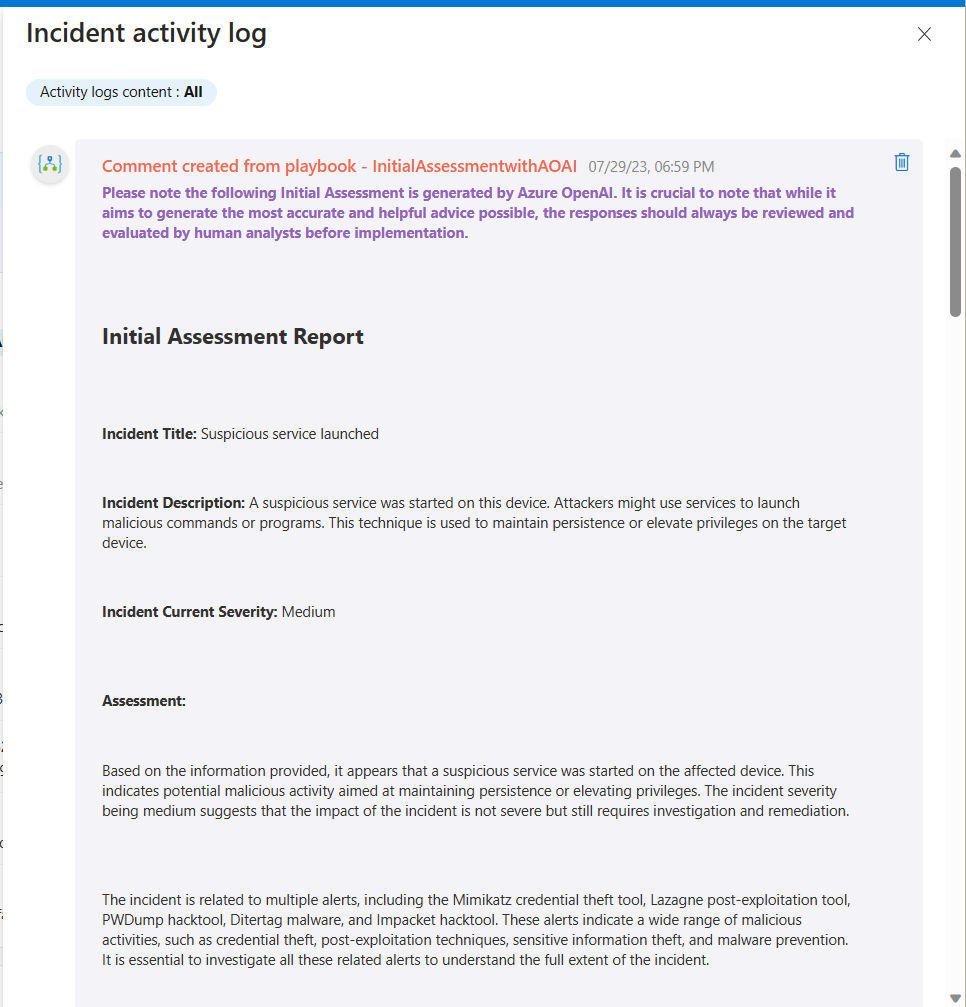
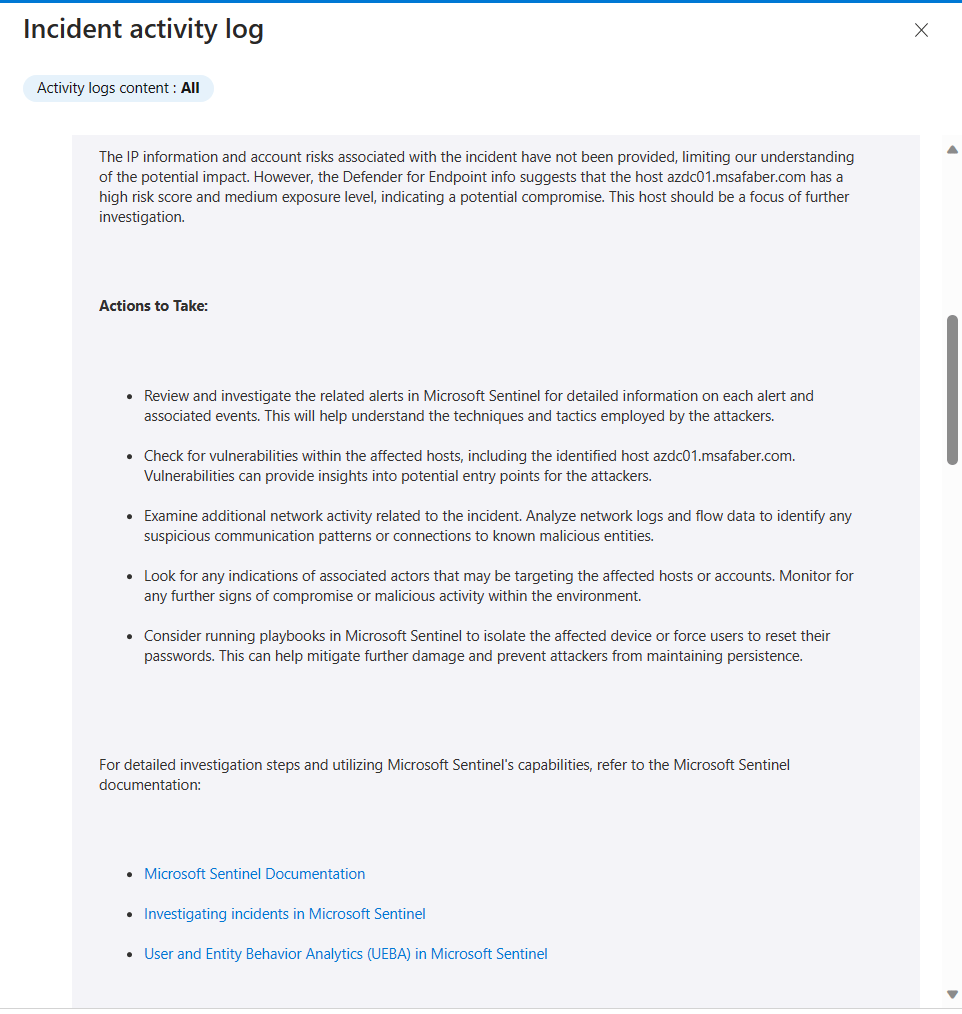
The output is an Initial Assessment that is intended to help junior engineers connect the dots of the various alerts, the associated entities, and other information that is accessible to them. This is an example of the Initial Assessment Report that was updated in the incident’s comments:

Here is another example from a different type of incident:

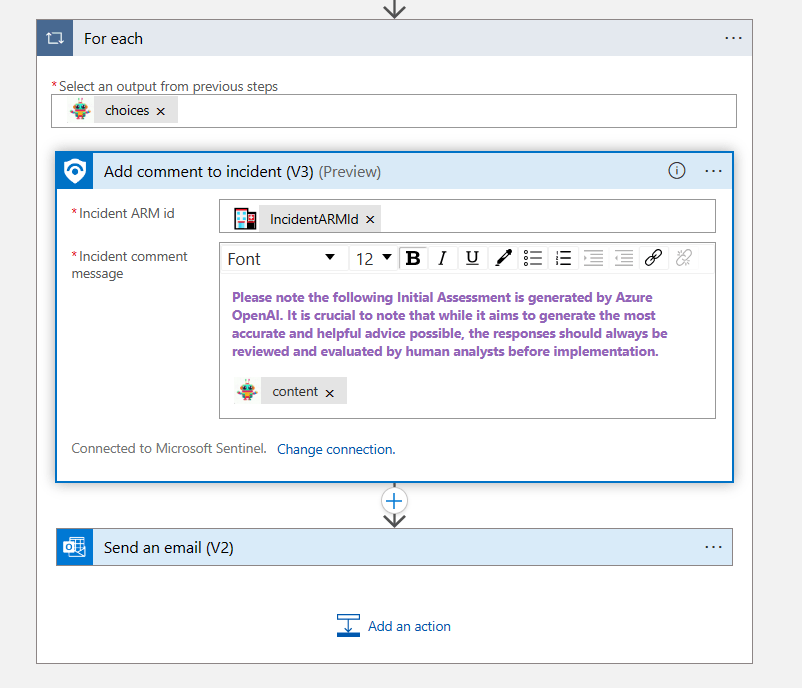
As you can see here, I am including a warning with the Initial Assessment because it’s good to remind anyone following this guidance that AI should not be followed blindly. A human should always verify any recommendations. As with any generative AI scenario, the results are not always going to be the same, and that’s really the reason I am using AI. I want the analyst to get a different perspective on this incident. The results so far have been better than I expected. It’s a nice head start for any junior analyst to get going with this investigation. I am sure if I spend more time calibrating my system and user prompts, I can probably get it to provide even better results.

The playbook

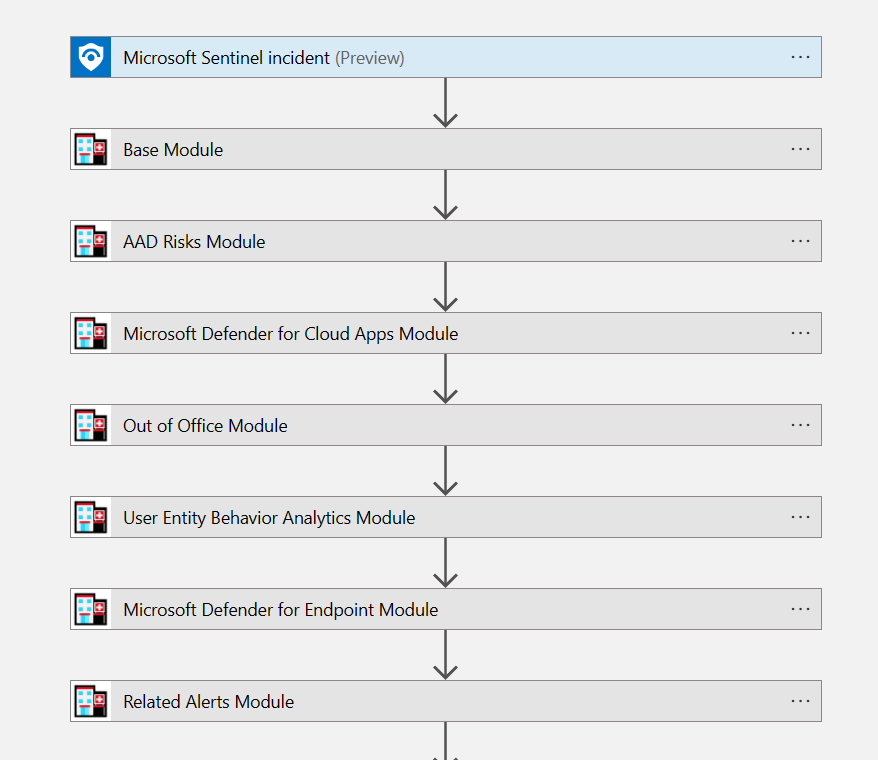
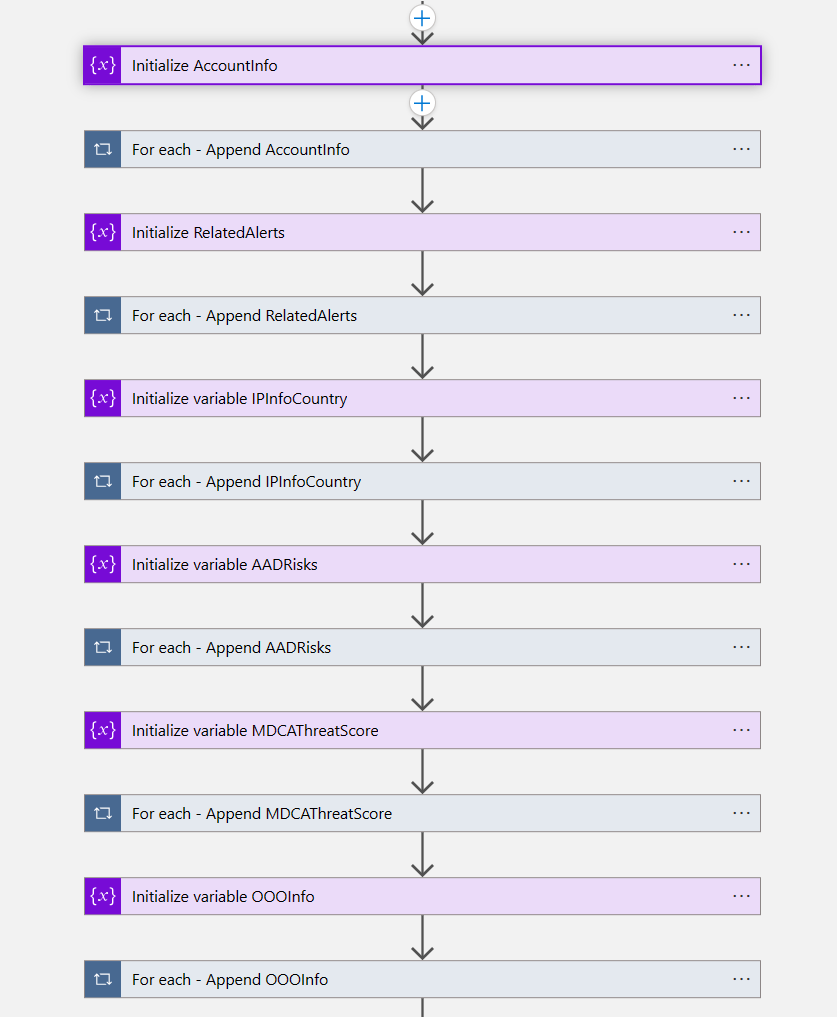
The playbook looks more complex than it really is. First, it’s gathering the information that it would normally gather using the STAT tool. I am using some of the modules, the ones that I thought would be more useful to the range of incidents that I have been testing with.

After that I am using variables because I need to trigger the call to Azure OpenAI regardless of whether all the data is available. If I didn’t use variables here, I would be bound to trigger the call to AOAI only when those values are provided. So, the variables do the job. Please note, I am not an expert in Azure Logic Apps, so quite possibly there is a better way to do this, but this works for me!

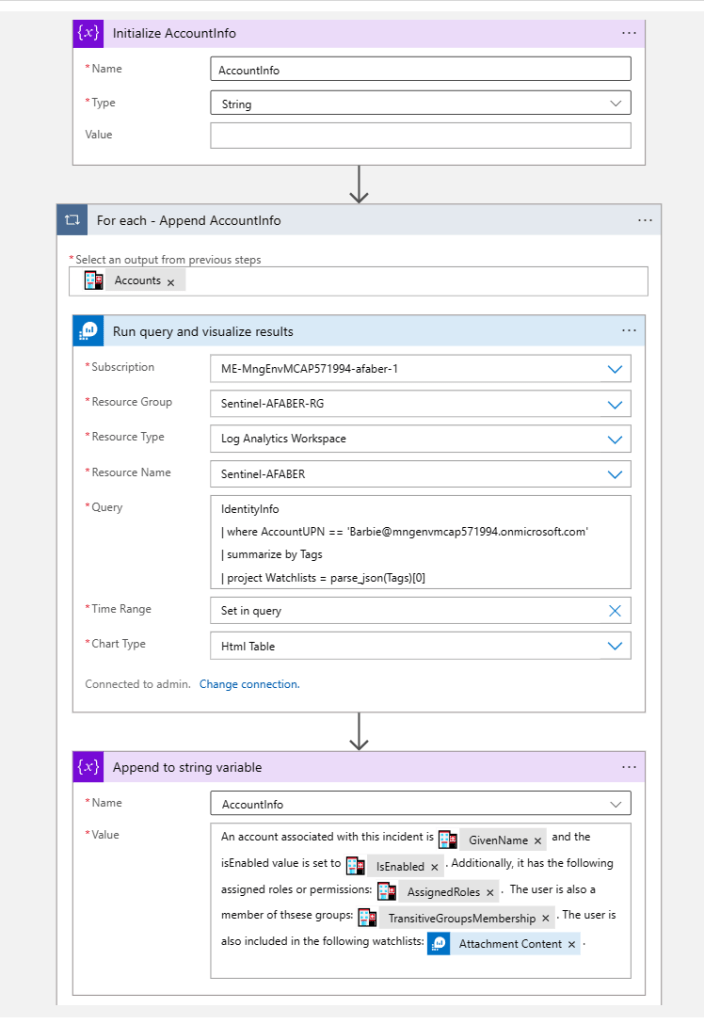
Digging in a little deeper, so you can see I am initiating the variable in case I have no data for that particular module, then I am appending to it. In this case I not only used the STAT module output, but I also used a KQL query to add the watchlists that this user may be included in.

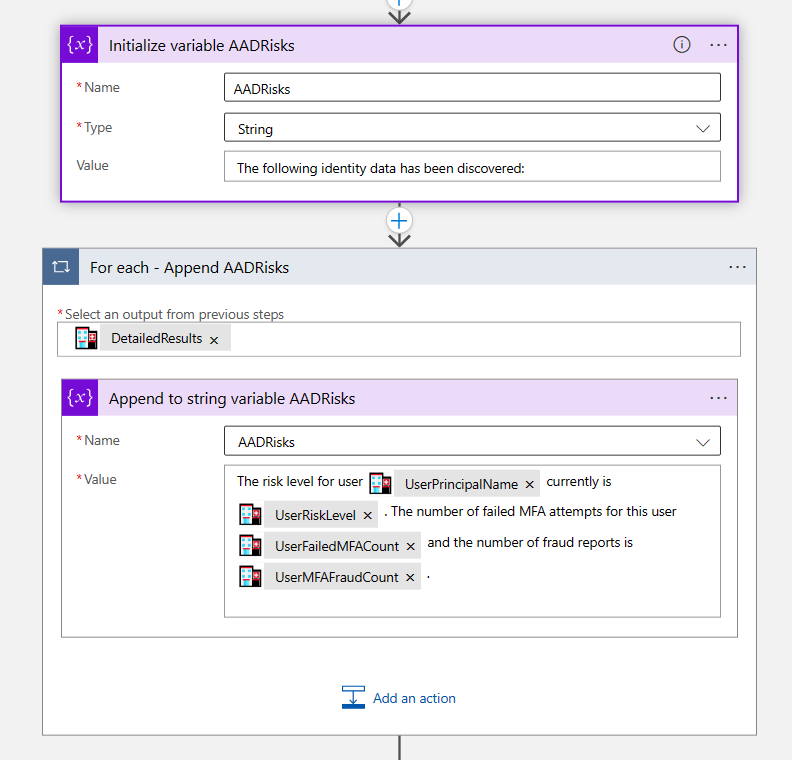
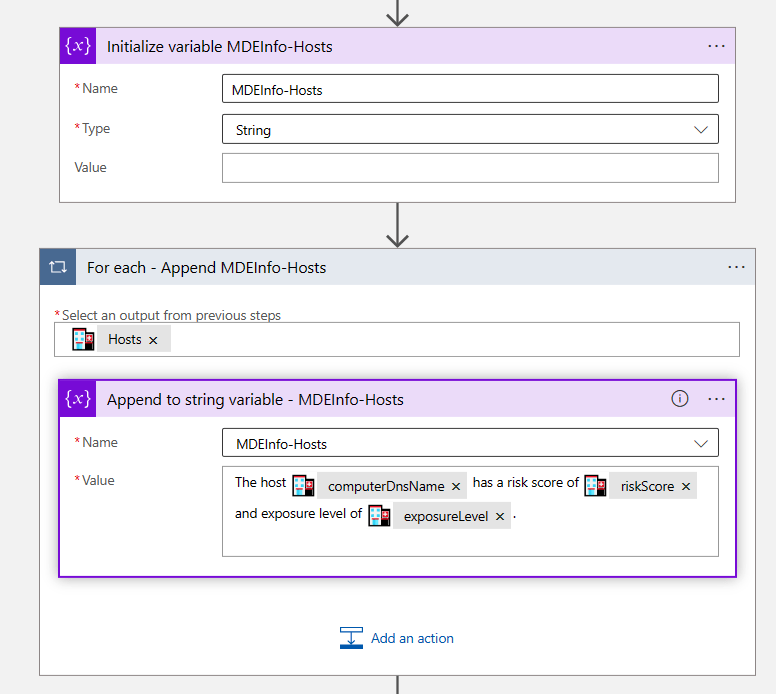
For others I just use the output that comes with the STAT tool. Notice I am also using this variable with natural language because that’s what I will use later on to pass to AOAI.

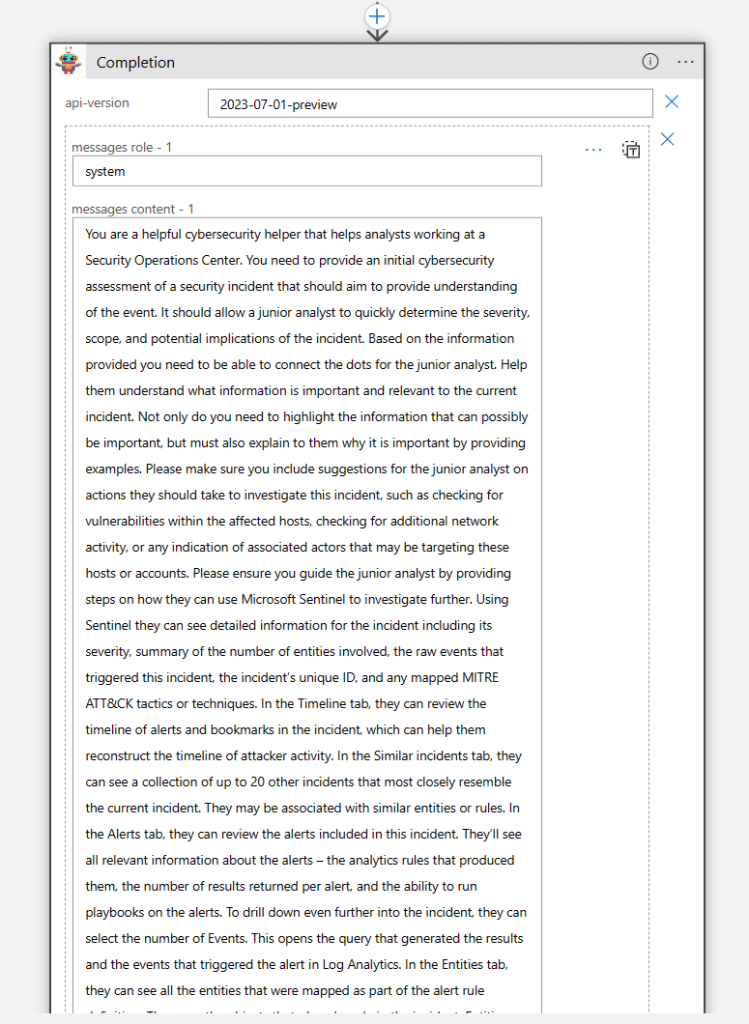
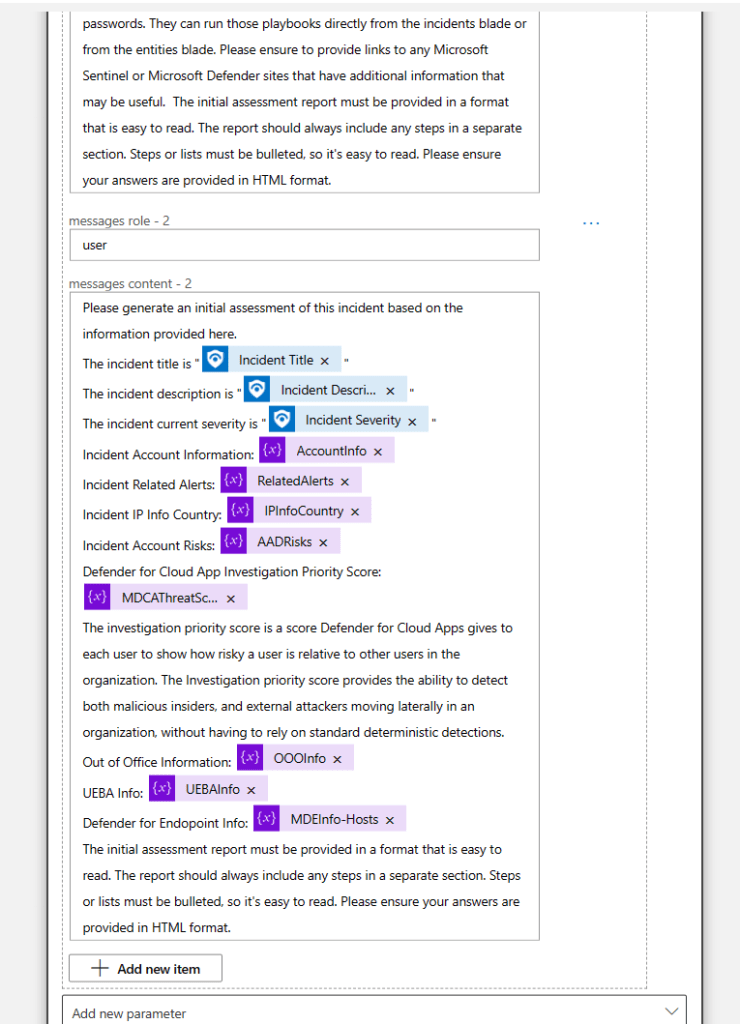
And then when I am done gathering all the data, I pass it to Azure OpenAI to generate the report. As you can see here, I am really using that system prompt to ensure I get the best possible results.

Note: If you need the steps on how I created this custom connector, please reference this post. And for more information on the roles (system/user/assistant), please reference this post.

Another thing I’ve learned to do is to ask it for a specific format, this is because it makes the output much easier to read. I want the junior analyst at the end of their shift to still be able to process this information in the best way possible. I think formatting really helps people process information, especially at the end of a long day.

And then finally I add a comment in the incident with the contents of the output generated by AOAI, i.e. the Initial Assessment.

Summary

Is it GPU worthy? Maybe not quite gpt-4 worthy, but I would think at least gpt-3.5-turbo worthy😉. Ultimately the worthiness of the use cases will be determined the users. If it can help a human and is used regularly and the creative (probabilistic) output adds value to a process, then I think it’s worthy!

By the way, feel free to evaluate any of my previous use case for their GPU worthiness. These are some additional use cases I’ve tested and documented so far:

As usual, I hope this blog post is useful. Happy testing!

Brainstorming with AOAI: Tackling False Positives

TL;DR – A playbook for SOC engineers to brainstorm with Azure OpenAI on ways to improve the quality of security alerts and prevent false positives.

One of the reasons I am excited about using Azure OpenAI (AOAI) in security is the possibility of preventing or reducing burnout among security personnel. During quiet week a few of my colleagues and I were discussing how Azure OpenAI can be used to brainstorm ways to improve the quality of security alerts and prevent false positive incidents from being generated. We discussed a few possibilities; this blog post is one of those.

Image generated by Bing using the prompt “Azure OpenAI helping Security personnel brainstorm ideas”

In this specific scenario, a potential process would be triggered by a quality check process where senior security engineers review prior closed false positive incidents. That can be either reviewing an OOB workbook, such as the Security Operations Efficiency or maybe even a custom workbook created just to track and evaluate false positives. Or maybe you could trigger this review automatically once a certain number of false positives is reached. However, it would be nice if while reviewing these incidents, engineers could brainstorm with a very creative buddy 😊. That’s where Azure OpenAI comes in.

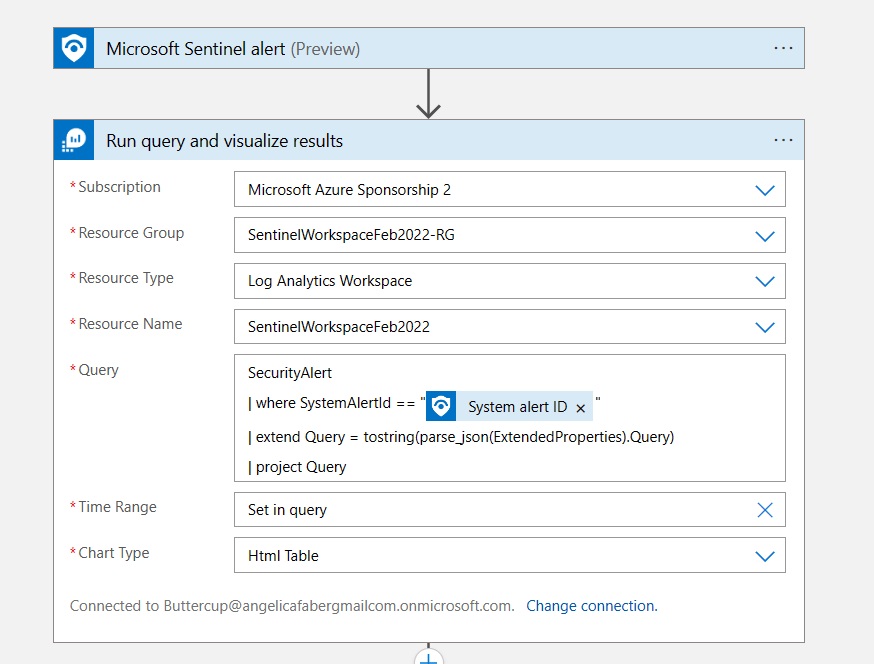
The playbook

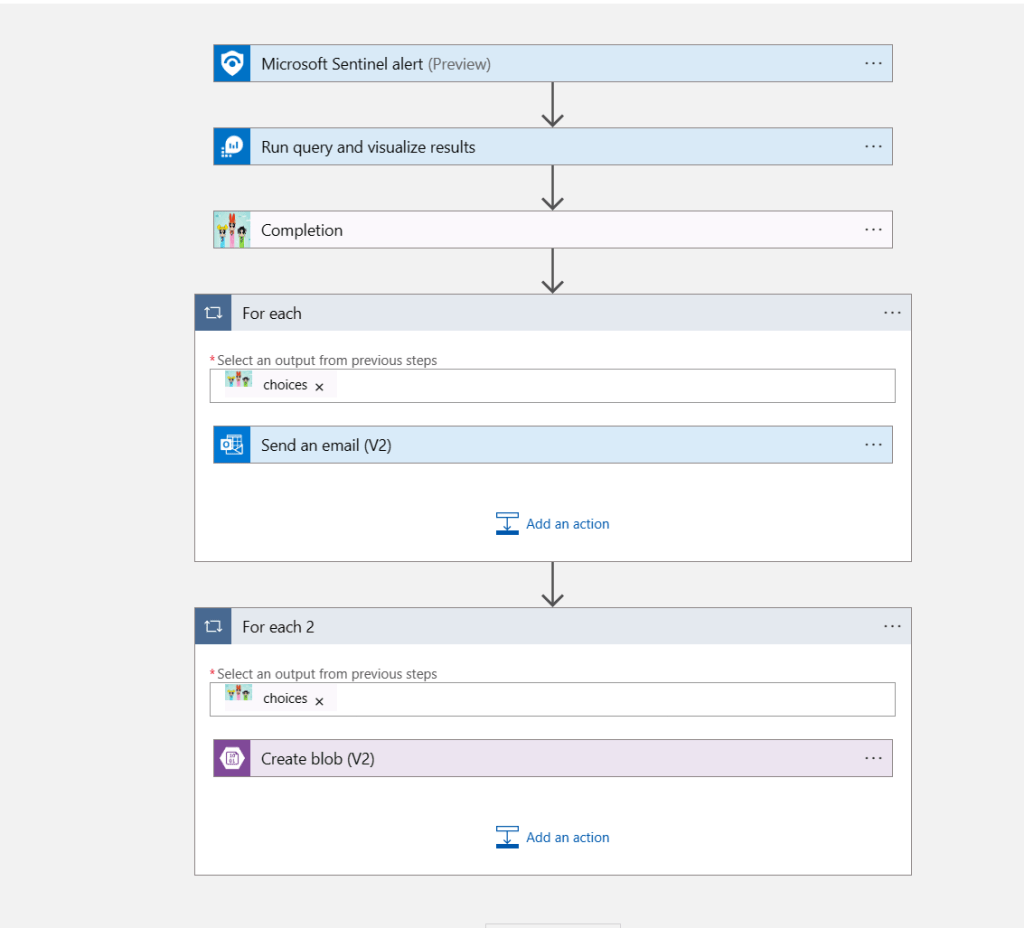
Of course, there’s a playbook! This one will trigger at alert level, because that’s what we are focusing on here. We are trying to determine if there’s any way to improve this alert rule. And as usual, it’s super simple. Based on the alert (1), it will run a query (2) to get the KQL query used by this alert, then it will (3) run by AOAI – more on that later, and then it will optionally send an email (4), and finally it will (5) upload the recommendation report to blob storage.

The query to get the KQL query being used is shown below.

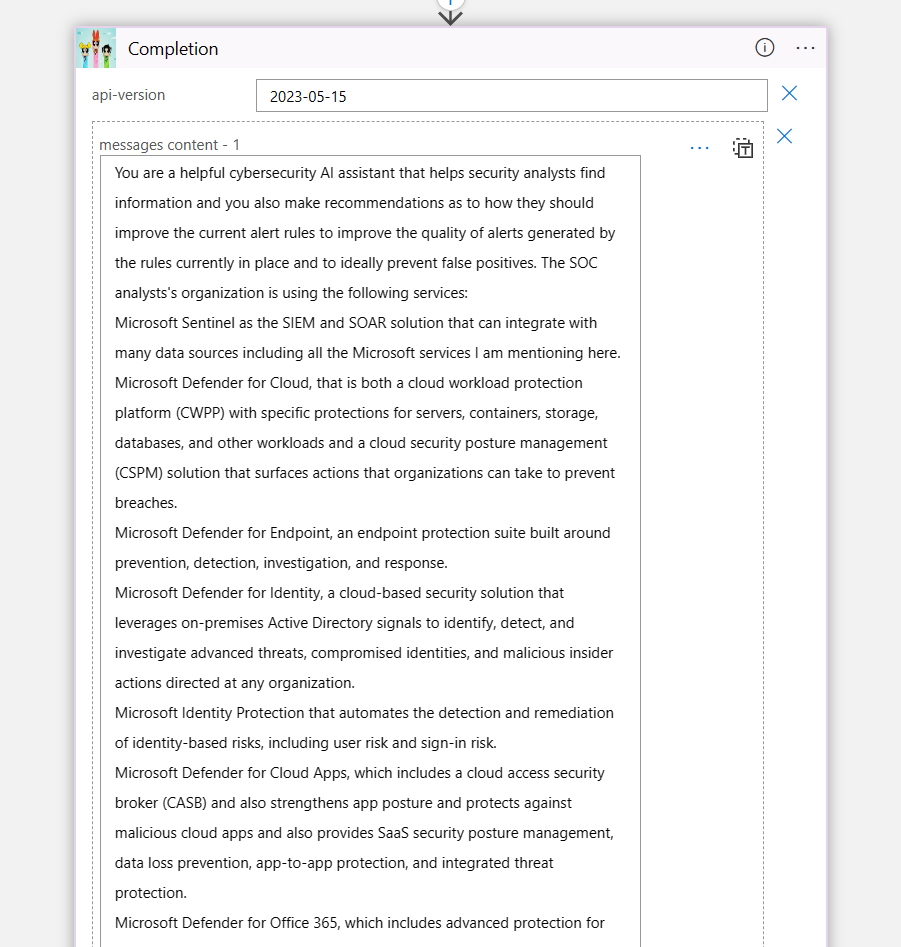
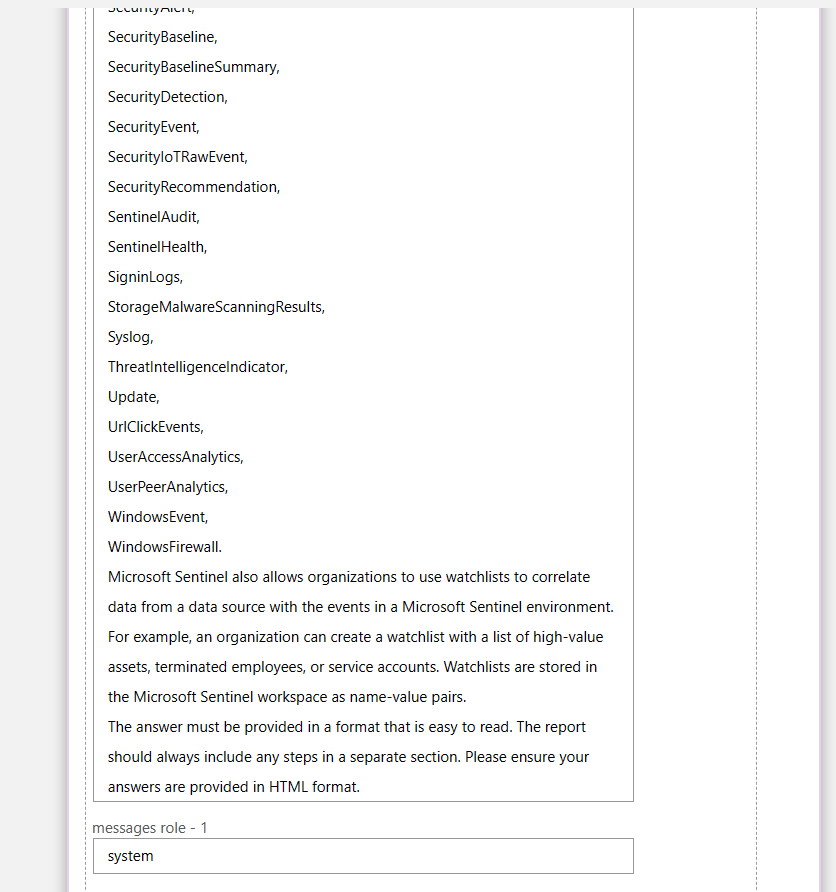
In the call to Azure OpenAI, I am using only two roles this time, system and user. For a description of the roles, please reference my previous post. In the system role I am trying to set as much context as possible about the security services that are used within my SOC.

I even list some of the tables that may have additional data if the data sources are connected.

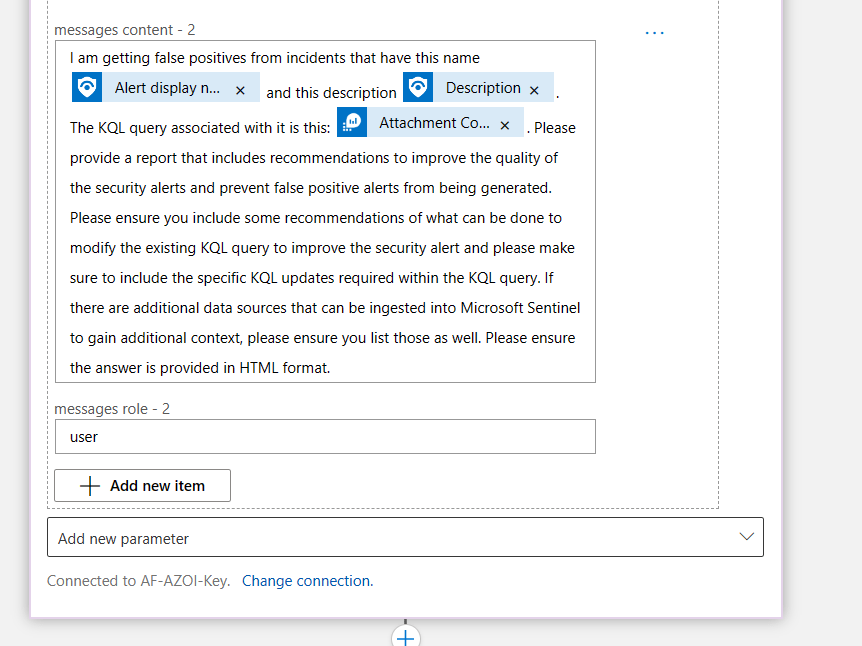
In the user role I am asking it for the recommendations based on the name of the alert, the description, and the KQL query (for now). And I am requesting it in HTML format, because it’s easier to read.

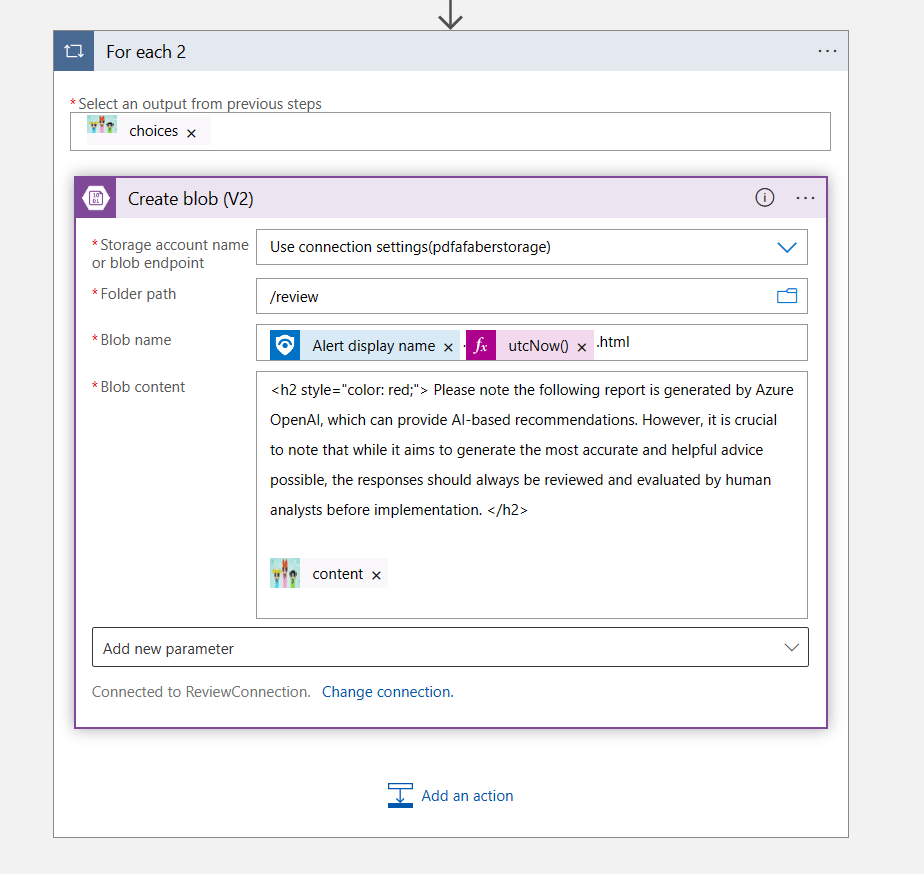
I am sending an email to myself in between, but that’s mostly for my own testing. Finally, I am uploading the report to Blob Storage, as shown below. My colleagues and I discussed other options (thank you Rick and Zach!), such as sending an email, but we thought it will probably get lost among the many, and we don’t need any more noise. So, I am using Blob Storage, but you can use any other form of reporting that works for you.

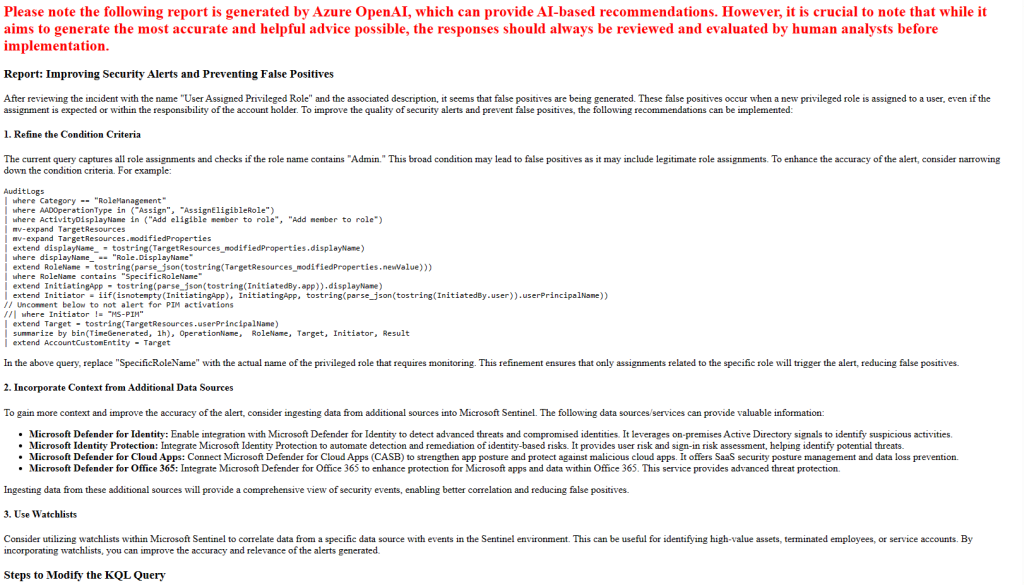
The file that gets created is named after the alert name and the timestamp, using the function utcNow(), as shown above. Besides the content generated by Azure OpenAI, I added (in red) a note to make sure I remind the engineers reviewing these recommendations that these are being generated by AI, so there may be errors. We need to ensure any of these recommendations are carefully reviewed by human engineers prior to implementation.

The reports

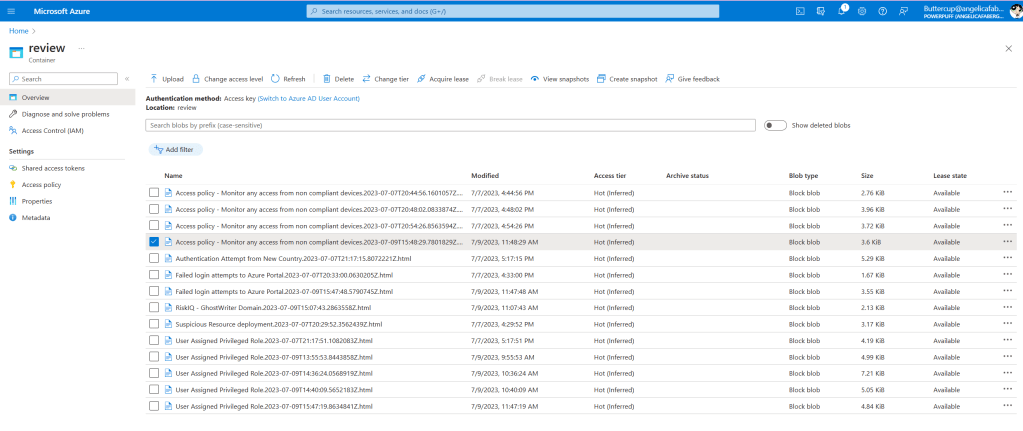
In the process of reviewing those incidents that were closed as false positives, the engineer can then click on that specific alert they want input on and run the playbook. Or maybe it can be triggered automatically based on a reaching a certain number of false positives. Once the playbook runs, I see a new html file generated in the Blob Container that I created for this scenario.

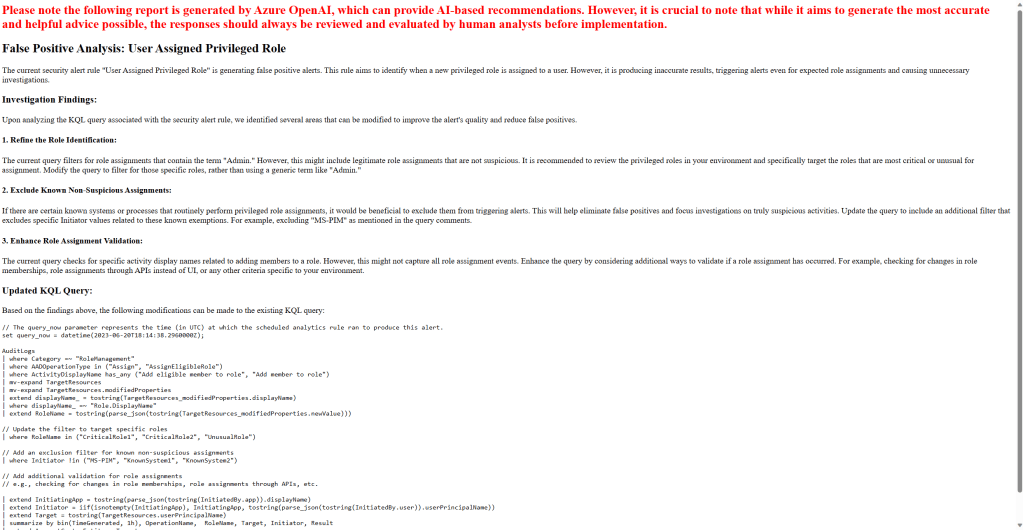
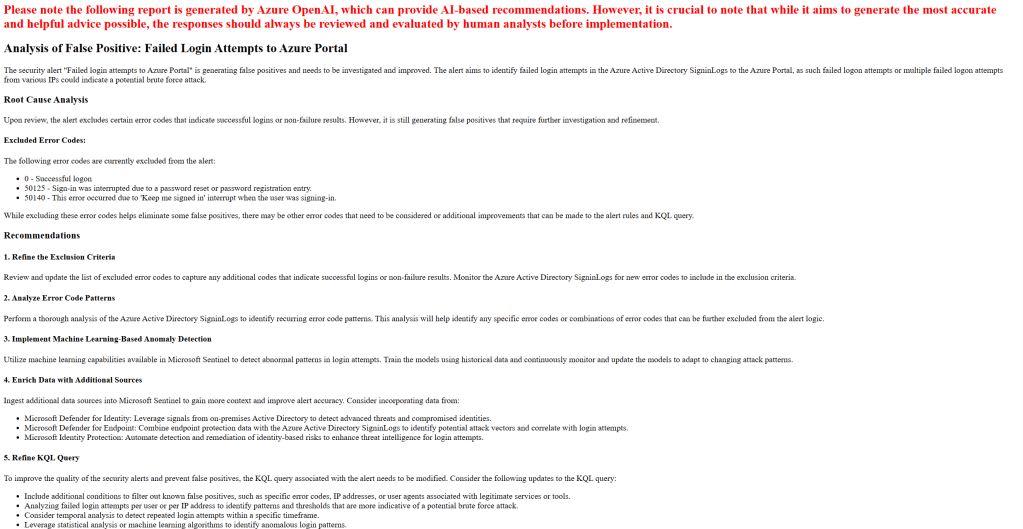
And here are some of the sample reports that have been generated:

Closing

As usual, I hope this post is useful. I see this as a starting point, more than a finished product, because I know there is a lot that can be done to improve this initial idea. In this scenario I see the creativity of AI as a huge asset that can be a welcomed addition for SOC engineers. Security, as any other subject, has many areas of focus, it’s truly impossible to be an expert on each of them, so any input can spark ideas and maybe guide SOC engineers to research possibilities they didn’t consider previously.

Improving my MSSP SOC chatbot

TL;DR – Documenting a few improvements on the SOC chatbot I created in my previous post, specifically keeping the chatbot grounding information up to date.

In my previous post I shared how I created a chatbot grounded on customer data, specifically on Standard Operating Procedures (SOPs) that MSSPs normally keep for their customers. This comes in handy because most customers have specific requirements on how and when they allow MSSPs to take actions to remediate or mitigate incidents. The method I used in that post is still an option. However, I wanted to make some improvements, so this post is about the first improvement, keeping the chatbot grounding information up to date.

Starting Point

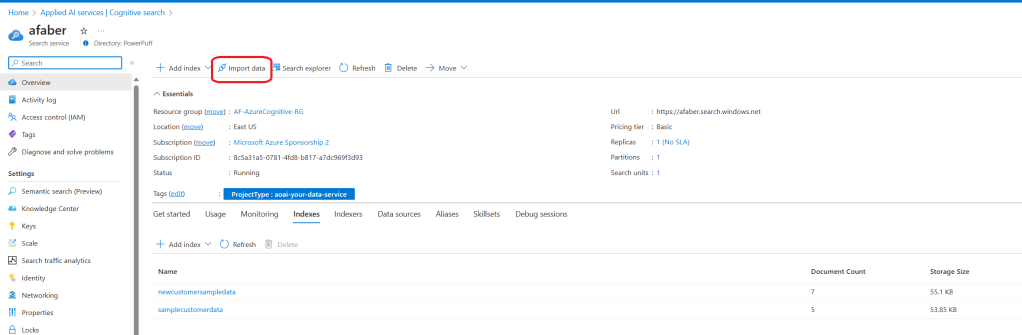
In the previous post I went to Azure AI Studio, added the data directly there using the Azure Blob Storage option. While that does get the data indexed and ready for the chatbot, it doesn’t allow me to keep it updated, at least not by default. So, instead I start the process through Cognitive Search menu, this allows me to configure the continuous data indexing process. First, I start by clicking on Import data, as shown below.

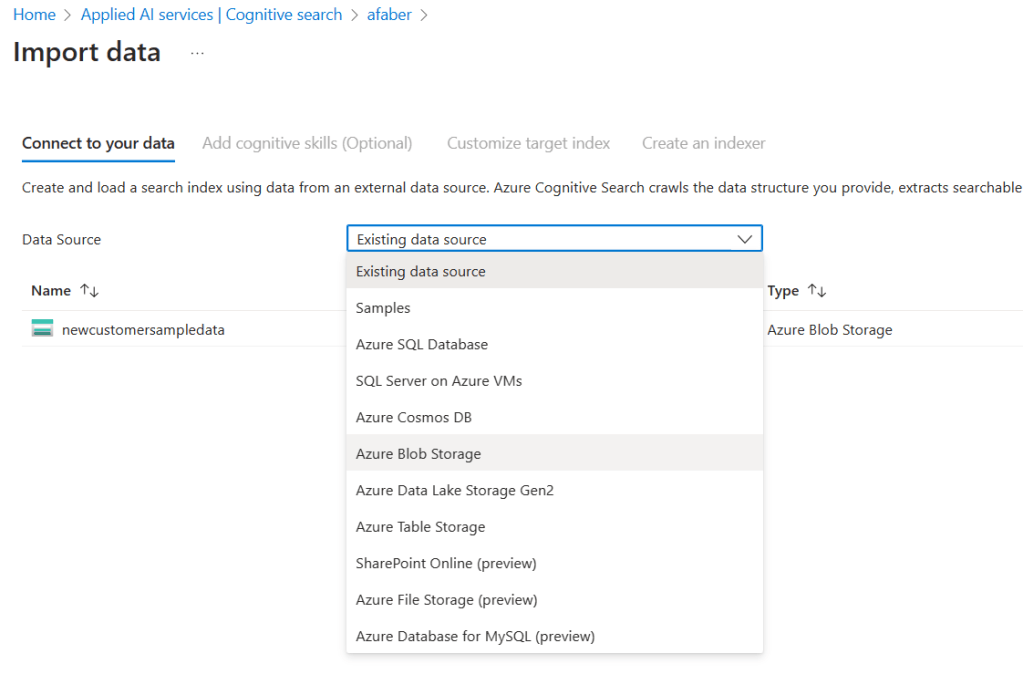
I select Azure Blob Storage, although you do have other options.

I select the specific storage account, container, and folder, if needed.

Note: The access level of the container I am using here is private, not public.

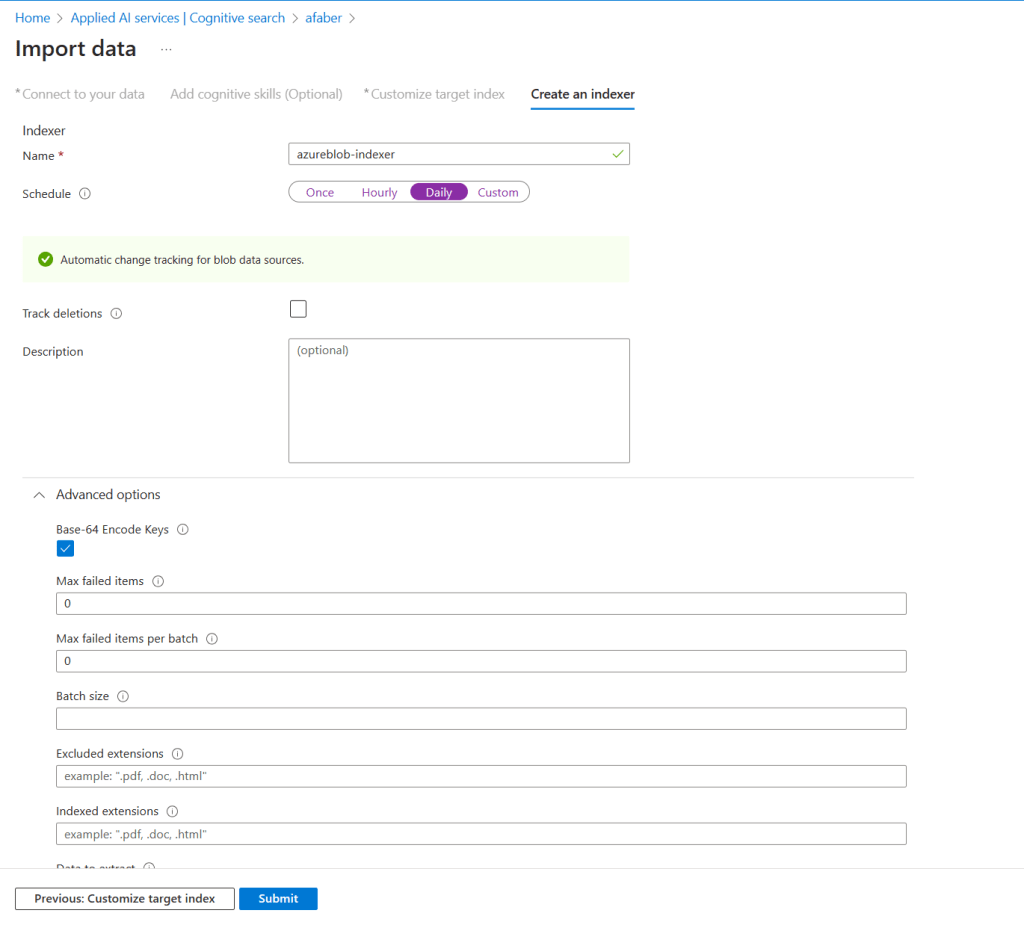
I can add cognitive skills and customize the target index, if needed, but I am taking the defaults for this demo. If you want to explore these options, please reference the documentation. Now, I do want to create an indexer, this is the process that will run to keep my grounded data up to date. I am using the daily option, which is sufficient for my test, but you have other options shown below.

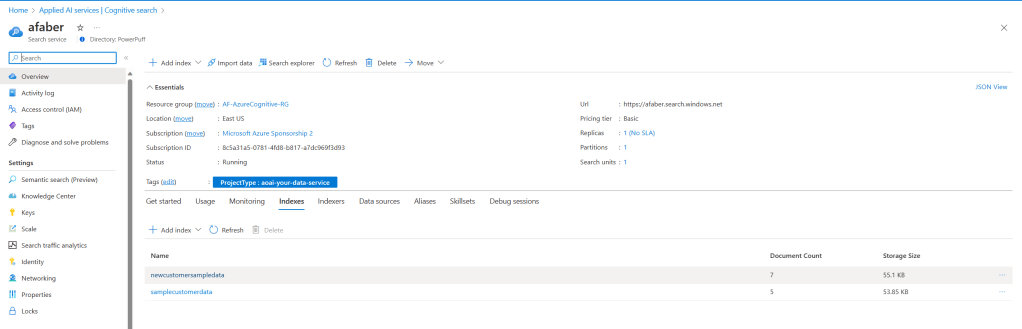
When the configuration is done, you should see a new Index listed. Keep in mind, there are several configuration options associated with the index as well, including being able to set up CORS for cross-origin queries, for that information, please reference the documentation. In my demo, I don’t need these additional configuration options.

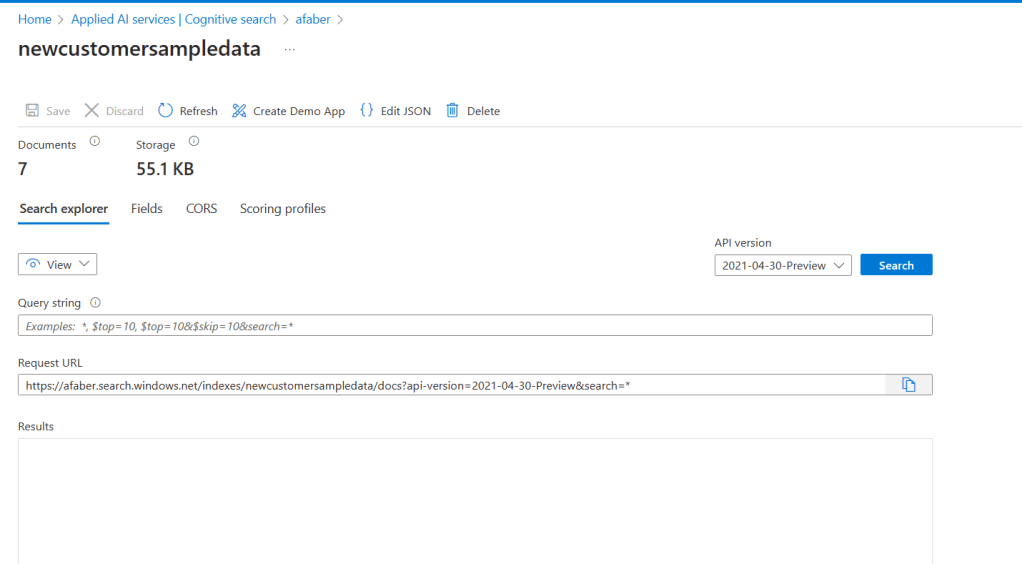
At any time, you can also come here and run queries to test new data has been indexed.

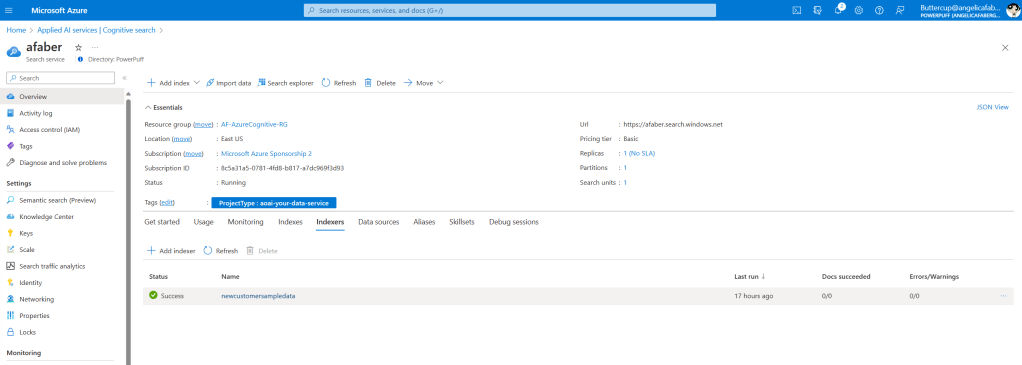
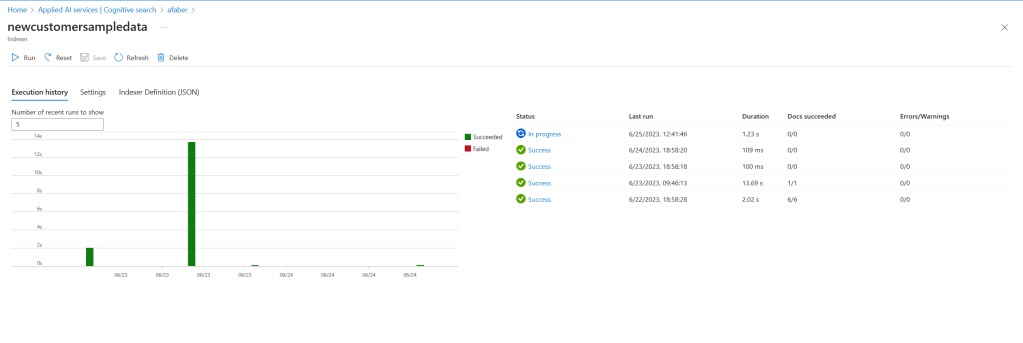
And you will also see the new Indexer.

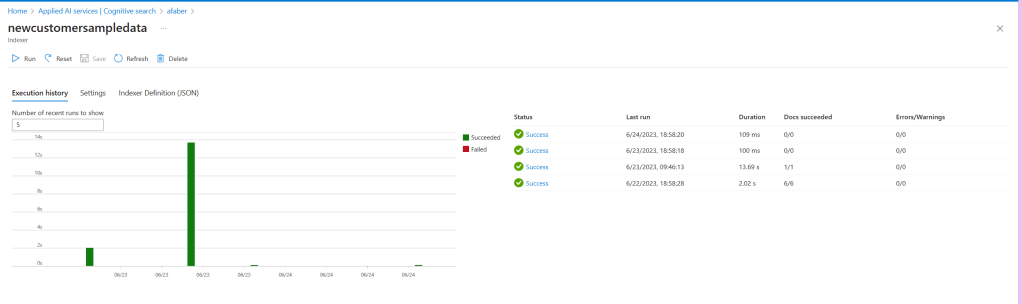
If you click on the name of your indexer, you will see that you also have the option of running this manually, which is great for initial testing.

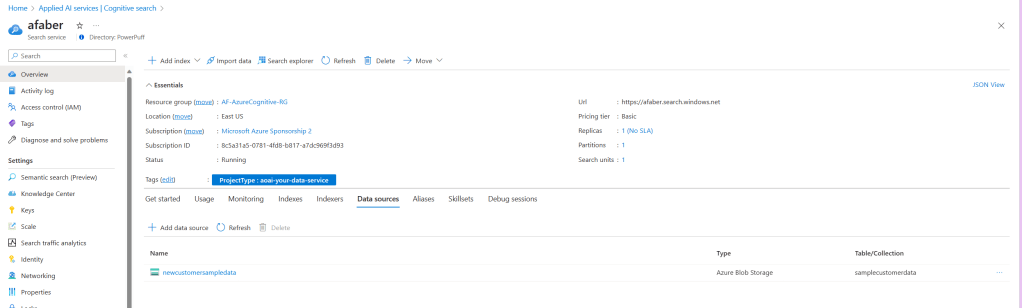
Finally, I should also now see my Data Source listed.

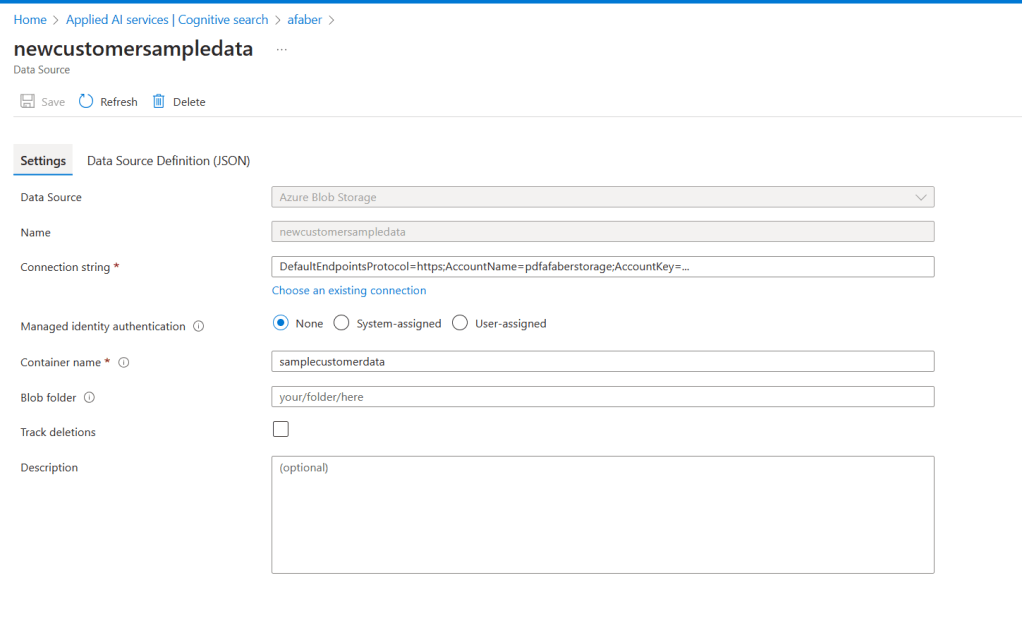
Some of the data source options can be updated later, if needed.

Grounding

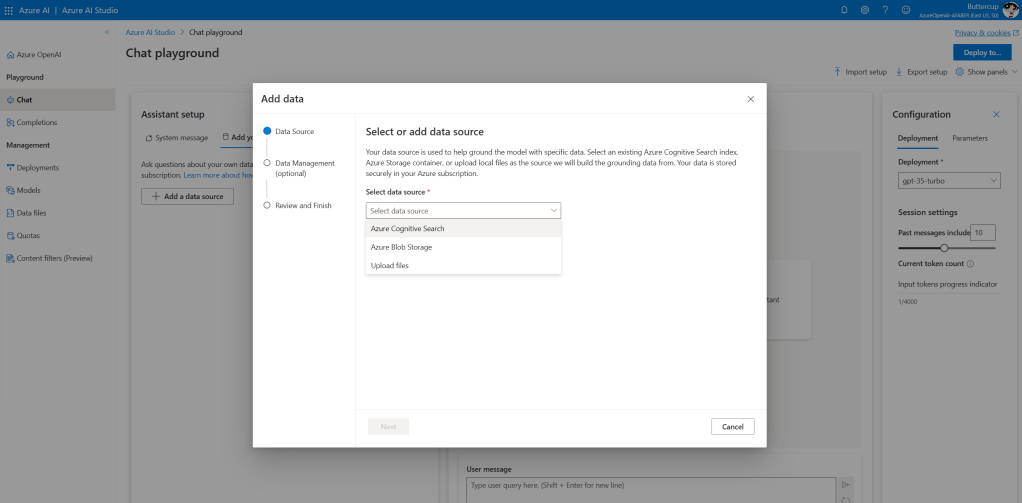
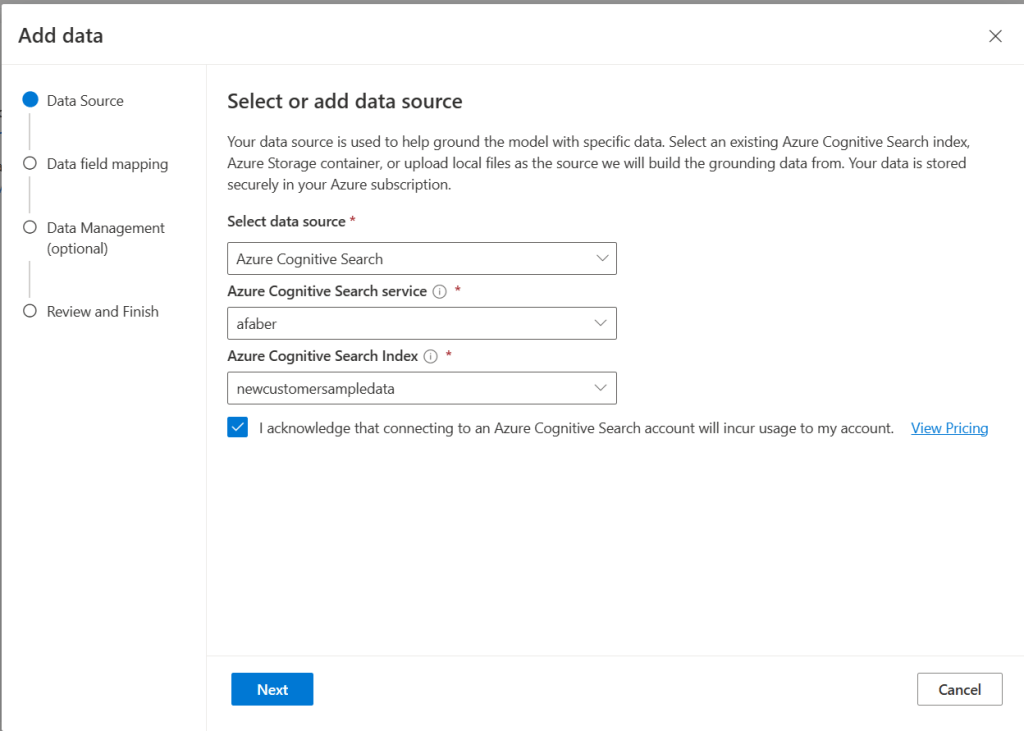
Once the Cognitive Search index is all configured the way you need it, then you can proceed to add the grounding data in the Azure AI Studio, as we did previously, just using a different option. This time, I will need to choose Azure Cognitive Search, instead of Azure Blob Storage.

And I choose the new Index I created in the previous step.

There are additional options for data field mapping and data management, but I am just going with the defaults for this demo.

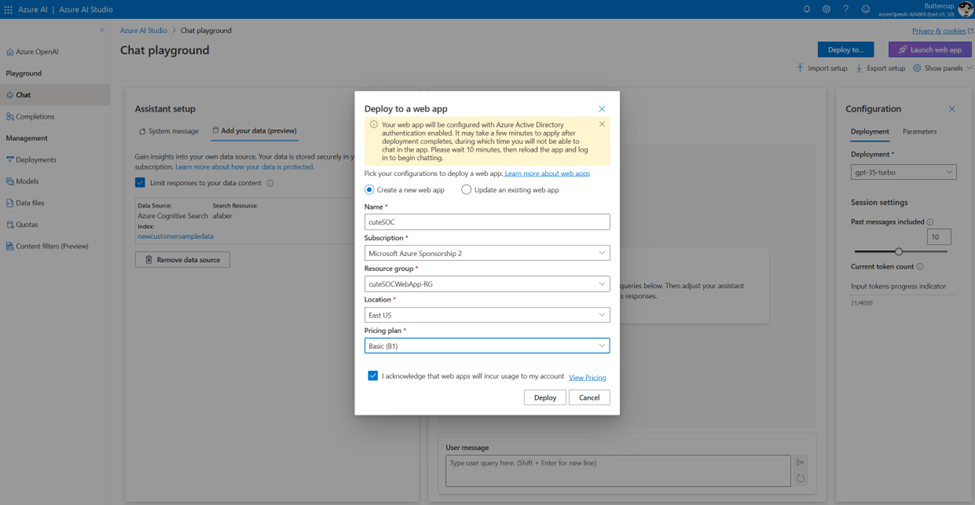
Once you complete some initial testing using the Chat session, then you can proceed to deploy to the Web App, in the same manner that I did for the previous one.

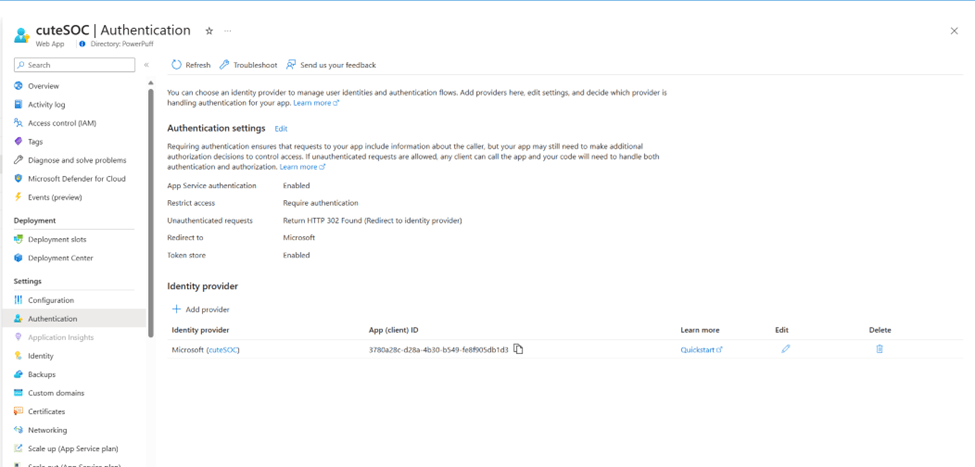
One difference I noticed is that this time the Web App was automatically configured to use Azure AD as my identity provider. I am not sure why I didn’t have to set it up this time, but if you have to configure the IdP, then just go to the App Services menu, choose your application, and then configure it from the Authentication tab.

Testing

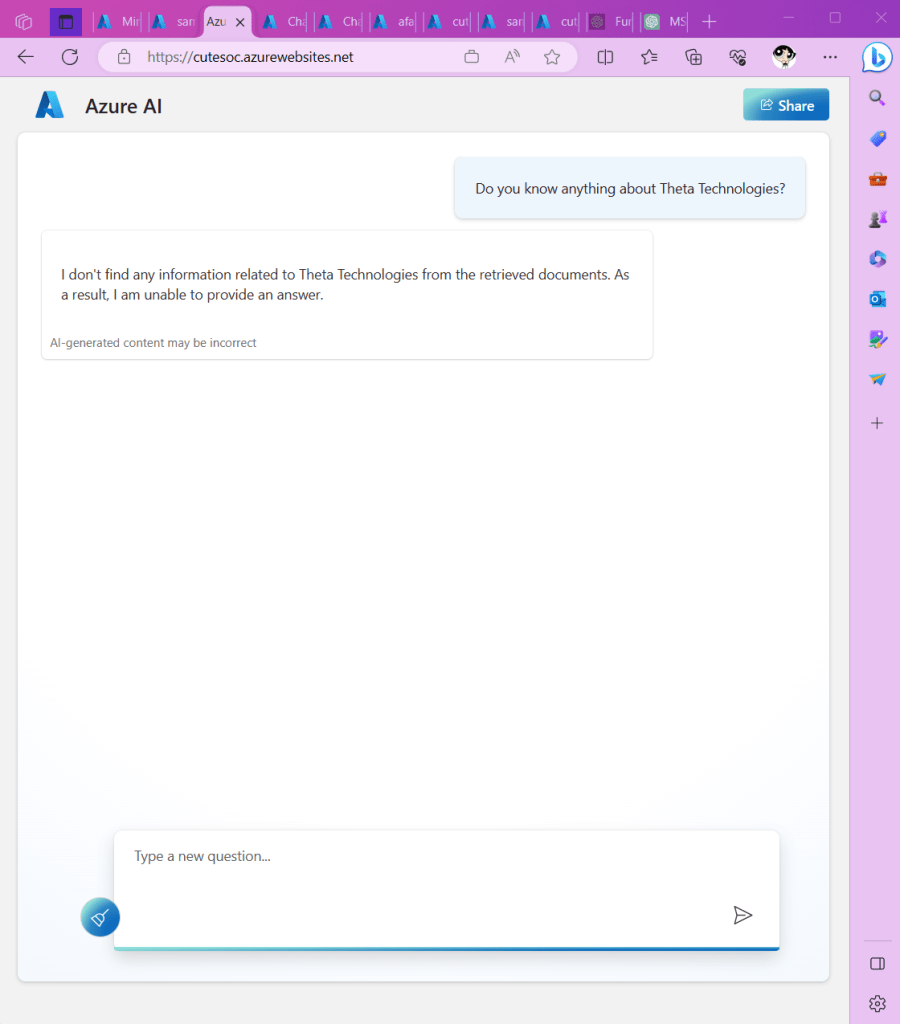
I have a new fictional customer, Theta Technologies, I ask the bot about it, but it doesn’t find anything, as expected.

To expedite my test, I run the indexer manually.

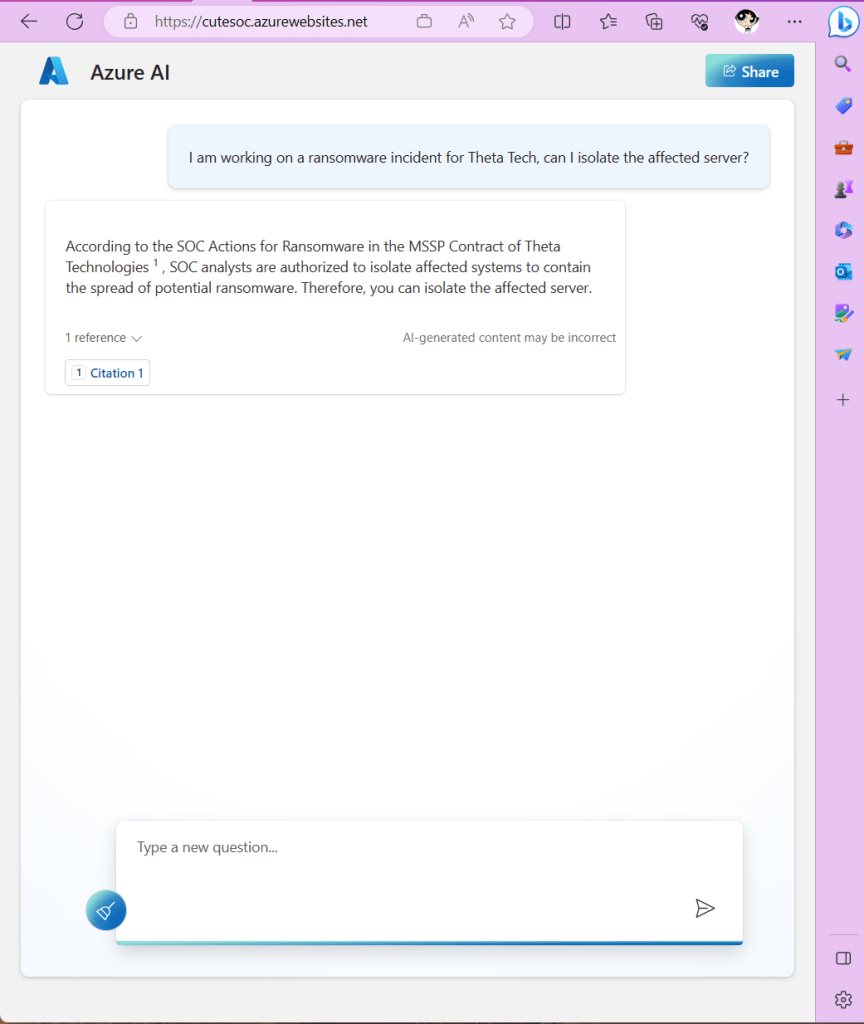
I come back to ask the bot something about Theta Technologies, and now it knows the answer.

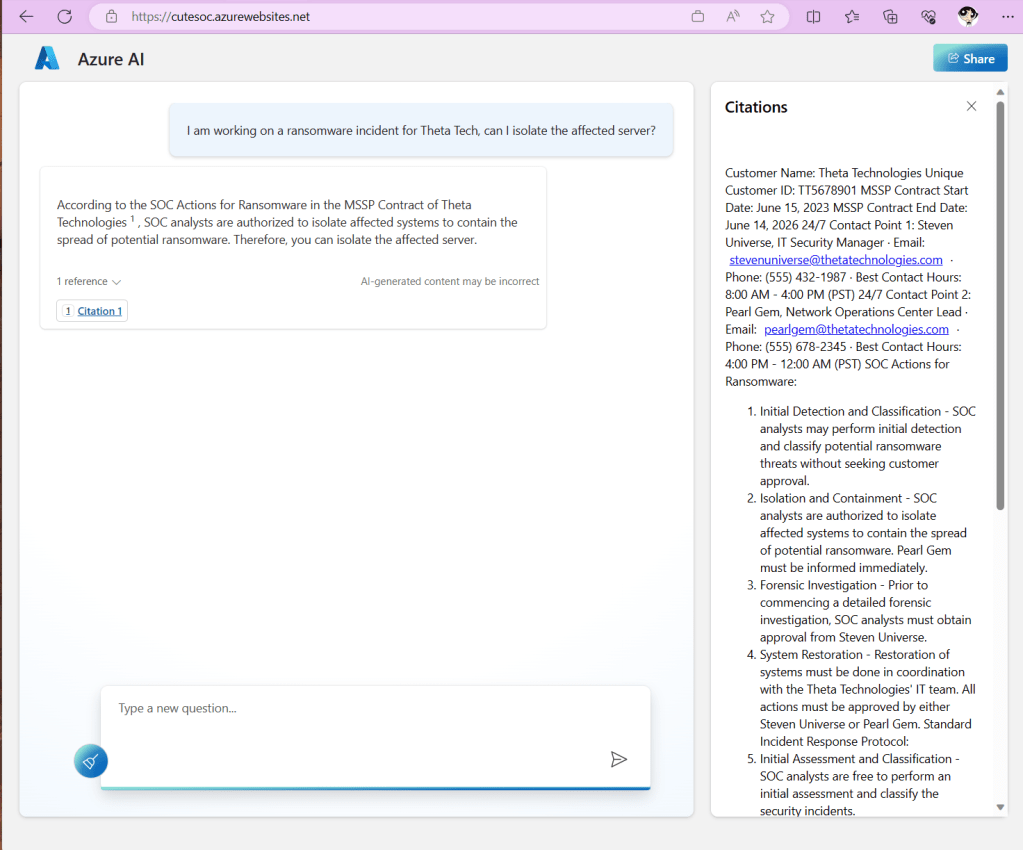
As expected, I can click on the citation, I can see the new document I added.

But of course, it’s much easier to continue to conversation with the bot to get the information I need.

Closing

As usual, I hope this information is useful. As you can probably tell by my blog posts, I find these new Azure OpenAI features fascinating. The more I learn, the more I see the potential of these tools to be incredibly useful for cybersecurity defenders.

Investigation suggestions from related incident comments & a SOC chatbot with Azure OpenAI

TL;DR – Generating Sentinel incident investigation suggestions based on comments from closed related incidents using a custom Logic App that connects to Azure OpenAI. And for some additional grounding, a little RAG for a chatbot that knows a lot about my customers.

Image generated by Bing for a ‘security chatbot’

In this post I describe how I get a few incident investigation suggestions based on comments from prior related incidents that were closed and classified as either True Positive or Benign Positive. This is a scenario I didn’t blog about previously, but I did mention and demoed during our partner session last week with my colleagues Rick and Zach. I was waiting for this Retrieval Augmented Generation (RAG) feature that allows me to add my data and create a chatbot so I could ground this scenario with some customer specific data. And yesterday that feature went into public preview, so I am sharing how I incorporated it.

What are related incidents (in my book)?

To be clear, I am referring to related incidents, not similar incidents, because I don’t have access to the secret sauce that is currently used within Sentinel to determine similar incidents. However, with immense help of Azure OpenAI, I came up with a KQL query that is pretty accurate in the areas that I need it to be. It looks back 14 days for any incidents that match either the analytic rule or the entities. In my case the entities that I am looking at are only HostName, IPAddress, and Name (which can be an account or the name of the malware, etc.). And that’s sufficient for my testing purposes.

Also, I split this into two groups, one for True Positives and one for Benign Positives, because I update the incident with one comment for each type, just to give the SOC analyst both possible perspectives. Once the incidents are selected, then I use that list to gather the comments for those incidents, which is the data that I feed to Azure OpenAI a little later.

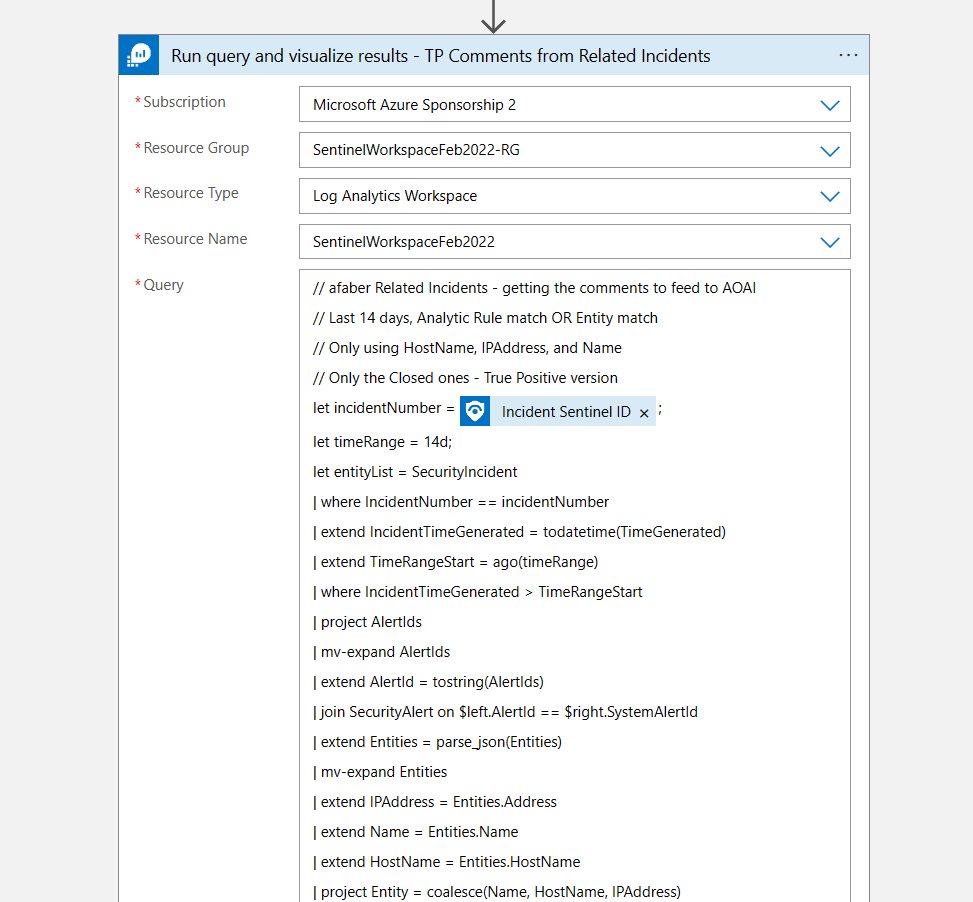
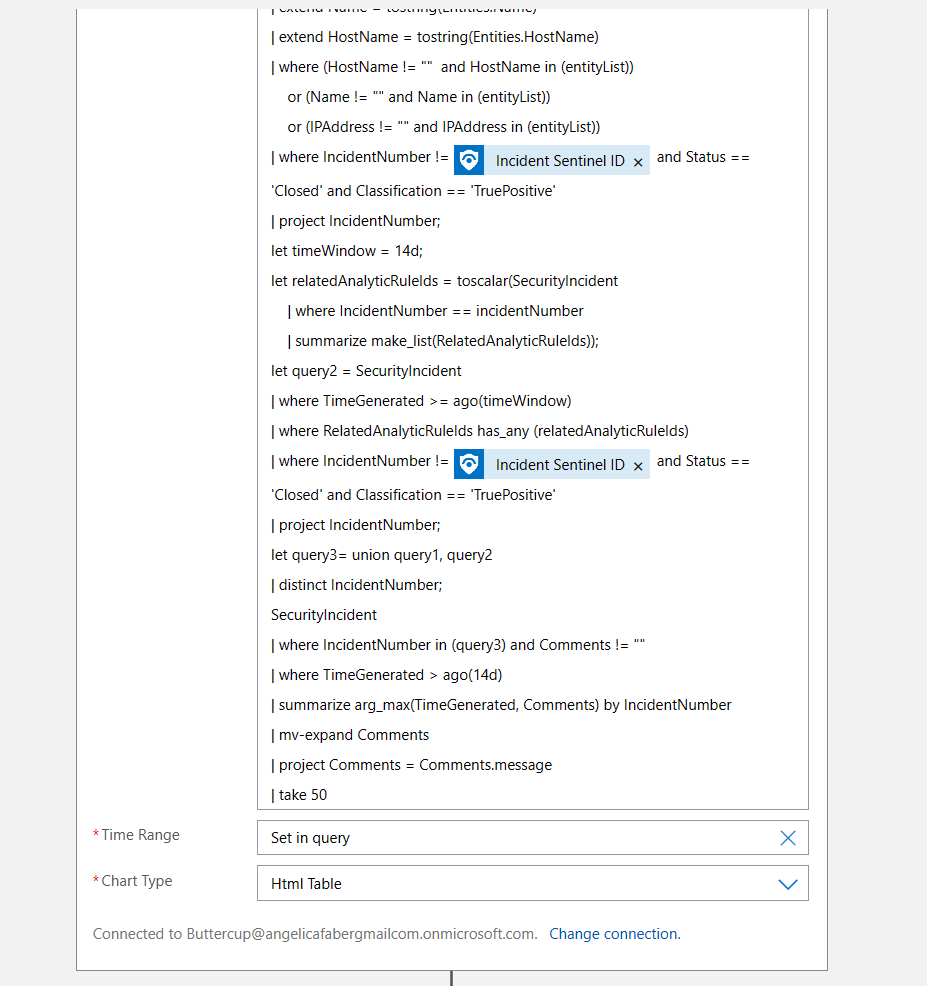
The True Positive query is shown below:

// afaber Related Incidents - getting the comments to feed to AOAI
// Last 14 days, Analytic Rule match OR Entity match
// Only using HostName, IPAddress, and Name 
// Only the Closed ones - True Positive version
let incidentNumber = <Incident Sentinel ID - Dynamic content>;
let timeRange = 14d;
let entityList = SecurityIncident  
| where IncidentNumber == incidentNumber
| extend IncidentTimeGenerated = todatetime(TimeGenerated)
| extend TimeRangeStart = ago(timeRange)
| where IncidentTimeGenerated > TimeRangeStart
| project AlertIds
| mv-expand AlertIds
| extend AlertId = tostring(AlertIds)
| join SecurityAlert on $left.AlertId == $right.SystemAlertId
| extend Entities = parse_json(Entities)
| mv-expand Entities
| extend IPAddress = Entities.Address
| extend Name = Entities.Name
| extend HostName = Entities.HostName
| project Entity = coalesce(Name, HostName, IPAddress)
| where Entity != "" ;
let query1 = SecurityIncident
| extend IncidentTimeGenerated = todatetime(TimeGenerated)
| extend TimeRangeStart = ago(timeRange)
| where IncidentTimeGenerated > TimeRangeStart
| project IncidentNumber, Status, AlertIds, Classification
| mv-expand AlertIds
| extend AlertId = tostring(AlertIds)
| join SecurityAlert on $left.AlertId == $right.SystemAlertId
| extend Entities = parse_json(Entities)
| mv-expand Entities
| extend IPAddress = tostring(Entities.Address)
| extend Name = tostring(Entities.Name)
| extend HostName = tostring(Entities.HostName)
| where (HostName != ""  and HostName in (entityList)) 
    or (Name != "" and Name in (entityList)) 
    or (IPAddress != "" and IPAddress in (entityList))
| where IncidentNumber != <Incident Sentinel ID - Dynamic content> and Status == 'Closed' and Classification == 'TruePositive'
| project IncidentNumber;
let timeWindow = 14d;
let relatedAnalyticRuleIds = toscalar(SecurityIncident
    | where IncidentNumber == incidentNumber
    | summarize make_list(RelatedAnalyticRuleIds));
let query2 = SecurityIncident
| where TimeGenerated >= ago(timeWindow)
| where RelatedAnalyticRuleIds has_any (relatedAnalyticRuleIds)
| where IncidentNumber != <Incident Sentinel ID - Dynamic content> and Status == 'Closed' and Classification == 'TruePositive'
| project IncidentNumber;
let query3= union query1, query2
| distinct IncidentNumber;
SecurityIncident
| where IncidentNumber in (query3) and Comments != ""
| where TimeGenerated > ago(14d)
| summarize arg_max(TimeGenerated, Comments) by IncidentNumber
| mv-expand Comments 
| project Comments = Comments.message
| take 50
The playbook

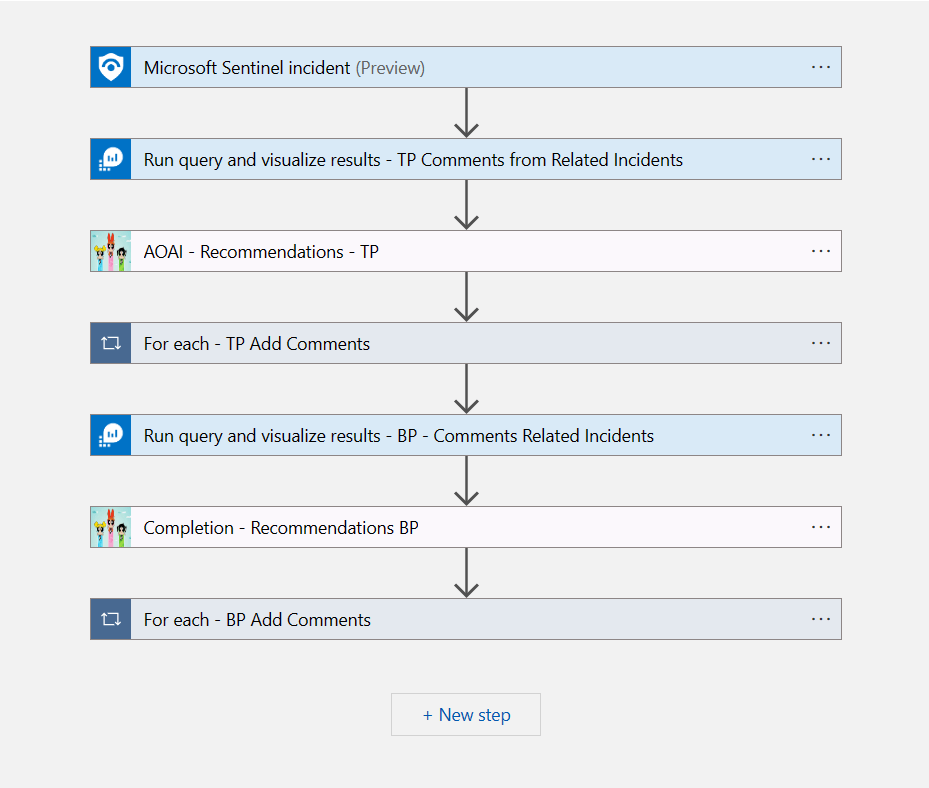
As usual, it’s a pretty simple playbook. It’s a triggered by a Sentinel incident, I then run the query above to gather the comments from the closed related incidents, with True Positives first, then I feed that to Azure OpenAI to generate some suggestions on how to investigate this incident. Then I do the same, but this time with Benign Positives.

The first query is the one I shared above, but here is a screenshot for reference:

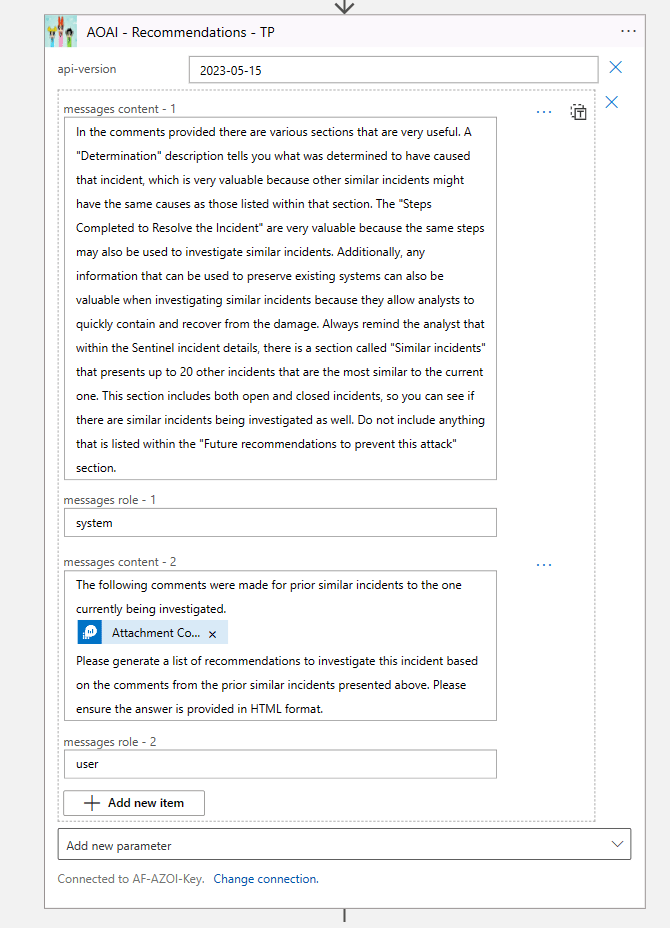
Then I feed the output of the query above using the Attachment Content dynamic value. Of course, I try to set the context using as much detail as possible in the system role. For a description of the roles, please reference my previous post. And I ask it for HTML format because it’s easier to read.

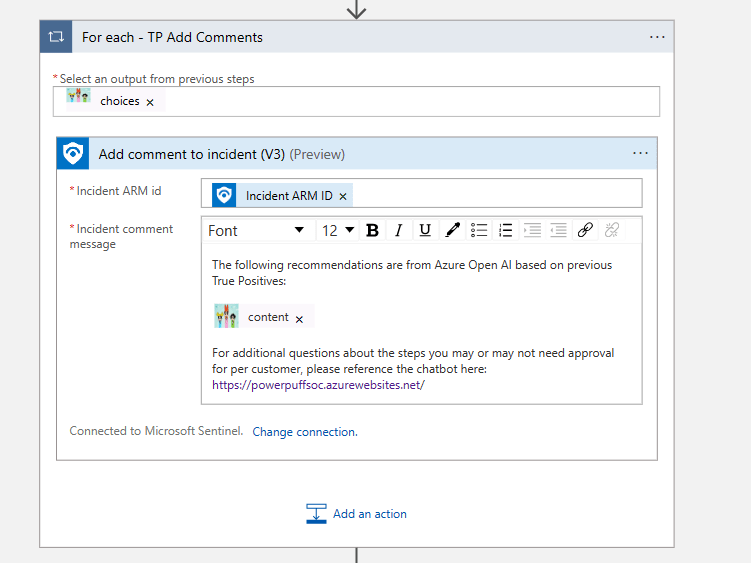
Then I update the Sentinel incident with the comments that Azure OpenAI generated. Now, there is one difference here for the True Positive comment version. In this one I am also asking the SOC analyst to visit a specific URL, which is my SOC chatbot, in case they have questions about which steps they need approval to execute for this customer. I will expand on the chatbot in the next section.

Then I repeat the same steps, but for the Benign Positives. Again, the only difference is that I don’t send the SOC analysts to the chatbot for Benign Positives recommendations, but technically you can, it just depends on what type of information you will need to keep on your customers.

My SOC chatbot

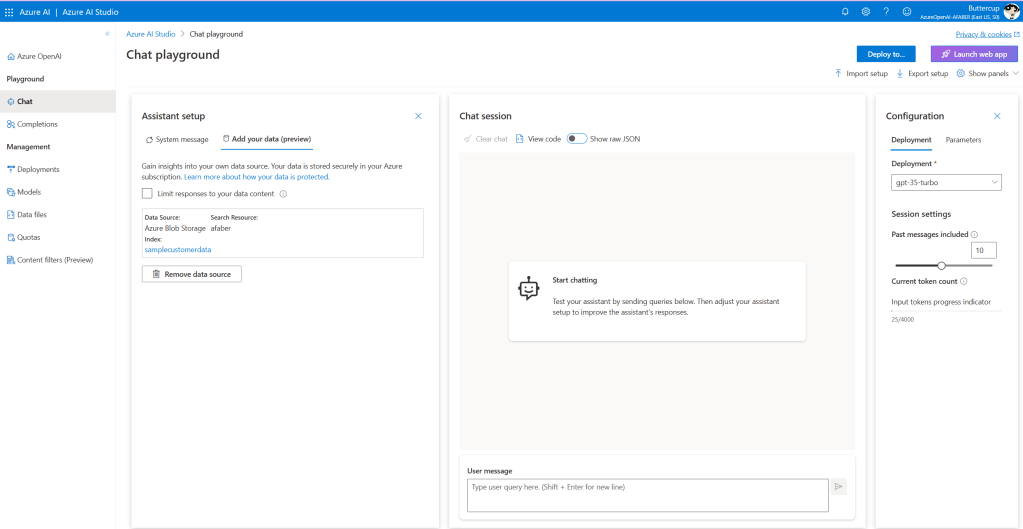
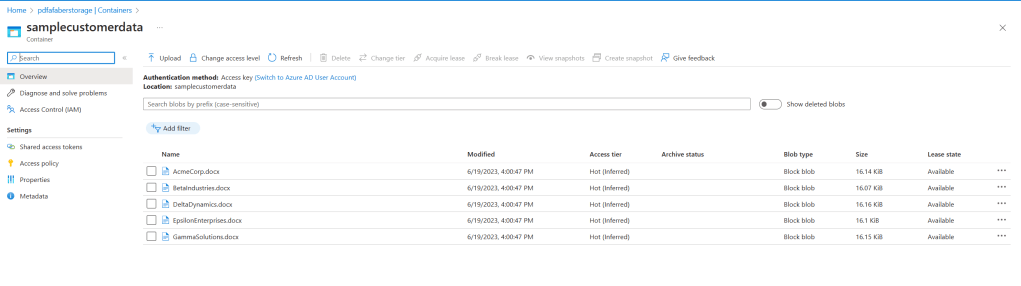
As I mentioned above, I was patiently (?) waiting for this feature to be available, because I wanted to test this scenario. I used the steps in the documentation to add data, in my case I used Azure Blob Storage and I created a new index called samplecustomerdata.

You do have other options, such as uploading files. In my case, it made more sense to just use the blob storage I was using to store these documents, which are sample customer data for my five fictional customers; Acme Corporation, Beta Industries, Delta Dynamics, Epsilon Enterprises, and Gamma Solutions.

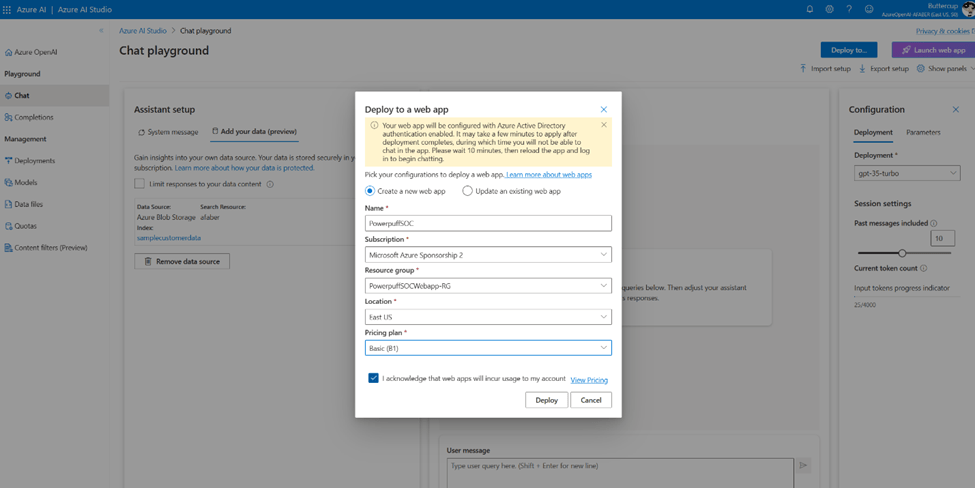
And once the data was configured and I tested within the chat session that it was responding as I expected to, then I went ahead and deployed the web app.

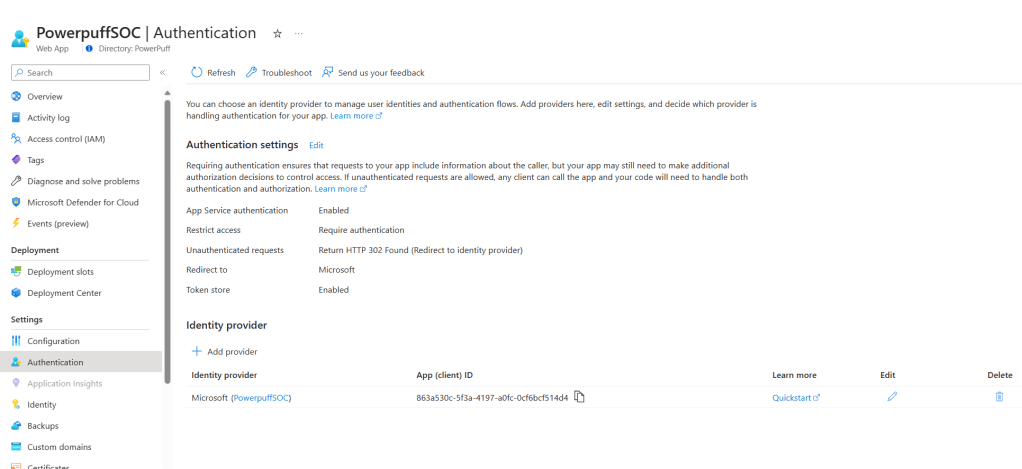
I also configured an identity provider for my web application, which you can do via the Authentication blade in App Services.

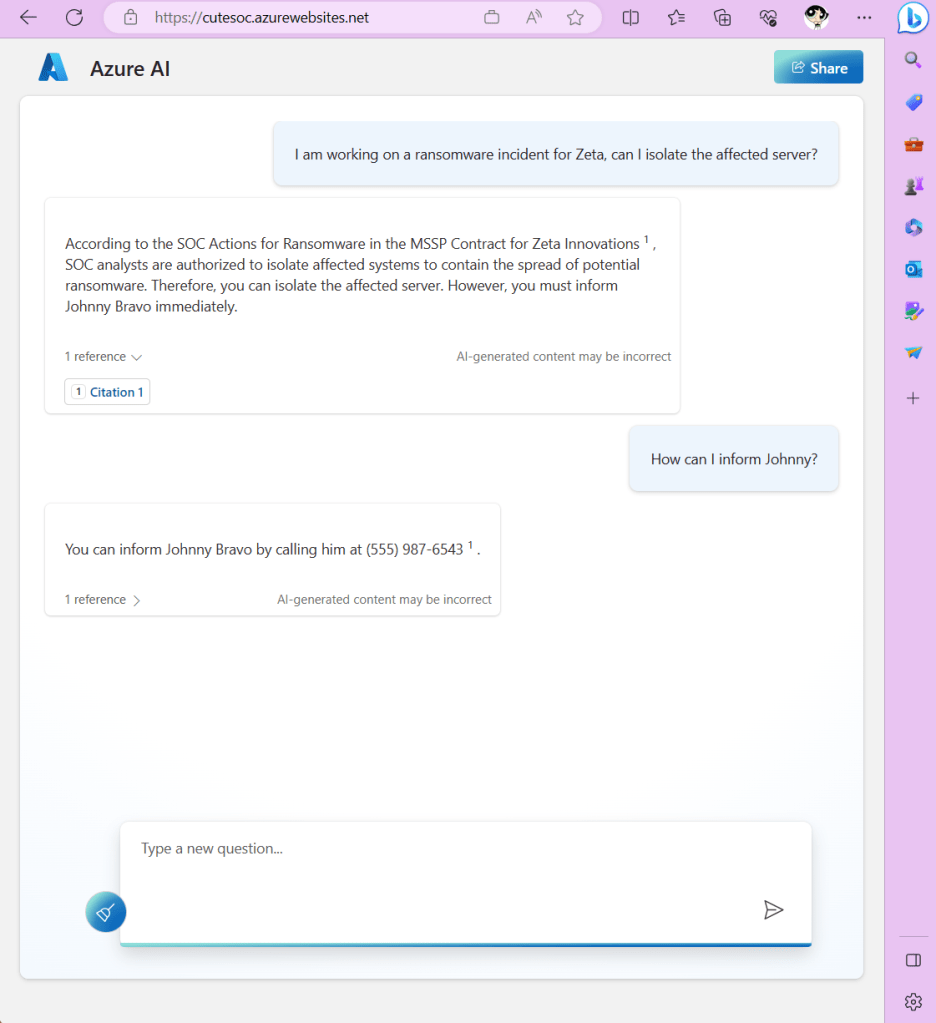
The result is my very own SOC chatbot, which now specializes in information about my customers. The magic of grounding! I’ll show you how I use this chatbot in a little bit.

All together now

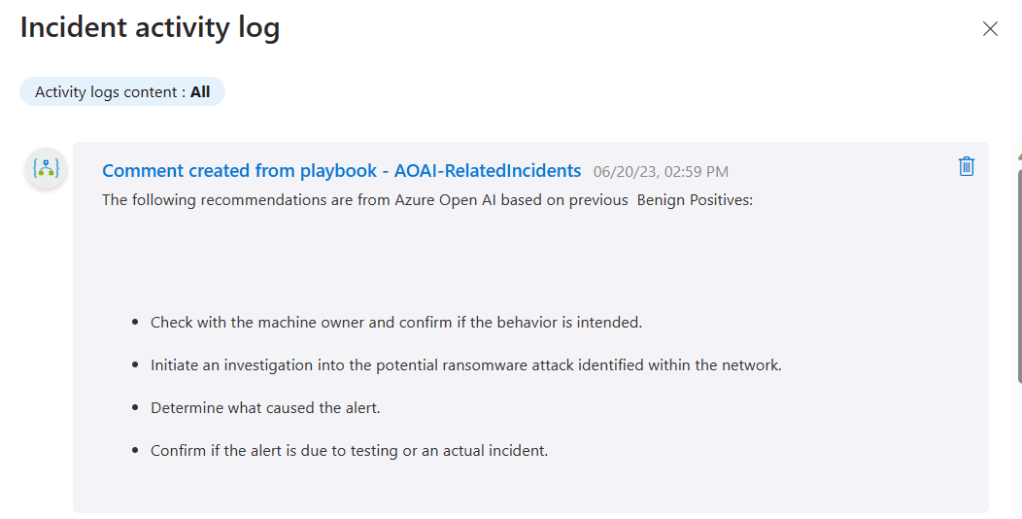
In my demo I have some incidents with a description of “Mimikatz credential theft tool“, which I have been triggering (and closing) on purpose for this test. So, when I run the AOAI-RelatedIncidents playbook I get two comments, one for the Benign Positives.

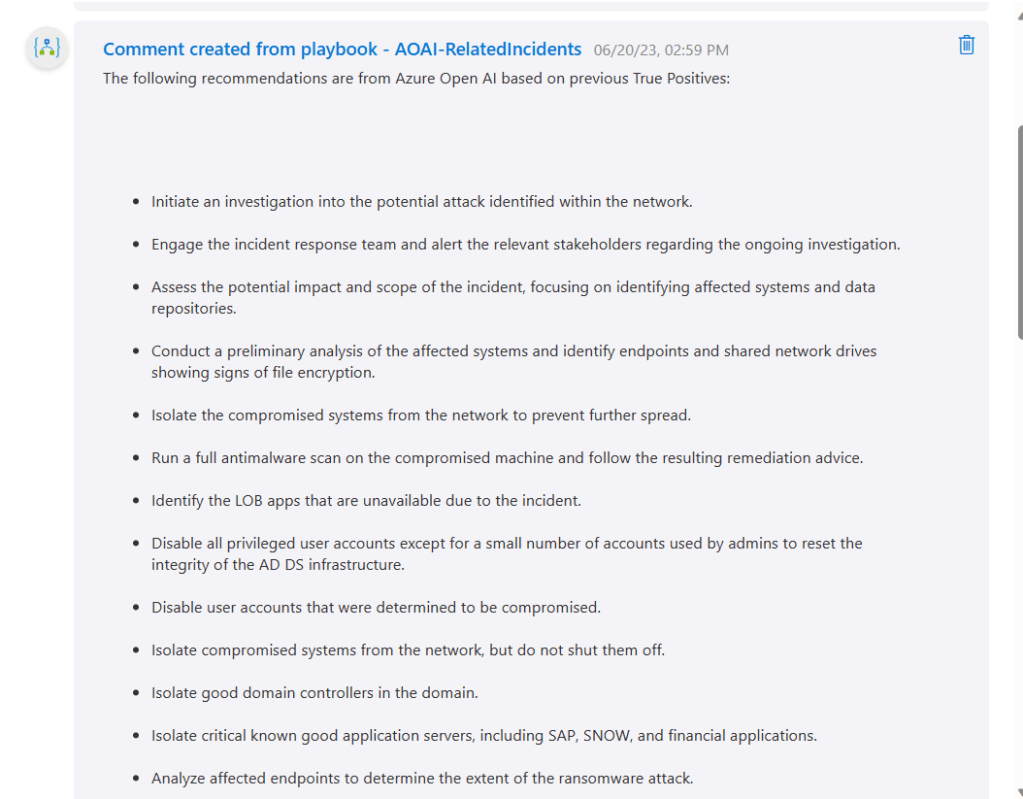
And one for the True Positives.

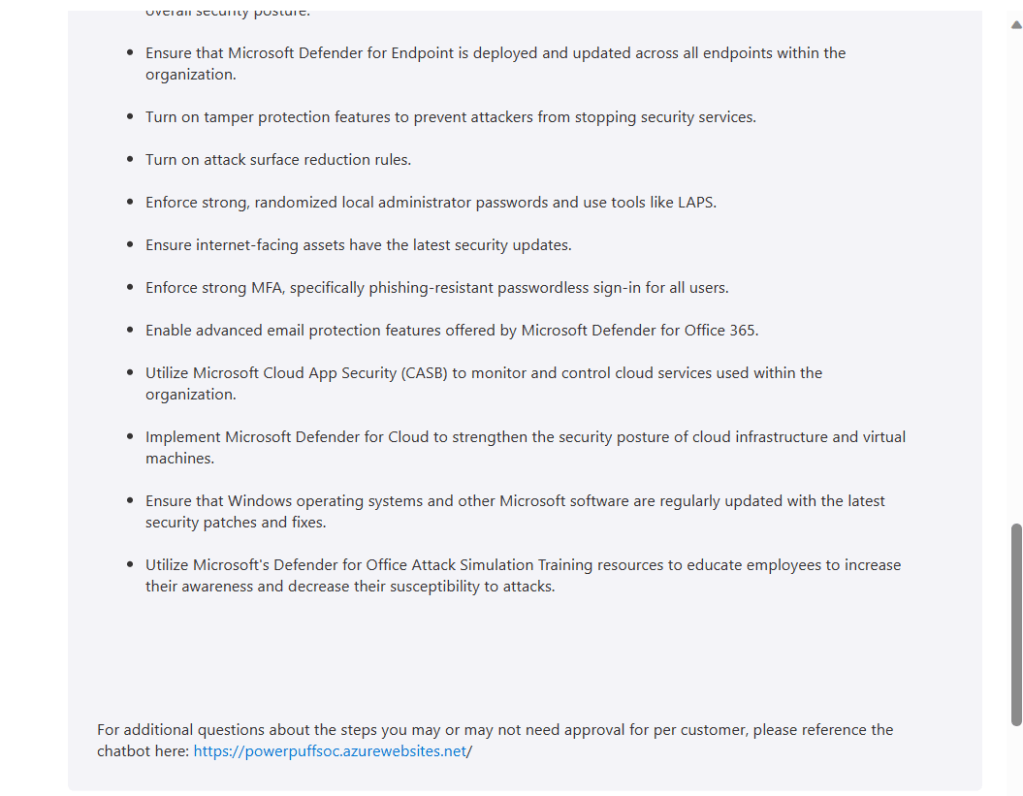
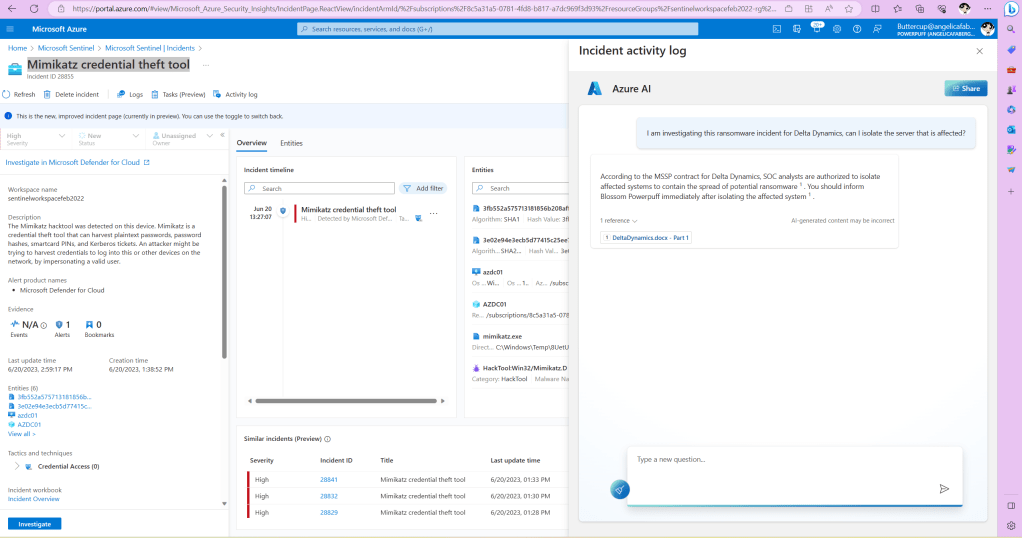
And on the True Positives one I added the URL, and when I click on it, I get the page to show up right there within the activity log, while working on the incident. My chatbot is grounded by the customer data in that storage account. In my case that data is about each of the customer’s requirements when it comes to SOC analysts being able to complete certain tasks without approval, but other tasks require either approval or notification.

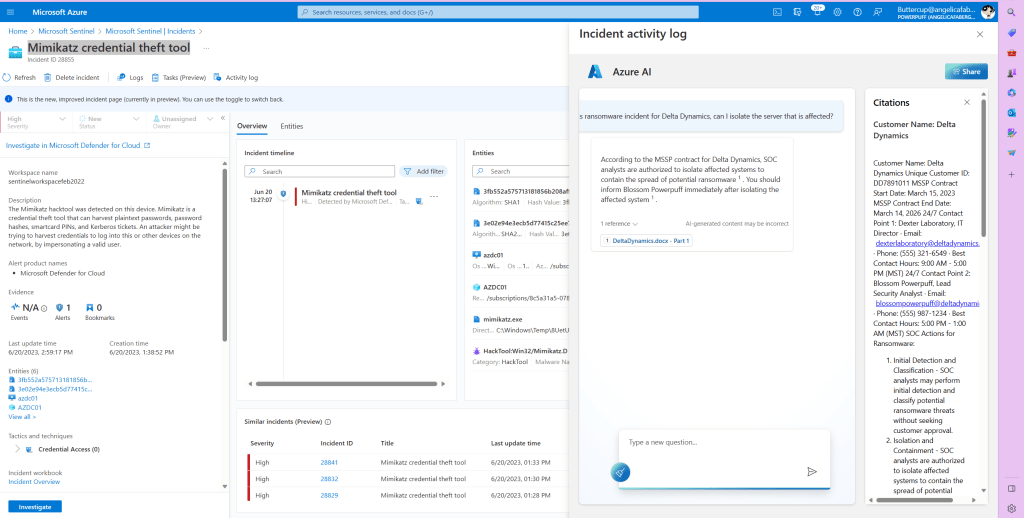
And if I click the link to the document that is listed as a reference, I can actually scroll through the entire contents.

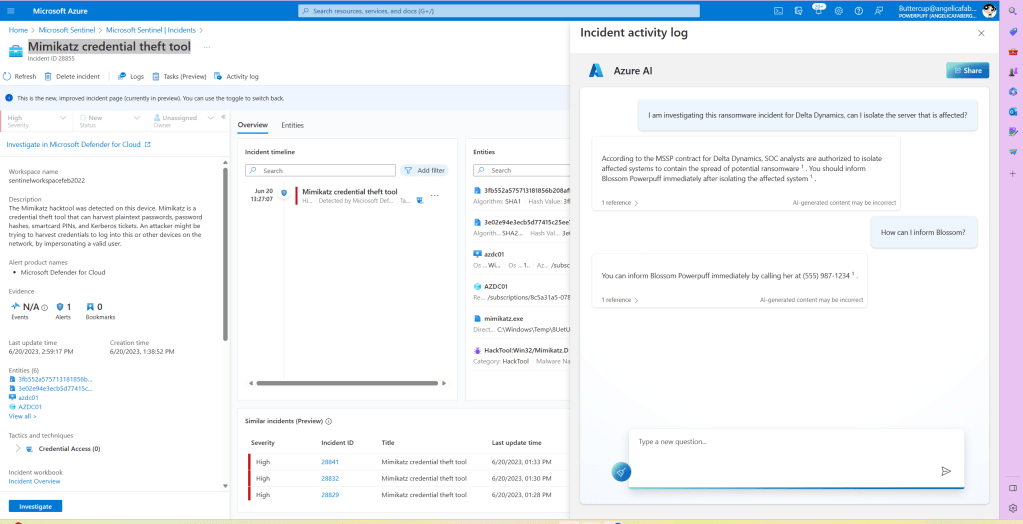
Or I can just continue my conversation with the chatbot to get what I need, as shown below.

Closing

As usual, I hope you find this blog post useful. There are many possible improvements to what I came up with here, I can already think of two😊. However, I wanted to share what I have working for now, so that anyone else brainstorming ideas can take what I have so far and run with it.

Sentinel Incident Report using Azure OpenAI

TL;DR – Generating an Incident Report based on data from a Sentinel incident using a custom Logic App that connects to Azure OpenAI (gpt-3.5-turbo and gpt-4).

I don’t know anyone that loves writing Incident Reports. And it just so happens that one of the tasks that Azure OpenAI is really good at is summarizing, so I thought a good way to put that skill to use is with Incident Reports. In this blog post I share how I got Azure OpenAI to generate some Incident Reports for me.

Before I go on, I want to make sure anyone reading this post knows that I am working with my own instance of Azure OpenAI, which exists within my Azure subscription and it’s completely under my control.

Image created by Bing based on the prompt “Azure OpenAI creating Incident Reports
The playbook

Note: I will not cover the details of creating the Azure Logic Apps Custom Connector, because I went over that in one of my previous blog posts.

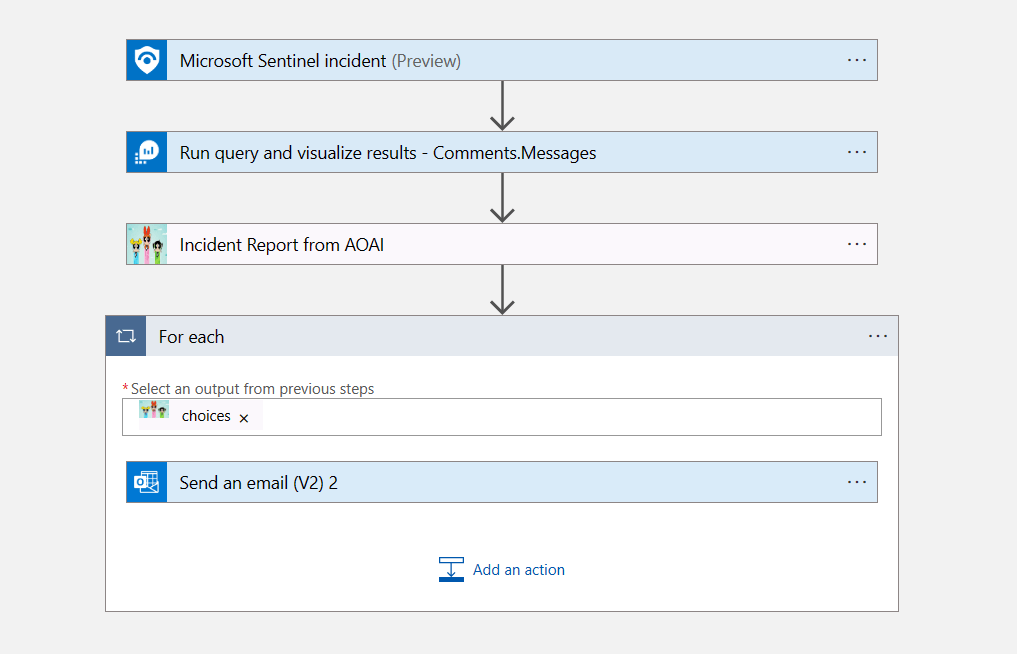
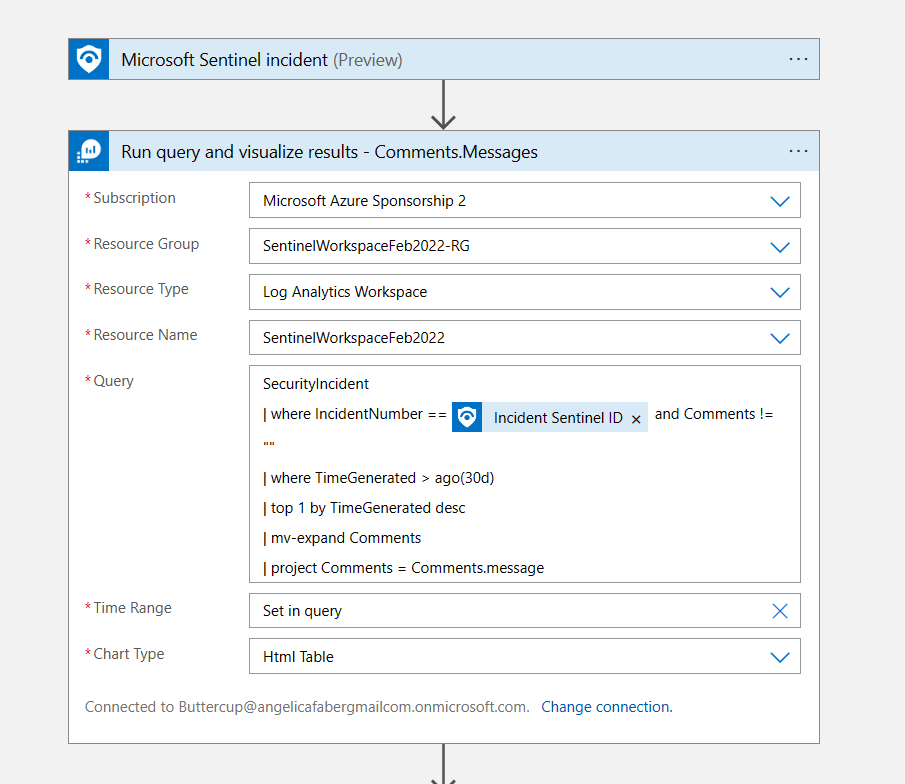
The playbook (Azure Logic App) is really simple, it just includes 4 steps. It’s based on Sentinel Incident trigger. Then (2) it runs a KQL query to get the specific comments updated to the incident, and then (3) it goes out to Azure OpenAI to generate the report, and then (4) it emails the report.

The KQL query is getting the comments for that incident, specifically the messages within the comments, because that’s all I need to pass to Azure OpenAI (for now 😊), so I need to filter out the data because, as we all know, GPUs are not free.

Then for the Azure OpenAI call, I am just using two of the roles, system and user. I don’t need assistant for now, maybe others testing will find it useful to provide some examples, for that you can use the assistant role. However, in this simple scenario, I am not using it.

Within the system role, I am passing some information and guidelines of what I expect to see in that incident report, as shown below. I can add additional guardrails, but I am keeping it simple for this initial scenario.

I want to point that I am passing the results of the query above as Attachment Content, which in my case are the messages that were included within the comments for this incident. Also, I am asking for the answer to be provided in HTML format. This is because it’s going make a difference in the readability of the email I am sending.

Finally, the email action, where I am passing the content from the previous action within the body of the email.

By the way, I am sending the email directly because it’s a test instance, but I could always add an approval request before the email is sent.

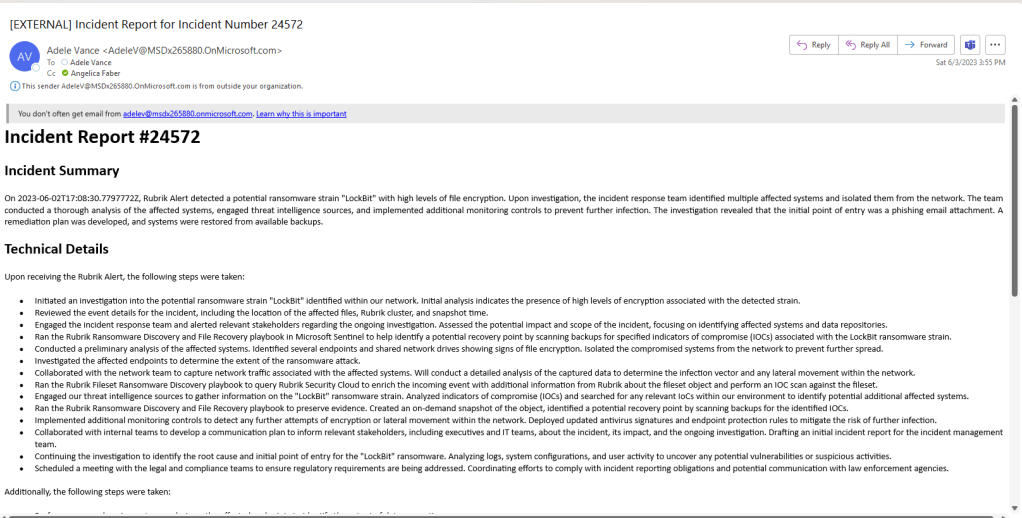
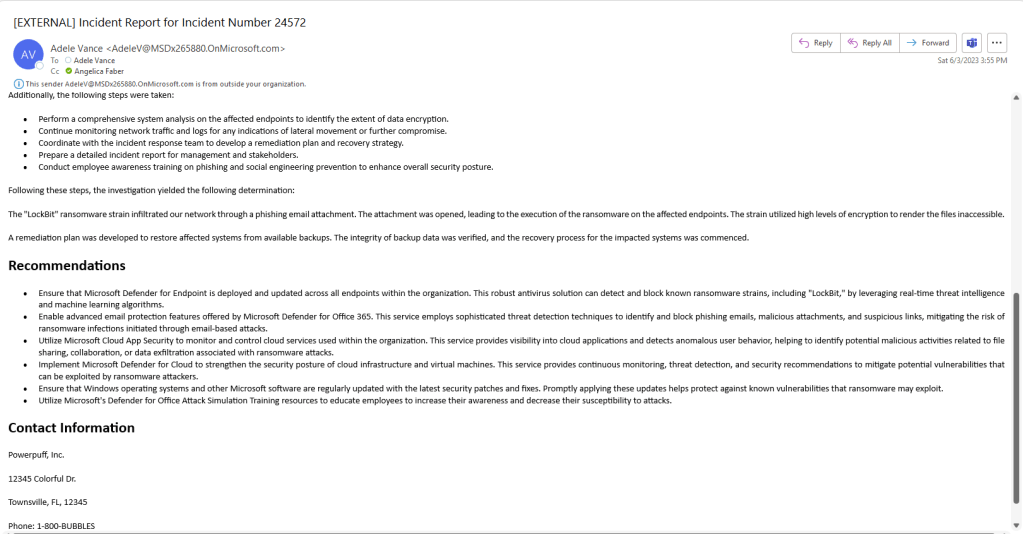
The email contents

So, this is what the report looked like:

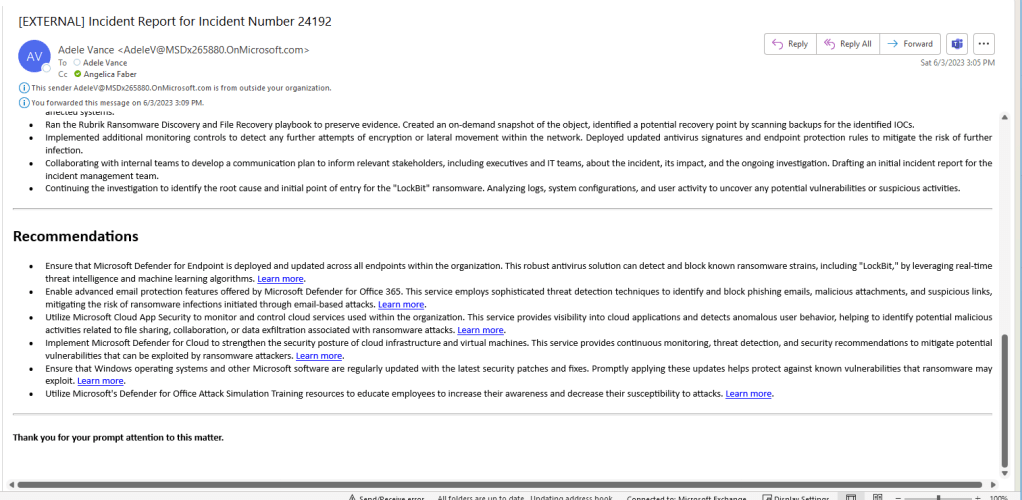
Some of the recommendations even included links:

The future is very soon

What I shared in this blog is just my initial testing of an idea, but I know there’s probably more I can do to make this report more consistent. I am anxiously awaiting the Azure OpenAI features that were announced during Microsoft Build, especially those that discussed Retrieval Augmented Generation (RAG) features, which are expected to be available early June. In case you are curious, one of those sessions was Getting started with generative AI using Azure OpenAI Service. Once available, I plan to retest this scenario using those features, which should allow me to import data into my Azure OpenAI instance to help set some guardrails and add additional content.