TL;DR – Documenting a few improvements on the SOC chatbot I created in my previous post, specifically keeping the chatbot grounding information up to date.
In my previous post I shared how I created a chatbot grounded on customer data, specifically on Standard Operating Procedures (SOPs) that MSSPs normally keep for their customers. This comes in handy because most customers have specific requirements on how and when they allow MSSPs to take actions to remediate or mitigate incidents. The method I used in that post is still an option. However, I wanted to make some improvements, so this post is about the first improvement, keeping the chatbot grounding information up to date.
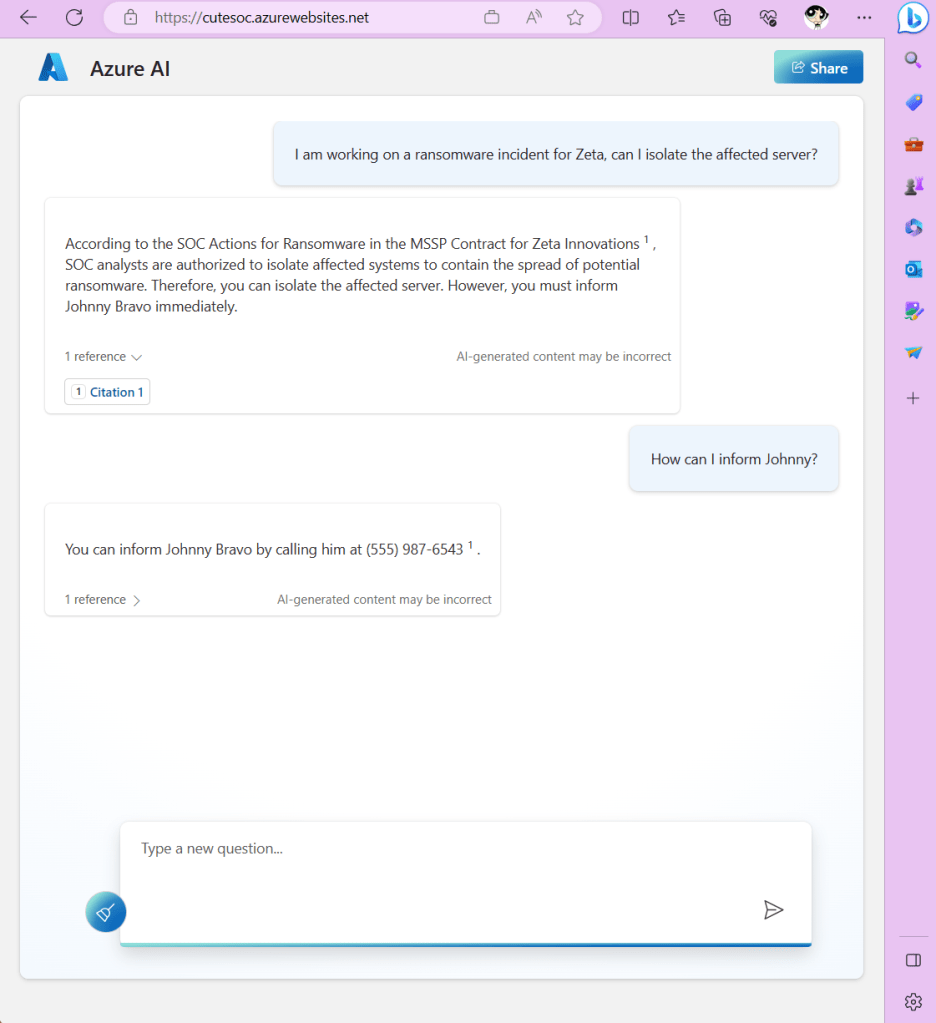
Starting Point
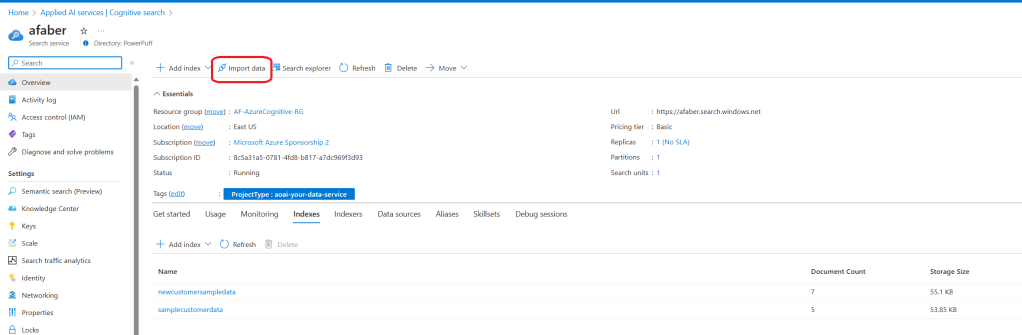
In the previous post I went to Azure AI Studio, added the data directly there using the Azure Blob Storage option. While that does get the data indexed and ready for the chatbot, it doesn’t allow me to keep it updated, at least not by default. So, instead I start the process through Cognitive Search menu, this allows me to configure the continuous data indexing process. First, I start by clicking on Import data, as shown below.
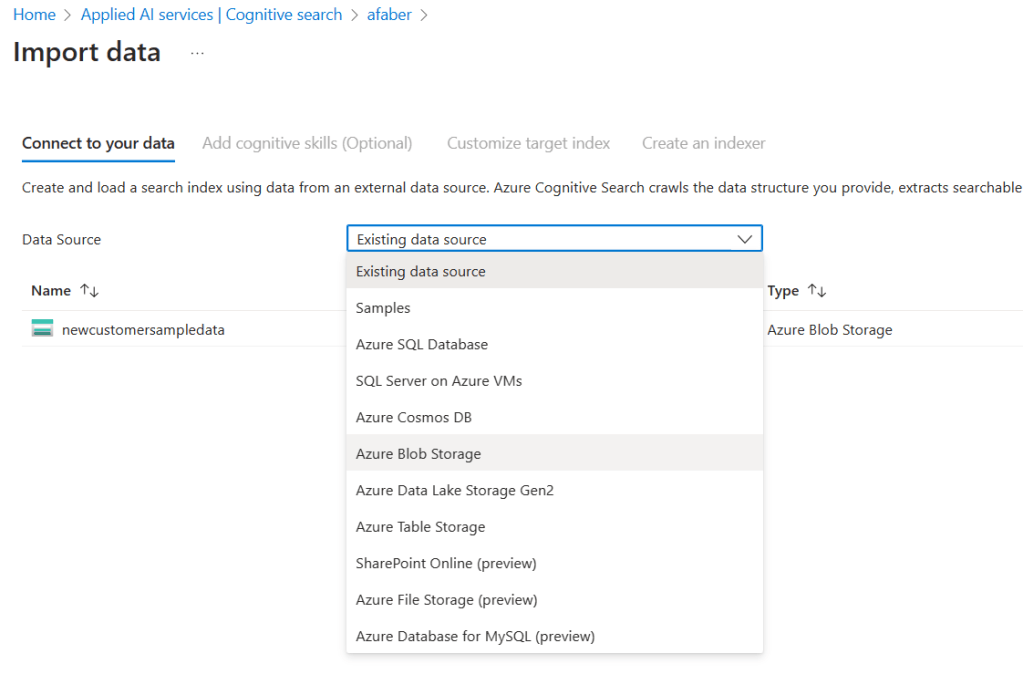
I select Azure Blob Storage, although you do have other options.
I select the specific storage account, container, and folder, if needed.

Note: The access level of the container I am using here is private, not public.
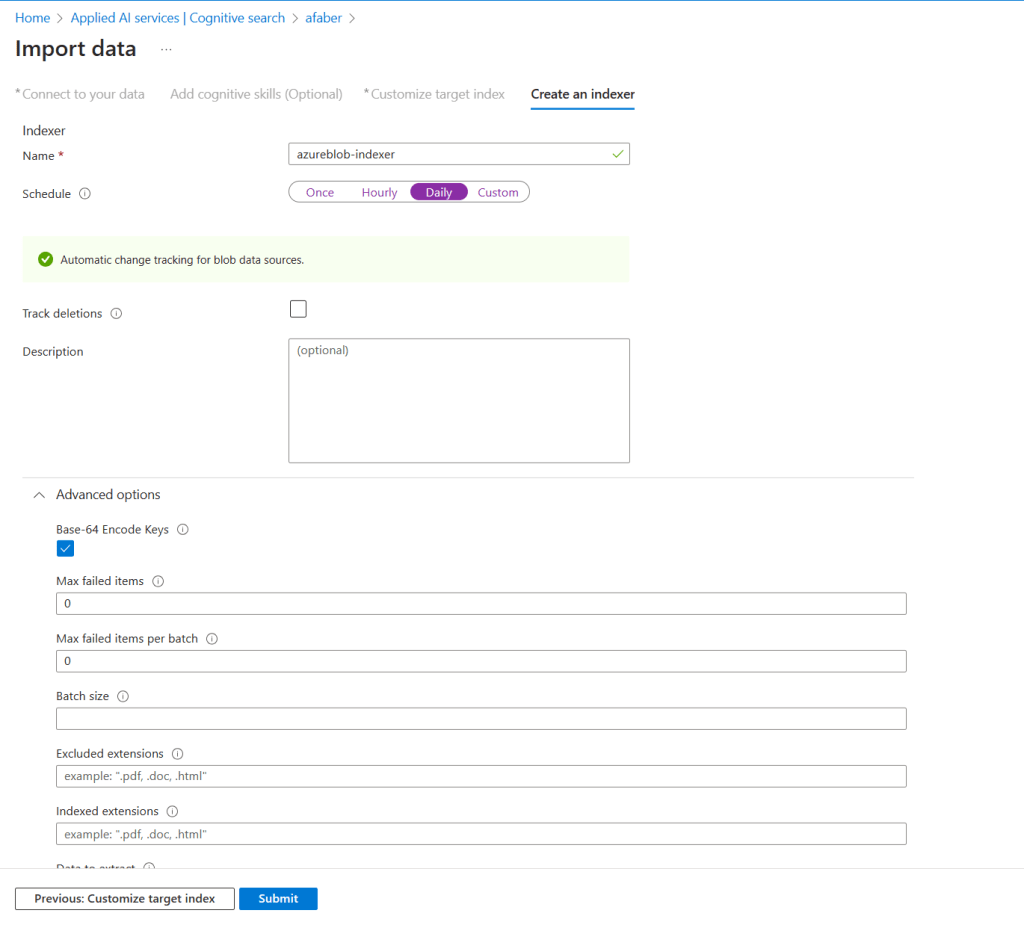
I can add cognitive skills and customize the target index, if needed, but I am taking the defaults for this demo. If you want to explore these options, please reference the documentation. Now, I do want to create an indexer, this is the process that will run to keep my grounded data up to date. I am using the daily option, which is sufficient for my test, but you have other options shown below.
When the configuration is done, you should see a new Index listed. Keep in mind, there are several configuration options associated with the index as well, including being able to set up CORS for cross-origin queries, for that information, please reference the documentation. In my demo, I don’t need these additional configuration options.
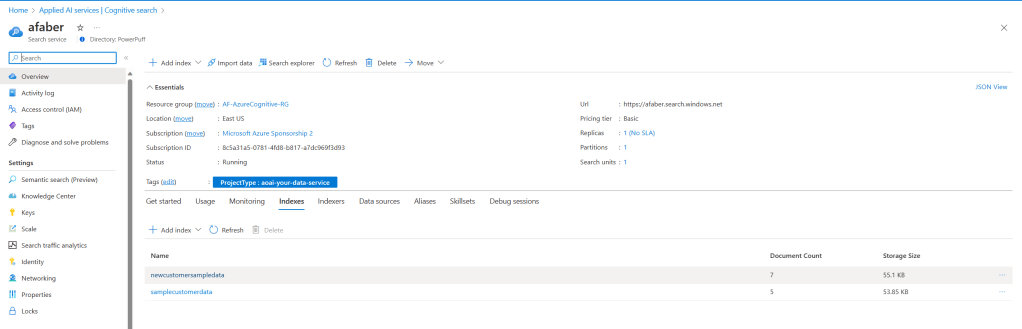
At any time, you can also come here and run queries to test new data has been indexed.
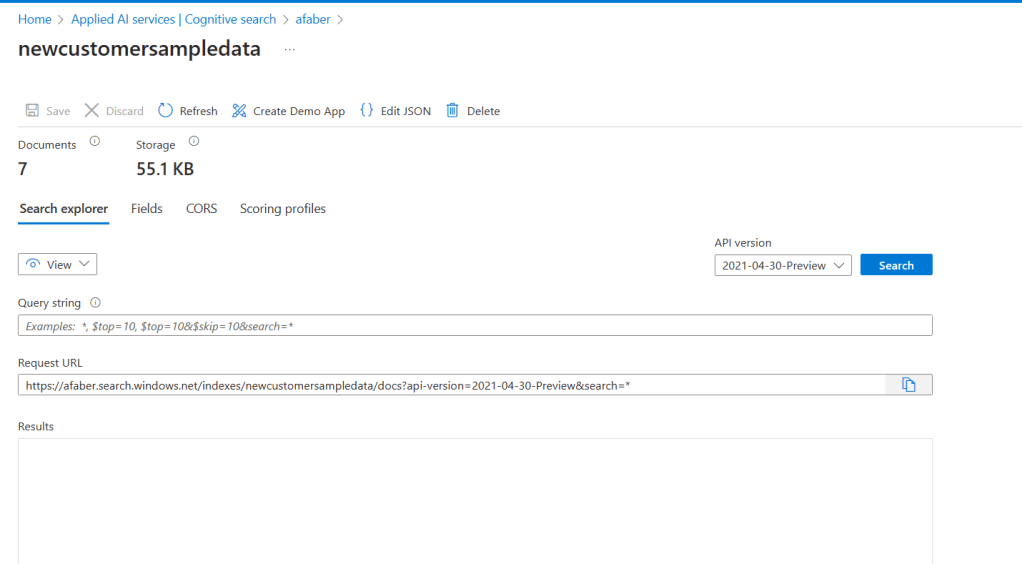
And you will also see the new Indexer.
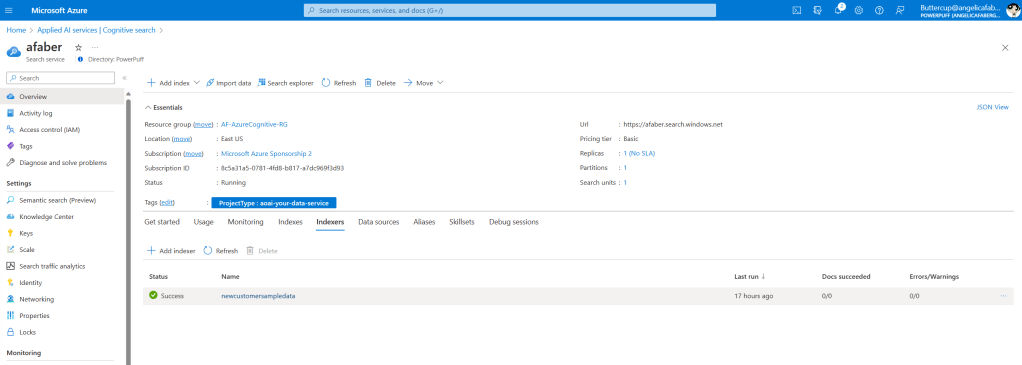
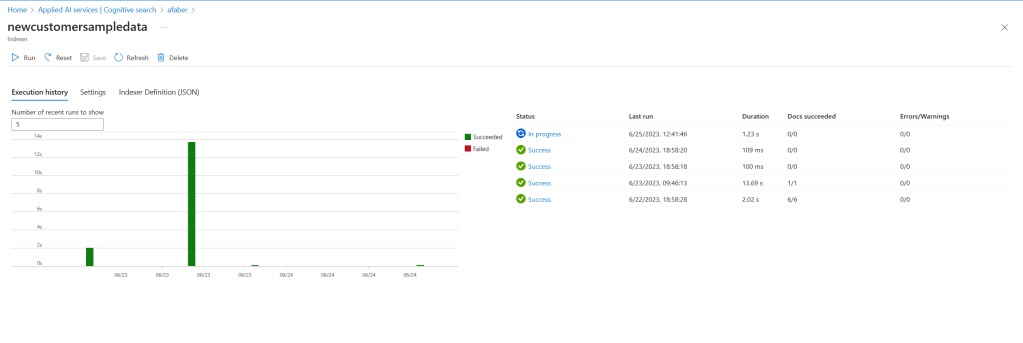
If you click on the name of your indexer, you will see that you also have the option of running this manually, which is great for initial testing.
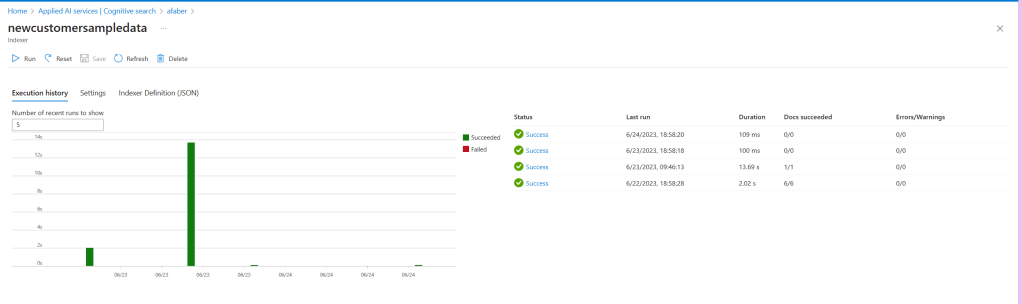
Finally, I should also now see my Data Source listed.
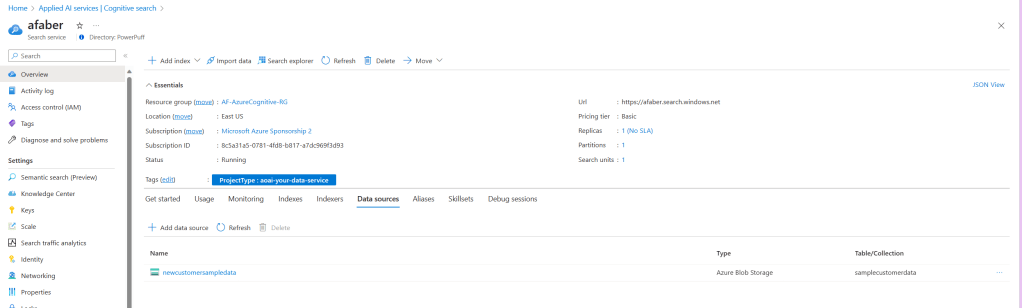
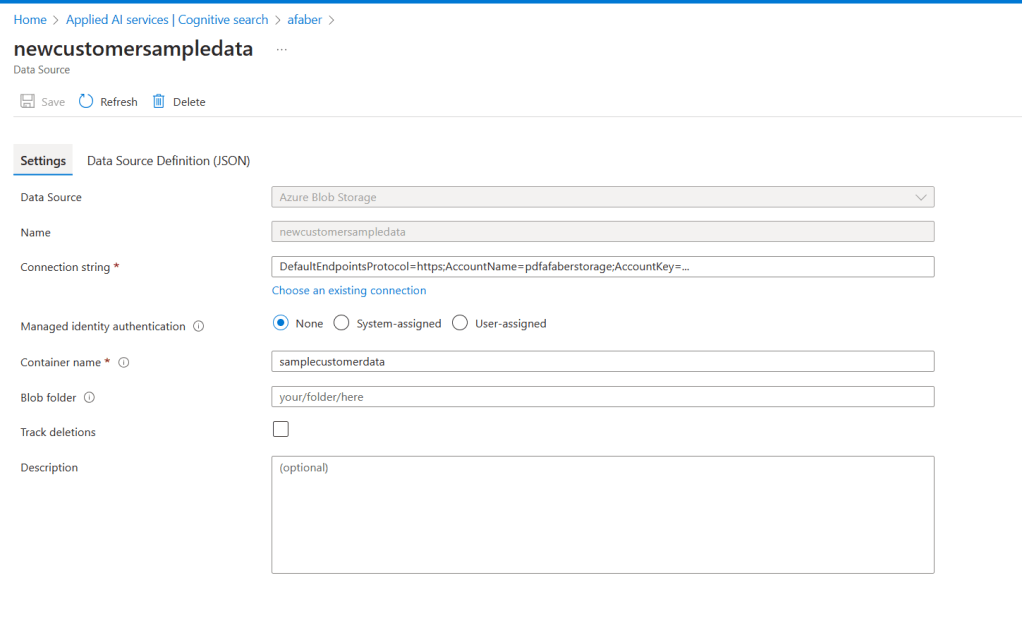
Some of the data source options can be updated later, if needed.
Grounding
Once the Cognitive Search index is all configured the way you need it, then you can proceed to add the grounding data in the Azure AI Studio, as we did previously, just using a different option. This time, I will need to choose Azure Cognitive Search, instead of Azure Blob Storage.
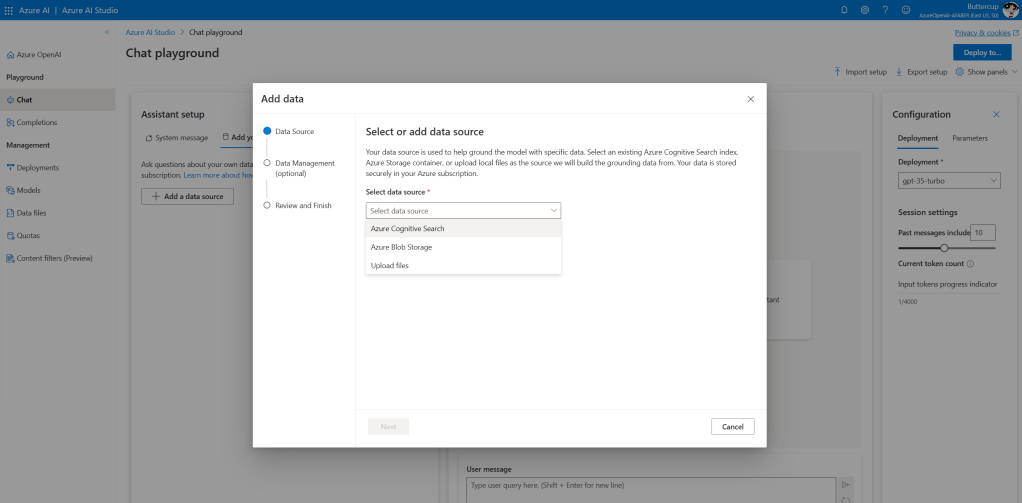
And I choose the new Index I created in the previous step.
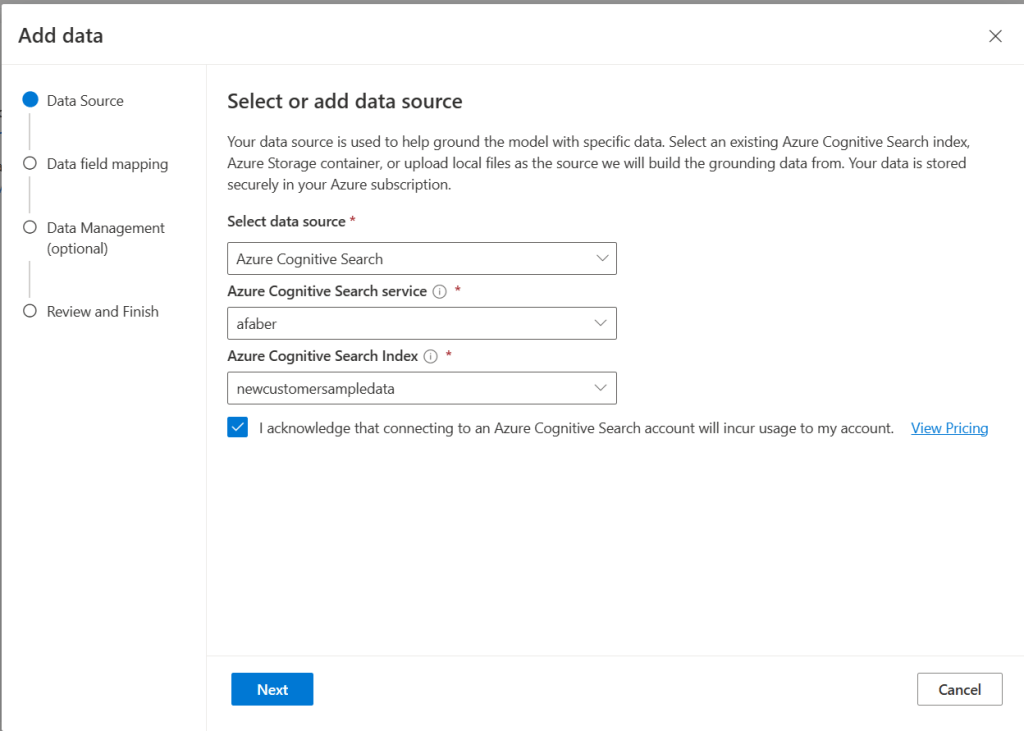
There are additional options for data field mapping and data management, but I am just going with the defaults for this demo.
Once you complete some initial testing using the Chat session, then you can proceed to deploy to the Web App, in the same manner that I did for the previous one.
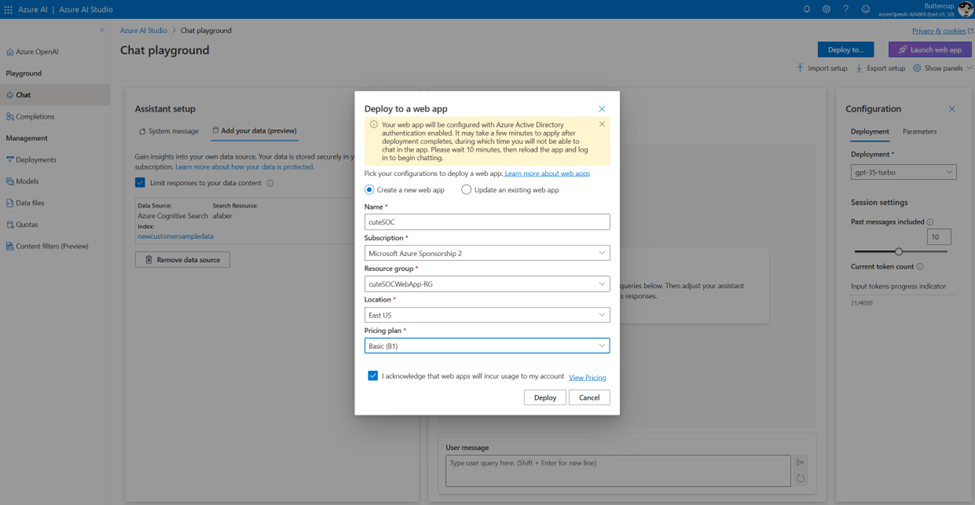
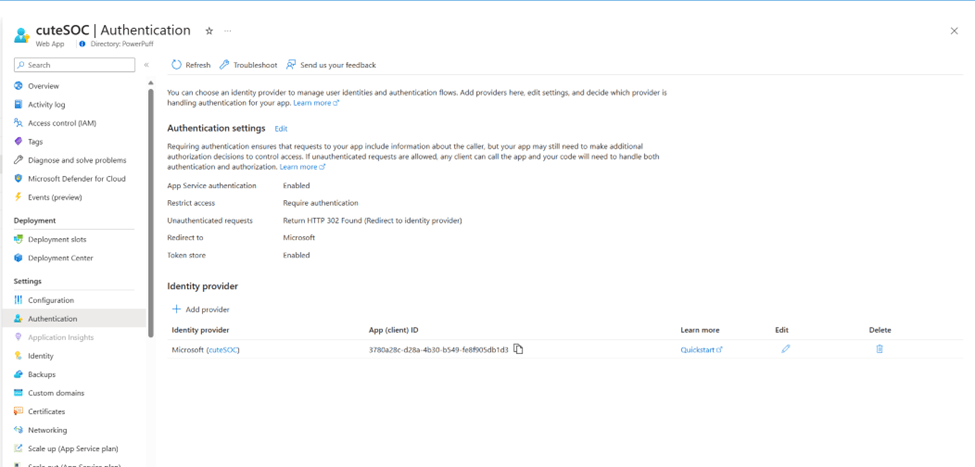
One difference I noticed is that this time the Web App was automatically configured to use Azure AD as my identity provider. I am not sure why I didn’t have to set it up this time, but if you have to configure the IdP, then just go to the App Services menu, choose your application, and then configure it from the Authentication tab.
Testing
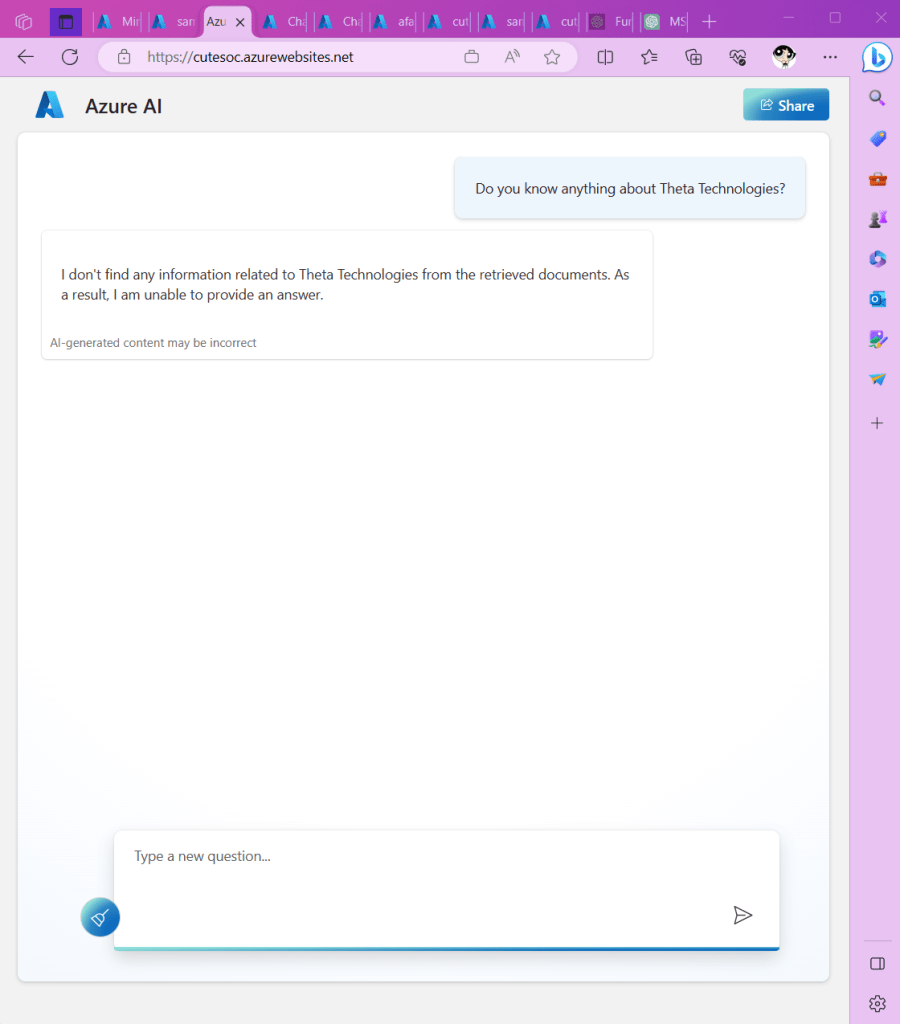
I have a new fictional customer, Theta Technologies, I ask the bot about it, but it doesn’t find anything, as expected.
To expedite my test, I run the indexer manually.
I come back to ask the bot something about Theta Technologies, and now it knows the answer.
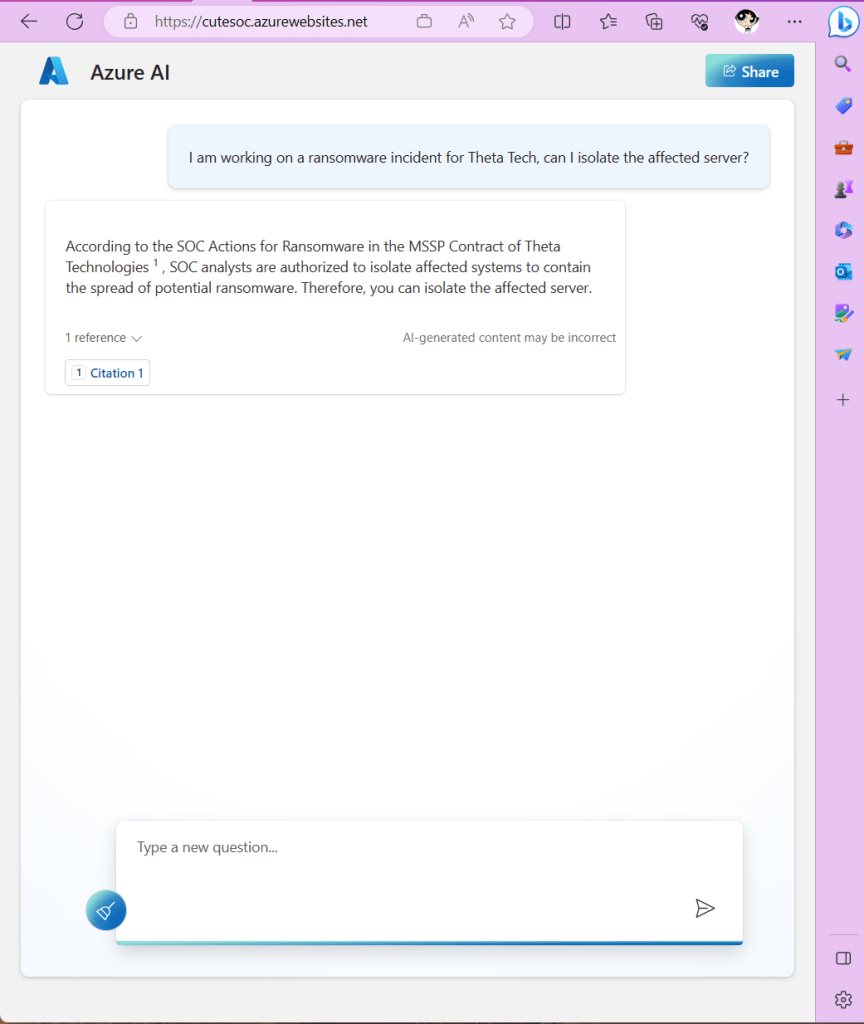
As expected, I can click on the citation, I can see the new document I added.
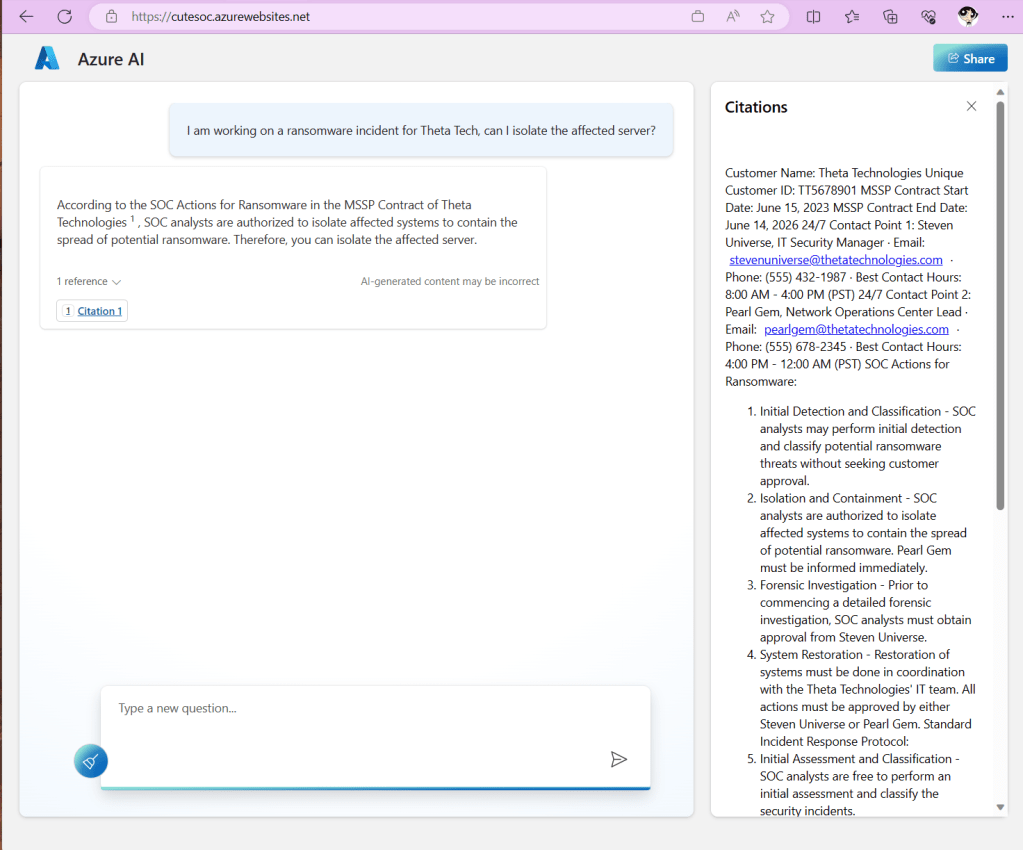
But of course, it’s much easier to continue to conversation with the bot to get the information I need.
Closing
As usual, I hope this information is useful. As you can probably tell by my blog posts, I find these new Azure OpenAI features fascinating. The more I learn, the more I see the potential of these tools to be incredibly useful for cybersecurity defenders.
 My Faber Security
One thought on “Improving my MSSP SOC chatbot”